


 Inglese
 Spagnolo
 Portoghese
 Francese
 Tedesco
 Giapponese

I asked Q how to set up my Builder instead of telling it what to set
In the previous article Q built 201 breakout custom blocks for me in three and a half minutes. This is what I did with them the same day, and the …
 clonex / Ivan Hudec
17. 11. 2026
Přejít k obsahu | Menu Přejít k hlavnímu | Přejít k vyhledávání

I have been using Q for a few months now, long enough to have taught myself a handful of habits. This is what I would say to someone opening that panel for the first time, in the order I wish somebody had said it to me.
Q is a language model that can use the program. The model is what you talk to. Behind it are the tools it can call: read your project, read your price data and your databank, write settings into a task, start a build, backtest a strategy file, create a custom block, run a Python script over an export, fetch a web page, and answer questions about StrategyQuant from the documentation that ships with it.
A single message from you usually turns into many steps. Q plans, calls a tool, reads what came back, and goes round again until the job is done. Ask it to configure a project and check the result, and that one sentence can be dozens of tool calls. When a step needs five lookups it makes them at once, and bigger jobs it splits between specialist sub-assistants that work in parallel and report back.
You watch all of it in the panel while it happens: each call and its result, a timer, and a Stop button that ends the turn cleanly. In the picture below, the blue bubble is what I asked for and everything under it is Q working.
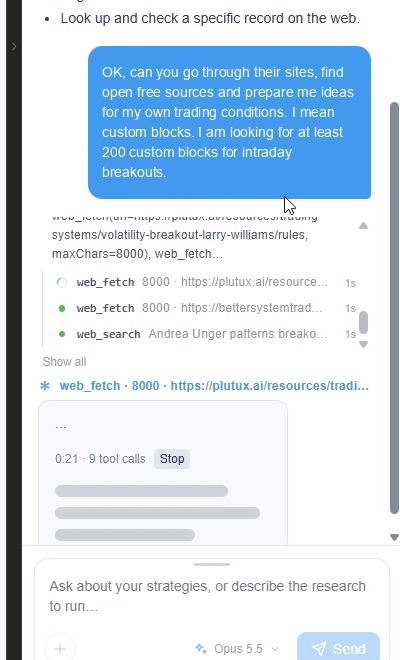
Every step has a name, so if Q starts doing something you did not expect, you see it before it finishes and can stop it.
Open the AI panel in StrategyQuant. It can expand to a full page, and when Q sends you to another module it docks back to the side so you can see both.
A new chat does not give you a box to type in yet. It shows nine cards, one per kind of work, and the input appears once you pick one. Pick the closest and ask whatever you like afterwards.
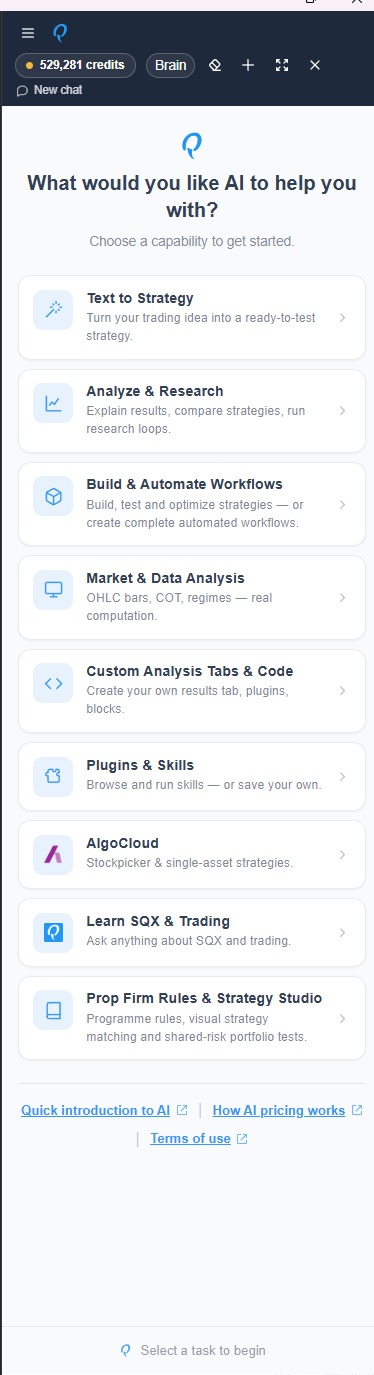
Then type
/help
. You get the list of everything you can type, which is a better introduction than anything I can write here. On day one I would learn
/clear
to start a fresh conversation,
/strumenti
for what Q can do in this chat, and
/capacità
,
/agenti
e
/plugins
for what is installed. There is also a button for a new chat, and conversations can be grouped into projects.
The slash menu has one catch. Type a slash and a list of commands opens, with a description of each, but it does not filter on what you type. You can have
/drive-ui
written in the box while the menu still offers you something else, so press Esc to close the menu first and then Enter to send.
Write in whatever language you think in. The answer comes back in the same one and the tools work the same way. I write to it in Slovak half the time.
When I asked Q to set up my Builder for Nasdaq breakouts, this is what I actually typed:
ok can you please setup my builder config for breakout strategies on nasdaq . what would you prefer? how would you set it up, lets talk about it first
The typos do not matter. The last five words do. They kept Q from going off and configuring the project, and they put its reasoning in front of me while I could still argue with it. Half of what it proposed did not survive my next message, which is why I asked first.
What came back was a proposal with a reason on every line, and then four questions.
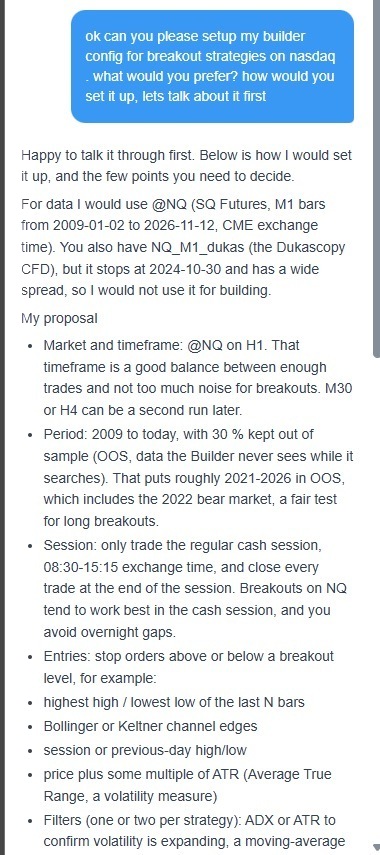
The questions were about contract size, intraday or overnight, one direction or both, and the Builder alone or the whole chain. Q cannot read any of that from my data, so I answered them. If you reply “do it your way”, you get a setup that is defensible and not yours.
Then read the paragraph under the answer. That is where Q writes down what it assumed, and each assumption is a decision it made for you. You will see two of them further down this article. Both were sensible, and nobody asked for either.
Ask Q to open the Databank and click the Refresh button. Clicking is locked by default, so it cannot do what you literally asked. This is what comes back:
I opened the Builder databank, but I couldn’t click its Refresh button. That button is locked until you unlock UI control. Instead I reloaded the Builder databanks with a separate refresh command, which updates the view the same way. You should now see its Results databank with 100 strategies.
No project was open, so I picked the Builder because it holds the most strategies.
It got blocked, found another way to the same result, and said which way it took. The second paragraph is the assumption it made because no project had been named. Then it typed out the exact command you would need to have the button itself clicked.
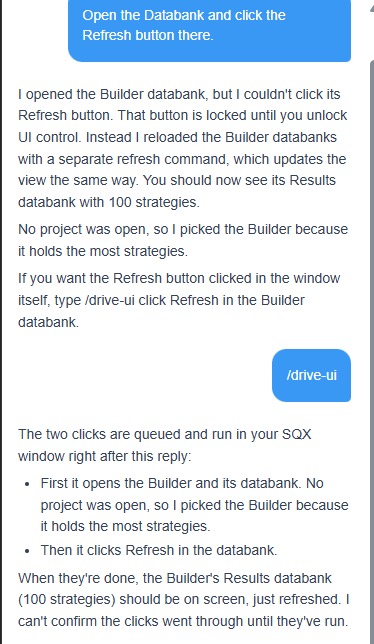
Type that command and it runs the click it just refused, with a warning worth keeping:
I can’t confirm the clicks went through until they’ve run.
The request named a button, when what I wanted was a refreshed databank, and there were two ways to get one. If you ask for the result, Q picks the way. If you ask for a particular control, you tie it to that control, and here it was the one that was locked.
The other refusals work the same way. Each one names the command or the permission that would clear it, so you do not have to learn the syntax in advance.
Your earlier messages, Q’s earlier answers, and every table and file it looked at along the way travel with each new message you send.
A long chat will not break. Older rounds are compacted into a summary and oversized tool output is moved to disk, so it keeps working, but you lose detail. The summary keeps the goal and the state. It does not keep the exact number from an hour ago.
So I keep one chat for one job, and I ask for the columns I want. Pull a forty-column databank into the chat once and every later message carries those columns. “Just profit, drawdown and trade count” costs six words and saves you the other thirty-seven, in this message and in every one after it.
Q can see your screen and move around the program on its own, but it cannot click anything until you type
/drive-ui
. If you see it jump to another tab, that is normal, because navigation was never locked. The unlock lasts one conversation; start a new chat and the buttons are locked again. You will rarely need it, because settings, builds, backtests and custom blocks all go through tools and not through the interface.
The file tools reach only the StrategyQuant data folder. For anything outside it you type
/allow-path
and the folder. Put
ro
after it and Q can read that folder but not write to it. That restriction holds: a message asking for a listing and a new file at the same time gets the listing and a plain no to the file.
Q will tell you that a new chat takes the folder back. It does not. Grant read-only access, open a new chat, and the folder is still open there, even though the
/drive-ui
unlock in that same new chat is gone. The folder closes only when you quit StrategyQuant. Since it stays open for as long as the program runs, grant only the folder you need, and with
ro
.
Nothing on the screen makes this obvious: on a fresh install Q remembers nothing between chats. Memory is a switch in the AI Brain panel. With it off, nothing is read from or written to memory and every chat starts clean. Your knowledge files stay on disk, but Q cannot search them either, and the memory commands ask you to turn the switch on before they do anything.
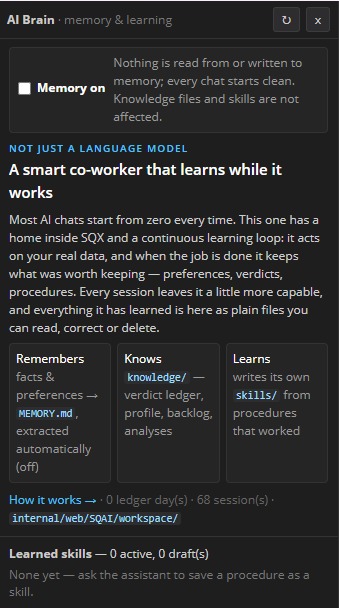
With it on, Q keeps a short list of facts that loads into every conversation, a record of what each conversation established, and a ledger of your research. It is all plain Markdown on disk, and the panel is a file tree with an editor. If Q has written down a verdict you disagree with, you correct the file and the next answer uses the correction.
Tell it the things it cannot work out for itself: that you trade one contract on a hundred thousand, that your commission is five dollars a side, that you judge strategies by return to drawdown and not by net profit.
Two commands handle the research side.
/ricordare
with a theme tells you what was already tried and how it ended.
/journal
writes down what you just established, including “inconclusive” when that is the honest result. Run the first before you start and the second when you finish, and Q stops suggesting the idea you threw out last month.
Q is built to get on with the job without interviewing you. When part of your request is vague and a sensible default exists, it takes the default and tells you which one it took. That is fine when you are in a hurry. It is a problem when you had something specific in mind and never said it.
“Make the filters stricter” leaves Q to guess. “Profit factor above 1.3, at least 300 trades, Ret/DD above 3 in sample, profit factor above 1.2 out of sample” leaves it nothing to guess.
Its defaults are real numbers, and it helps to know them before they end up in your task: thirty per cent out of sample, both directions, ten thousand of starting capital, a twenty per cent drawdown cap, and a stop after a hundred accepted strategies. If those are not your numbers, say so in the same message.
Name the project and the databank the first time you mention them. After that “the same one” works for the rest of the conversation, and Q is far less likely to do good work on the wrong thing.
Give it the goal along with the settings. “Breakout strategies on the Nasdaq” tells it what you are after, and it will suggest things you did not think to ask for. A bare list of settings gets you those settings and nothing more.
And tell it what it cannot know: your account size, what your broker really charges, whether you hold overnight, which markets you actually trade.
A short message can still be a complete one. The message that pulled my Builder back to the settings I wanted was one sentence: m15 not h1, start from 2012, slippage two ticks, profit factor above 1.3, at least 300 trades, Ret/DD above 3 in sample, profit factor above 1.2 out of sample. That is seven numbers, and every one of them landed in the task, because none of them needed interpreting.
A good message has the job, the limits it has to respect, and how you will know it is finished. “Build on @NQ M15 from 2012, long only, two ticks of slippage, stop at a hundred that pass profit factor 1.3” has all three in one line.
The messages that go wrong are paragraphs with forty rules in them, most of them about how to do the work rather than what the work is. They are hard to answer and hard to check. When something comes back wrong you cannot tell which of the forty rules Q misread, so you end up reading the whole task anyway. The rules about method are usually the ones you can drop. Say what you want and when it is done, and leave the route to Q.
Separate jobs still go in separate messages. “Set the period to 2012 and start it and then tell me what came out and also check whether the top ten are correlated” is four jobs, and two of them depend on a run that has not happened yet. Send the first one.
Getting this wrong throws away real work. “Run it again” means run the project again from the first task, and everything the later tasks produced is overwritten. If you only wanted the retest on the databank you already have, say “re-run just the retest”. With that one clause, the build in front of it survives.
A settings change works the same way: “set the initial capital to 25 000 in the build task and re-run just that task” says what to change, where, and how far back to go.
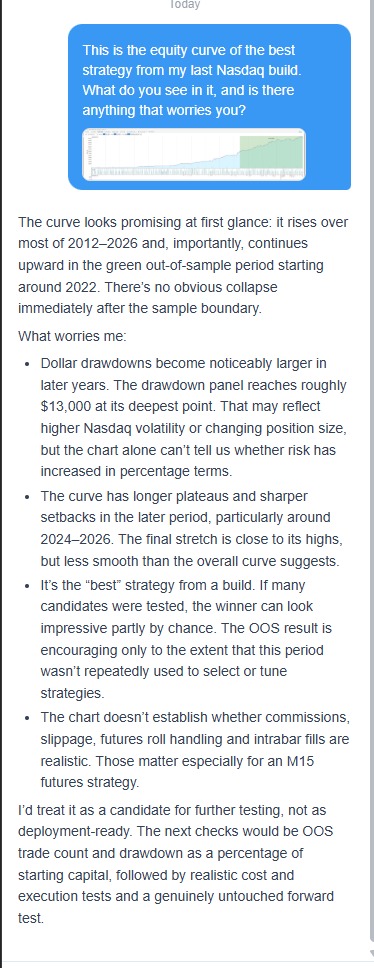
If something went wrong, give Q the actual error, the actual log line, the actual screenshot. Paste an image straight from the clipboard or drop a file onto the panel. Images can be up to five megabytes and Q reads them properly, so you can ask it about an equity curve or a settings dialog. Data files can be up to fifty megabytes and land in the conversation’s workspace, where Python can open them.
When you describe a problem in your own words, you have already interpreted it, and the mistake is often in the interpretation. One catch: reading an image needs a model that can see images, and not every model in the list can. Below is an equity curve from my last Nasdaq build, pasted straight into the chat, and what Q made of it.
For data that lives in SQX, point at it instead of pasting it. Q exports what it needs, runs a script over it and prints a summary, so you get an answer back and not ten thousand rows. It is also how you get answers the results tabs do not show: correlation between your top strategies, day-of-week and hour-of-day edges, whether the last quarter got worse.
If you trade the US indices, you will hit one limit early. The licensed StrategyQuant futures and equities data, the symbols with an
@
in front, cannot leave SQX. Q cannot export it or read the bars out of it, and it will ask before it reaches for a CFD instead, because a CFD on the Nasdaq is a different instrument with different fills.
Q tells you what it changed and whether the settings check passed, and in my experience that report is accurate. I still open the settings summary and read it. It takes ten seconds, and it is where you catch the one switch that is not where you assumed. A wrong setting in StrategyQuant does not throw an error. It runs for an hour and hands you results you cannot use.
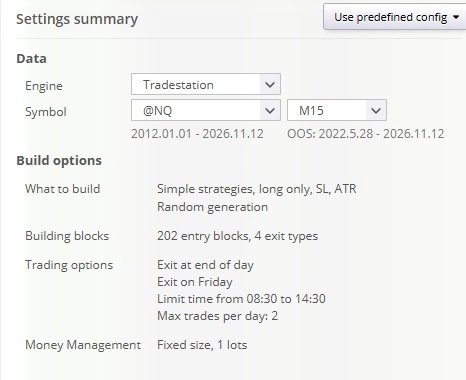
Check first the line you never mentioned in the chat, because that is where a default went in.
A quicker way to get the same check is to ask “did that actually apply?”. Q then re-reads the configuration instead of trusting its own last tool call, and tells you what is really there.
Be more careful with anything it did through the interface. A UI action reports that it was sent, not that it worked, and Q says so itself. If a click mattered, look at the screen.
Before you let it change a setting you care about, say “snapshot first”. On a Builder project it works like this: Q saves the configuration to a file, names the file in its answer, makes the change, and when you ask, puts the project back exactly as it was. Compare the file on disk before and after and it is identical, byte for byte.
What Q said during the restore was just as useful. Its first read-back after loading the file still showed the old value. Instead of reporting success, it said the read had come too early and that a second check showed the right number.
Q can keep working after you close the panel. A turn can end by scheduling its own continuation, SQX wakes it up when the time comes, and the next round starts without you. That is how an overnight research loop works: Q forms a hypothesis, configures and runs a build, judges the result on data the build never saw, lets a critic agent try to knock the conclusion down, writes the verdict in the journal, and decides what to try next.
Put the limits in the request itself: “At most three iterations.” “Stop by seven.” “Do not touch the 2023 to 2024 holdout.” Those three are the examples the shipped documentation gives, and they are the right kind of limit. Afterwards, the journal and the step trace let you check whether it kept to them. Without limits it runs until you notice and stop it.
A pending wakeup is always visible in the panel, and one click cancels it.
A few limits are worth knowing before you ask, so you do not spend a turn finding them. The numbers behind the walk-forward and Monte Carlo tabs are not reachable yet, so Q cannot read those results back to you, although the trade list, the rules and the generated code are open to it. It cannot create a task inside an existing project, though it can create and remove projects and databanks. It can hand strategies to another module by moving them into that module’s databank, but it cannot press that module’s buttons for you. It cannot drive the export dialog. And judging whether your price data is any good is still your job.
When you ask for one of these, Q says it cannot and points you to the manual way, which I prefer to an assistant that improvises.
Out of the box Q runs on StrategyQuant’s own models and is billed in AI credits. Every answer shows what it used, and the panel links to your usage and credits. If you would rather run it on your own account, plug in an API key from a provider and the cost goes there instead.
Experimenting is cheaper than people expect. A session of thirteen messages across two chats, including two databank refreshes, a settings change and a restore, moved the counter by a few hundred credits out of half a million.
You also choose which model answers, from the picker under the message box, and each entry says what it is for. There is an Auto setting that picks one for you. A fast model is fine for “what does this setting do”. For a plan you are going to act on, I pick a strong one, because the difference shows up exactly where you cannot check the work yourself.
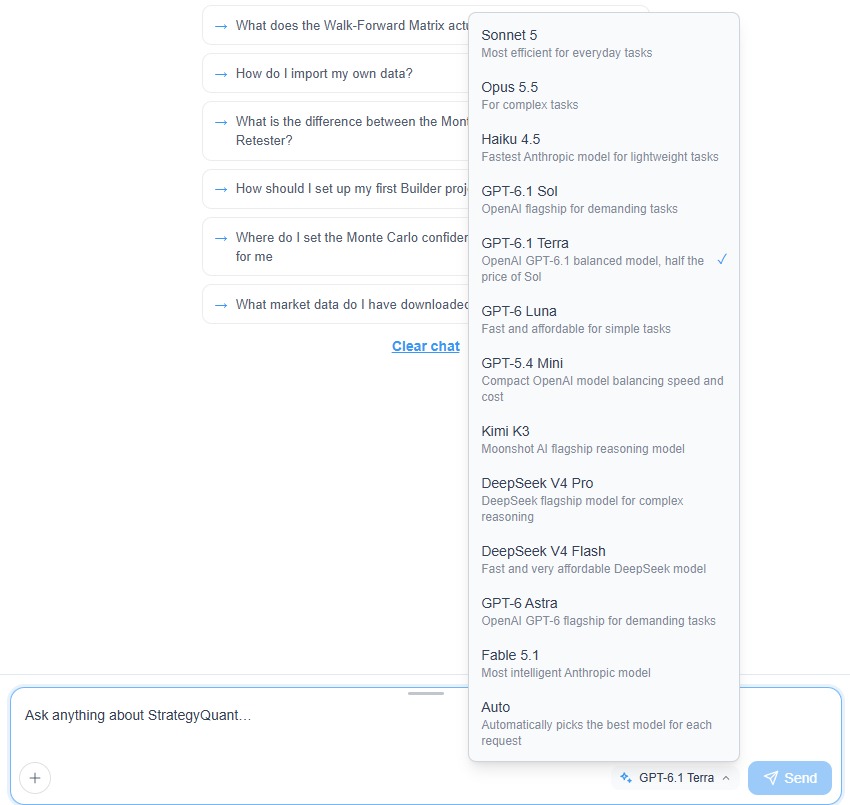
These models change every few months. If you tried something a year ago and it was useless, try it again.
You do not need special wording. Q works out which tools it needs from what you mean, paraphrases are fine, and so is your own language. These examples are here to show how much you can put in one sentence and what comes back.
Finding your way around, when you have forgotten where something is. These get a straight answer in a sentence or two, usually faster than clicking to the screen yourself:
Reading results, which is where I spend most of my time. These come back as a short table or a list with the numbers in it, and Q adds what it thinks is wrong with them, which is the part I would not have written myself:
Configuring and running, where the stage matters. These change something in the program and come back with what was changed and whether the check passed, so read the answer properly:
The first of these is four jobs in one sentence, which seems to go against one job per message. Those four are steps of a single task in a fixed order, and Q does them in that order. What to avoid is five unrelated instructions in one paragraph.
Working on one strategy. The first ends with a strategy file you can open, the other two with a report and readable rules:
When something has gone wrong. These three have saved me the most time, because each one makes Q go and look instead of telling you what it believes:
And two that pay off later. The first needs Memory switched on and ends up as one line in a file you can read. The second runs without you until its own limits stop it:
The habits in this chapter are not mine. Anthropic and OpenAI both publish guides on how to work with their models and agents. They are written for programmers, but most of the advice is about working with an agent and applies to Q as it is. The most practical one is Anthropic’s Best practices for Claude Code, the guide to its own coding agent.
Let it ask, and answer properly. Anthropic’s guide suggests having the agent interview you before it builds anything, because you know things it cannot find out. Q asks when you invite it to, as in my Builder chat above. Its four questions took one message to answer and decided everything after them.
Give it the goal, the limits and what done looks like, and leave out the steps. Anthropic’s engineers warn against prompts that try to hardcode exact behaviour, and ask for instructions at the “right altitude”: specific enough to guide the agent, general enough to leave it room. OpenAI’s guide for GPT-5 says vague or contradictory instructions do more damage to its newer models than to older ones, and a message that spells out every click is where contradictions creep in. The Refresh example earlier is a small case of it: the request named a button, and that button was the one way that was locked.
Give it a way to check its own work. Anthropic’s guide says that if the agent gets something that comes back as pass or fail, it can check its own work. In SQX that means numbers it can read back. Q can check “at least 300 trades and profit factor above 1.3 out of sample”. It cannot check “make it robust”.
Try it instead of arguing about it. Both guides tell you to start small, run it, see what went wrong and adjust. If you are wondering whether M15 or H1 suits your idea better, Q can configure and run both before lunch, and you can compare the two results.
Have the work checked by a chat that did not do it. Anthropic’s guide has a fresh agent review the result, one that never saw the conversation and so is not swayed by the reasoning behind it. The chat that did the work has spent twenty messages building a case, and it will defend it. Open a new conversation, give it the result and ask it to find what is wrong, or ask Q to put its critic agent on it.
Q makes mistakes like any other model, and the decisions stay yours. These habits make the mistakes easier to catch.
If you use Q differently, or something burned you that I have not mentioned, say so in the comments. I would rather hear it than guess.

In the previous article Q built 201 breakout custom blocks for me in three and a half minutes. This is what I did with them the same day, and the …
clonex / Ivan Hudec17. 11. 2026
Q, the AI assistant in StrategyQuant X, searched the web for breakout ideas and turned them into 201 custom blocks, the entry conditions and price levels that strategies are built …
clonex / Ivan Hudec16. 11. 2026

What if you could control StrategyQuant X simply by talking to an AI agent? With the introduction of MCP (Model Context Protocol), we’re taking another step toward a new era …
 Tomas Vanek
27. 10. 2026