


 Inglês
 Espanhol
 Francês
 Italiano
 Alemão
 Japonês
Documentação
Aplicações
Last updated on 24. 9. 2026 by Libor Stepan
Extending Q
Conteúdo da página
Everything on this page is optional. Q works out of the box, and the introdução covers what most people need.
This page is for when you want more: your own procedures saved permanently, your own tools, or Q answering questions from inside a results tab you wrote yourself.
Step 1: Plugins, skills and commands
Skills are written procedures Q loads when they are relevant — how to author a custom block for this install, how to screen a databank for real diversity, how to run a research loop. They are what stops it from improvising something that has an established way of being done.
This installation ships 18 plugins, and inside them the skills, commands, sub-agents and standing rules that do the work. Four commands list what you have: /skills, /agents, /tools e /plugins. Typing / on its own opens the whole command list.
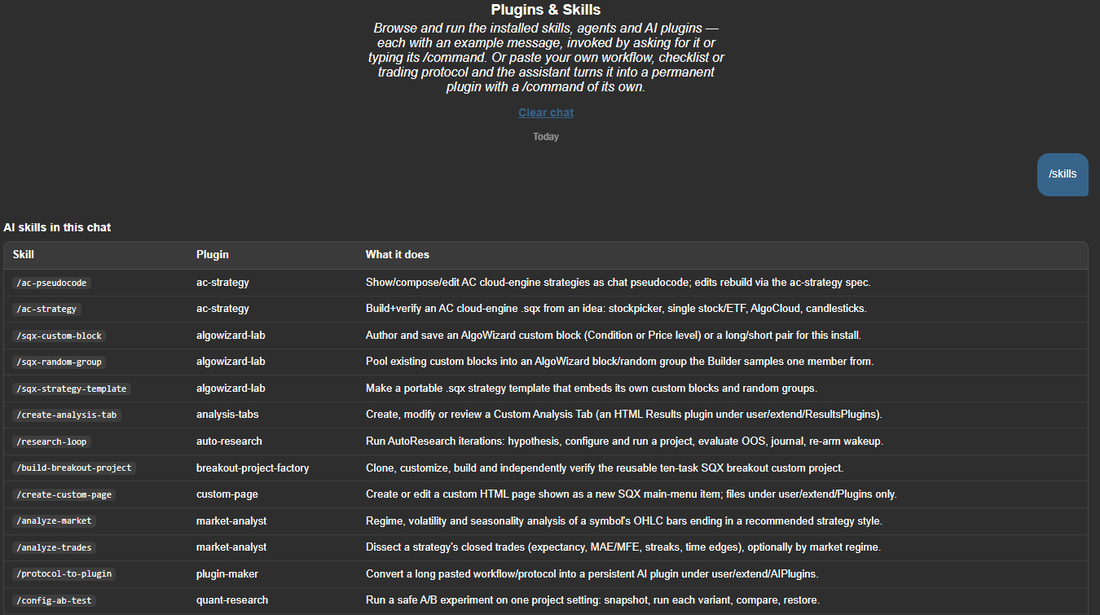
/skills prints every installed skill, which plugin it comes from and what it does — and each one has a /command of its own.
A few of them, to show the range:
- sqx-strategy e ac-strategy — build a finished strategy for the standard engines, or for stockpicker and single-asset cloud
- sqx-project — create or edit a whole custom project from one specification
- sqx-snippets — indicators, signals, databank columns, money management, Monte Carlo methods, what-if filters
- algowizard-lab — custom blocks, block groups and strategy templates bound to your install
- analysis-tabs — your own tabs in the Results view, which is Step 2
- quant-research — A/B tests on a setting, databank reports, portfolio pre-checks, overnight digests
- auto-research — the autonomous hypothesis, build, evaluate and journal loop
- trading-memory — the research ledger: /recall before you start, /journal when you finish
Nota!
Standing rules are invariants, not suggestions. oos-discipline forbids judging strategies on in-sample results alone. confirm-before-applying-configs forbids applying a configuration without your explicit choice. ui-only-on-request keeps Q out of the user interface. They load with their plugin and apply to every turn.
Write your own
Everything above is an AI plugin — a plain folder under user/extend/AIPlugins/ in your StrategyQuant data directory. Adding your own needs no build, no restart and no registration. Drop a folder in and it is live on the next message.
The fast way. If you have a trading protocol, a research checklist or a long prompt you keep re-pasting, type /make-plugin and paste it. Q turns it into rules, a skill, agents and a /command, saves it as a plugin, and it applies to every conversation from then on.
The manual way is the same folder, written by hand:
user/extend/AIPlugins/
└── my-plugin/
    ├── plugin.json          ← {"name": "my-plugin", "description": "...", "version": "1.0.0"}
    ├── skills/
    │   └── my-procedure/
    │       └── SKILL.md     ← a step-by-step procedure (invoked as /my-procedure)
    ├── commands/
    │   └── my-command.md    ← a prompt template (invoked as /my-command args)
    ├── agents/
    │   └── my-reviewer.md   ← a specialist Q delegates to
    └── rules/
        └── my-rules.md      ← always-on instructions, added to every conversation
Each item is a Markdown file with a small frontmatter header and the instructions below it:
---
name: my-procedure
description: When to use this — Q reads this line to decide. Be specific.
runtime: sqai                        # where the item loads
tools: [read_file, query_databank]   # agents only — optional allow-list
---

The instructions follow here, in plain Markdown.
Commands may use $ARGUMENTS (everything after the name) or $1…$9.
The four kinds differ only in when they load:
- rules/ — always-on instructions, such as never risk more than 1 % ou always report in a table. Joined into every conversation automatically.
- skills/ — a procedure for one kind of task. Auto-loaded when the task matches its descrição, or forced with /name.
- commands/ — a reusable prompt template with arguments. Runs only when you type /name args.
- agents/ — a sub-assistant with its own instructions and, optionally, a restricted toolset. Q delegates to it, or you type /name task. Several run in parallel.
Starter templates for all four sit in user/extend/AIPlugins/_templates/ — copy one and fill it in.
Nota!
A plugin is folders and Markdown, so it can be shared, versioned and reviewed like any other file in your repository. Keep the descrição line honest and specific: it is the only thing Q reads when deciding whether a skill is the right one for the job.
Your own tools
A skill teaches Q a procedure; an AI tool gives it a new capability. It is a Java snippet like any other in StrategyQuant, except that once it compiles Q can call it exactly like a built-in tool. Create one in the Code Editor — New → AI tool — or ask Q to write it. It lands in user/extend/Snippets/SQ/AITools/, the class name becomes the tool name with an ext_ prefix, the @Description becomes what Q reads when choosing it, and the public @Parameter fields become the arguments. Compile it and it is callable in the next message.
Step 2: Q inside your own results tabs
Q is not only the panel. A custom Results plugin — your own tab in the Results view — can ask Q a one-shot question and show the answer where the numbers already are. Explain this strategy’s principle, on a button click, next to the equity curve.
It goes through the plugin interface’s AI_COMPLETE message, the same PostMessage API every other plugin request uses:
window.parent.postMessage({
  type: 'AI_COMPLETE',
  requestId: 'explain-' + strategyName,               // optional, echoed back
  params: {
    prompt: 'Explain this strategy in plain language: ...',
    system: 'You are a concise trading assistant.'    // optional
  }
}, '*');

window.addEventListener('message', (event) => {
  if (event.data?.type !== 'AI_COMPLETE_RESPONSE') return;
  // event.data.data.success = the model's answer
  // event.data.data.error   = what went wrong
});
The completion runs on the same model the chat is set to and is billed the same way, so it spends AI credits from the same balance. It is stateless — no history, no tools, one question, one answer — and it never blocks the chat.
House rules, because it is the user’s credits you are spending. Call it only on an explicit click, never automatically while someone browses a databank. Cache the answer per strategy and put an explicit Regenerate next to it. Keep the prompt small. Label the button as a billed AI request, so nobody is surprised by the balance.
The AI Strategy Summary tab: pick a strategy, press the button, get its principle in plain language — cached, with Regenerate, and labelled as a billed request.
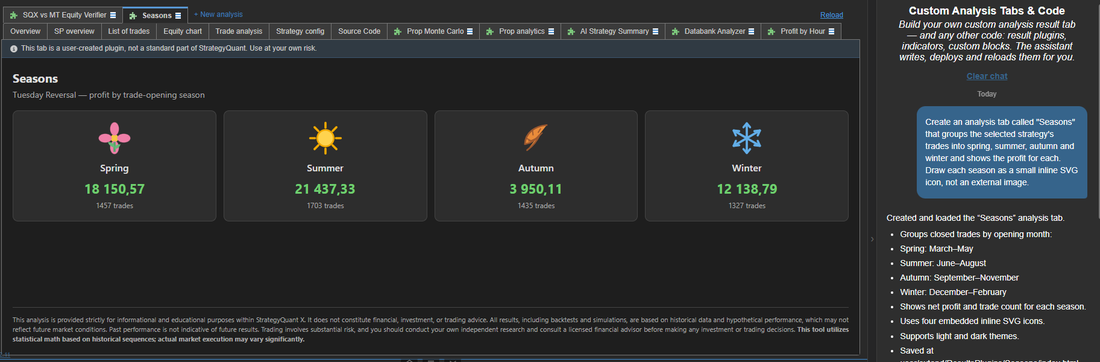
And you do not have to write it yourself. This is what the Custom Analysis Tabs & Code area is for:
> Create an analysis tab with an ‘Explain with AI’ button: when I click a strategy and press it, send the strategy’s pseudocode and key stats to the AI and show the explanation — cached per strategy, with a Regenerate button.
Q writes the plugin, deploys it under user/extend/ResultsPlugins/ and reloads the Results view, following the rules above by design.
Not every tab has to call the AI, of course. Most are plain computation over the trade list — and those cost nothing to run.
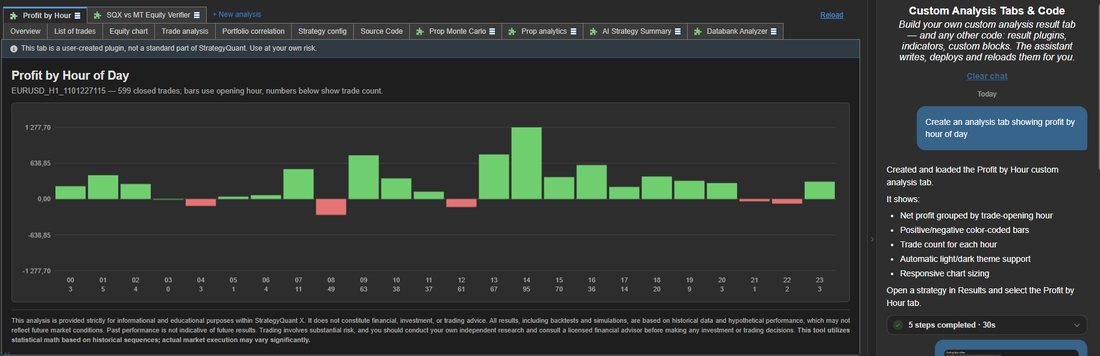
The same area, a different tab: net profit grouped by the hour a trade opened, colour-coded, with the trade count under each bar. Written, deployed and reloaded from one sentence.
Where to go from here
- O introdução — what Q is, how a request is answered and what it remembers
- Starter templates for all four plugin kinds sit in user/extend/AIPlugins/_templates/ in your installation
Este artigo foi útil? O artigo foi útil O artigo não foi útil