


 英語
英語 スペイン語
スペイン語 ポルトガル語
 フランス語
フランス語 イタリア語
イタリア語 ドイツ語
ドイツ語ドキュメント
アプリケーション
最終更新日:2020年5月18日(マーク・フリック)
エンベロープインジケーター
ページのコンテンツ
この例では、以下を追加します 封筒 インジケーターを「StrategyQuant X」に設定します。.
このインジケーターのMQLコードはこちらで見つかります: https://www.mql5.com/en/code/7975
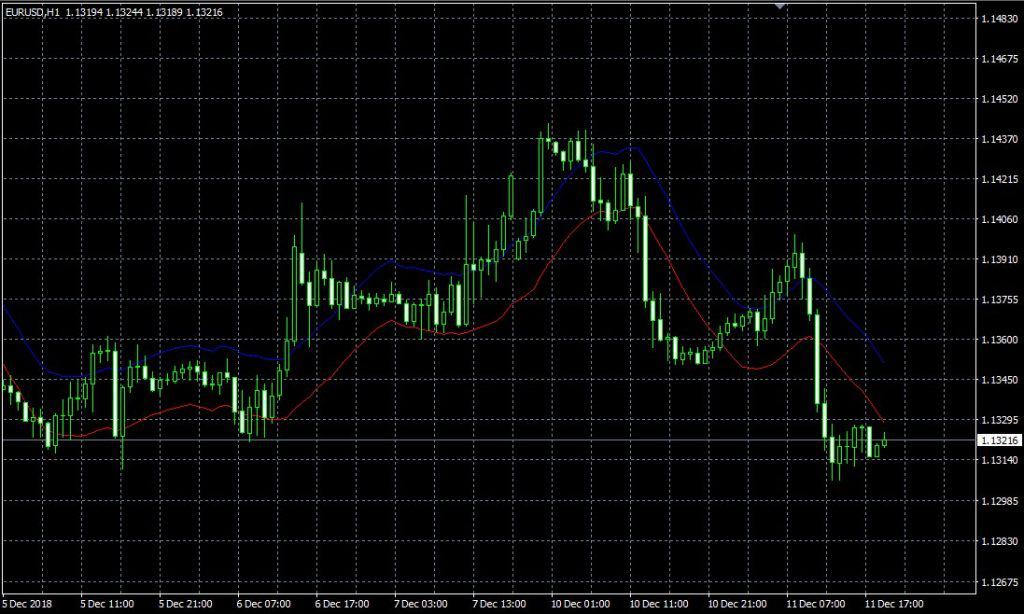
このインジケーターもMetaTraderに標準装備されており、MQLコードからiEnvelopesメソッドを使用して呼び出すことができます。チャート上のインジケーターの見た目は以下の通りです:
SQ Xに新しいインジケーターを追加するには、いくつかの手順に従う必要があります:
- 新しい指標ビルディングブロックを追加中
新しいインジケーターのスニペットを作成し、そのコードを更新してエンベロープインジケーターを計算します。. - (任意、推奨)MTのデータとSQ Xの新インジケーターのテスト
実装中または実装後に、インジケーターが正しく実装されていることを確認するために、SQによって計算されたインジケーターの値とMQLによって計算された値を比較する必要があります。 - インジケーターブロックの翻訳をターゲットプラットフォームの言語に追加しています
インジケーターは現在SQで動作しますが、このインジケーターを使用する戦略は動作しません。サポートしたいすべてのトレーディングプラットフォームに対して、このインジケーターのソースコードを生成するためのテンプレートを追加する必要があります。
新しいインジケーターのスニペットを追加しています
これを行うために、私たちは開きます コードエディタ.
そこでクリックします 新規作成 ツールバーのボタン

そしてポップアップダイアログに「を入力します。‘封筒‘を新しい指標名とし、残す 指標 スニペットタイプとして。.
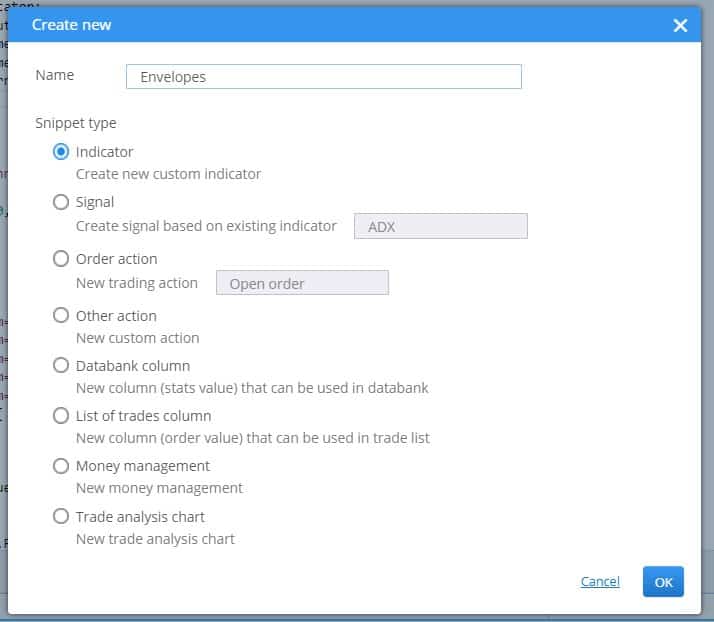
クリック 了解, 、新しいインジケーターが作成されます。.
ナビゲーションツリーの「Snippets」>「SQ」>「Blocks」>「Indicators」の中にあります。「Envelopes」という専用のフォルダがあり、インジケータのスニペットコードはそのファイル内にあります。 Envelopes.java
StrategyQuantでは、各インジケーターを個別のフォルダに配置するのが慣例となっています。これは、後でそのインジケーター用のシグナルを作成する際、関連するスニペットがすべて同じフォルダにまとめられるようにするためです。.
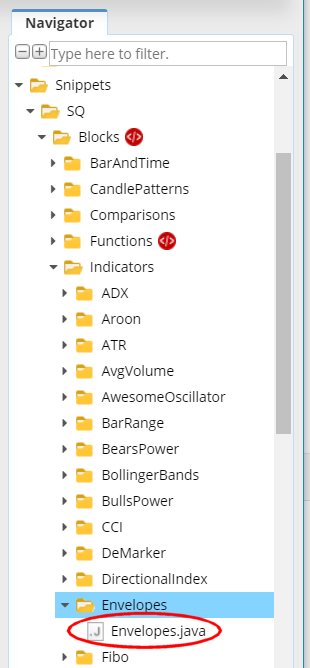
この操作により、Envelopesインジケーター用の新しいファイルが作成され、エディターで開かれます。インジケーターがクラスであり、すでにいくつかの構造を持っていることが確認できます。.
すべてのインジケーターは IndicatorBlock クラスを継承しており、以下の1つのメソッドを実装する必要があります:
- OnBarUpdate() – インジケーターの値が計算され、出力バッファの1つに格納されるメソッド。チャート上のすべてのバーに対して呼び出されます。.
ソースコードを確認すれば、いくつかのことに気づくはずです。.
まず、StrategyQuantのスニペットでは、@Parameter、@Output、@BuildingBlockといったアノテーションが頻繁に使用されています。これらのアノテーションは、特定の変数やクラスの特別なプロパティ(その変数がパブリックパラメータや出力値であること、あるいはそのクラスがインジケーターブロックであることなど)を宣言するために使用されます。.
次に、インジケーターを作成してコンパイルしたら、次のようにして他のメソッドやインジケーターから呼び出すことができます。 Indicators.YourIndicator(YourIndicatorParameters). これは、あるインジケーターから別のインジケーターを呼び出す方法です。後ほど説明するように、エンベロープ(Envelopes)でも移動平均線インジケーターを呼び出すためにこれを使用します。.
テンプレートから作成されたデフォルトのインジケータークラスのソースコードを、1ステップずつ見ていきましょう:
package SQ.Blocks.Indicators.Envelopes;

import com.strategyquant.lib.*;
import com.strategyquant.datalib.*;
import com.strategyquant.tradinglib.*;

import SQ.Internal.IndicatorBlock;
これは、パッケージの標準的なJava宣言と、自社のクラスで使用する必須クラスのインポートです。.
@BuildingBlock(name="(XXX) エンベロープ", display="エンベロープ(#Period#)[#Shift#]", returnType = ReturnTypes.Price)
@Help("エンベロープのヘルプテキスト")
public class Envelopes extends IndicatorBlock {
指定された名前を持つビルディングブロックであることをシステムに伝える、インジケータークラスのアノテーション付き定義。.
- 名前 フィールドとは、ビルディングブロックを選択する際にUIに表示されるものです。.
- 表示 フィールドは、パラメータ付きウィザードに表示されるものです。どのパラメータをどこに表示するかを制御できます。
- 戻り値の型 これはインジケーターの一種であり、このインジケーターがどのような値を算出するかを示しています。これは、StrategyQuantがどのタイプを何と比較すべきかを判断するために使用されます。例えば、CCI(数値を返す)とボリンジャーバンド(価格を返す)を比較することはありません。.
インジケーターが持つことができる戻り値の型は、基本的には3つあります:
- 価格 – インジケーターは価格を計算し、価格チャート上に表示されます – ボリンジャーバンドや移動平均線などのように。.
- 番号 – インジケーターは、CCI、RSI、MACDなどのように、自身のチャート上に表示される数値を計算します。.
- 価格帯 – インディケーターは価格帯(2つの価格の差)を計算します – ATRのようです
他の戻り値の型は、別の種類のビルディングブロックで使用されます。.
私たちのケースでは、エンベロープは価格の移動平均から計算されるため、価格チャート上に表示されます。つまり、その戻り値の型はPriceです。.
@Parameter
public DataSeries Input;

@Parameter(defaultValue="10", isPeriod=true, minValue=2, maxValue=1000, step=1)
public int Period;

@Output
public DataSeries Value;
以下はインジケーターのパラメータです。すべてのインジケーターが複数の入力パラメータを持つことができますが、テンプレートでは例としてそのうちの2つだけを作成しています。すべてのパラメータには次のように注釈が付けられています。 @パラメータ いくつかの属性を持つことができるアノテーション。.
最初のパラメータは 入力, 、これは指標が計算されるデータシリーズの配列であり、例えば始値、高値、安値、終値などが該当します。.
2番目のパラメータは ピリオド, 通常、指標には算出される期間があります。.
第三の変数は 価値, 注釈が異なることに注意してください 出力. これは、この変数がインジケーターのパラメーターではなく、その出力バッファーであることを意味します。インジケーターには通常、出力バッファーが1つしかありませんが、複数のバッファーを持つこともできます。たとえば、ボリンジャーバンドには上限と下限のバッファーがあります。.
隠しパラメータがもう一つあります シフト – これはすべてのインジケーターにデフォルトで含まれており、どの過去の値を参照すべきかを取引エンジンに伝えます。通常、このパラメータを気にする必要はなく、自動的に使用されます。.
次に、一つの方法があります:
protected void OnBarUpdate() throws TradingException {...}
ここはインジケーターの値が計算されるメソッドです。各バーに対してSQから内部的に呼び出され、このバーのインジケーターの値を計算して出力バッファに保存する必要があります。.
これは標準インジケータテンプレートのソースコードです。次のステップでは、エンベロープインジケータを実装するために行う必要がある変更を示します。.
生成されたデフォルトテンプレートの修正とインジケーターの実装
ステップ1で作成したインジケーターは標準的なインジケーターのテンプレートであり、まだエンベロープを計算しません。これを実装するには、いくつかの作業を行う必要があります:
@BuildingBlocks アノテーションを更新する
このインジケーターのアノテーションを以下のように更新します。
@BuildingBlock(name="(EP) エンベロープ", display="エンベロープ(#MA_Period#, #Deviation#)[#Shift#]", returnType = ReturnTypes.Price)
@Help("エンベロープ指標")
public class Envelopes extends IndicatorBlock {
ここは一番簡単な部分です。更新するだけです 名前 インジケーターの(下記を参照して)実際の新しいパラメータを追加する 表示 属性.
実際のパラメータを定義する
最初のステップは少し厄介で、デフォルトの型を変更しなければなりません。 入力 パラメータ。標準テンプレートでは次のように定義されています:
@Parameter
public DataSeries Input;
これはパラメータ名です 入力, 、タイプ付きで データシリーズ. これは、1つの価格のみから計算される大部分のインジケーターに当てはまります。例えば、CCIやRSIなどのインジケーターは通常、終値から計算されます。別の価格(例えば始値など)から計算するように設定することも可能ですが、それでも価格配列は1つだけです。.
DataSeries型は、終値、始値、あるいは典型価格などの値を保持する値型の配列です。.
しかし、EnvelopesのMQLソースコードをご覧になればお分かりのように、その値は価格のいずれかと出来高から計算されています。.
複数の価格配列に一度にアクセスできるようにするために、出力には別の型を使用します:
@Parameter
public ChartData Input;
チャートデータ typeはチャート全体を表すオブジェクトであり、指定されたチャートの始値(Open)、高値(High)、安値(Low)、終値(Close)、出来高(Volume)の価格にアクセスできます。これが必要な理由は、適用価格(Applied price)パラメータに従ってインジケーターを計算するためです。.
簡単な注意:入力データ変数の適切な型を選ぶことは難しくありません:
インジケーターが1つの価格から計算され、適用価格を選択するオプションがない場合は、DataSeriesの使用を継続してください。.
複数の価格から計算される場合や、高値、安値、終値などの選択肢がある場合は、ChartDataを使用します。.
そして、その他の指標パラメータがあります:
@Parameter(defaultValue="14", isPeriod=true, minValue=2, maxValue=1000, step=1)
public int MA_Period;
MA_Period は、このインジケーターの「標準的な」期間パラメーターです。.
@Parameter(defaultValue="0", minValue=0, maxValue=10, step=1)
public int MA_Moved;
MA_Movedはこのインジケーターのシフトです。MQLコードではこのパラメータはMA_Shiftという名前ですが、ShiftはSQでは予約語であるため、名前を変更する必要があります。.
@Parameter(name="Method", defaultValue="0")
@Editor(type=Editors.Selection, values="Simple=0,Exponential=1,Smoothed=2,Linear weighted=3")
public int MA_Method;
このパラメータは移動平均法です。これは少し複雑です。なぜなら、このパラメータの編集コントロールとして選択リスト(コンボボックスコントロール)を定義しているからです。そのため、ウィザードで編集する際に、ユーザーは事前定義された値から選択できるようになります。.
@Parameter(defaultValue="0")
@Editor(type=Editors.Selection, values="Close=0,Open=1,High=2,Low=3,Median=4,Typical=5,Weighted=6")
public int Applied_Price;
Applied_Price についても同様です。これはエンベロープの計算に使用できる入力の選択肢です。.
@Parameter(defaultValue="0.1", minValue=0.01, maxValue=10, step=0.01, builderMinValue=0.05, builderMaxValue=1, builderStep=0.05)
public double Deviation;
偏差はエンベロープ指標の最後の入力パラメータです。.
なお、これらのパラメータについては、min、max、stepの値もいくつか指定しています。.
最小値/最大値 設定できる最小/最大範囲です。.
ビルダー最小値/ビルダー最大値 これは、SQのビルダーが戦略を生成する際に使用するオプショナルな範囲であり、minValue/maxValueで定義された最大範囲よりも小さくすることができます。
デフォルト値 このインジケーターのデフォルト値を定義します。.
ステップ/ビルダーのステップ パラメータ値のステップを定義する
出力の定義
エンベロープインジケーターには、アッパーとロワーの2つの出力があり、MT4チャート上で2つの異なる線を確認できます。.
そのため、2つの出力も定義する必要があります:
@Output(name="Upper", color=Colors.Green)
public DataSeries Upper;

@Output(name="Lower", color=Colors.Red)
public DataSeries Lower;
注釈 出力 これは、このインジケータの出力バッファであることを意味します。DataSeries型を持っているため、double値の配列であることに注意してください。.
OnBarUpdate() メソッドを実装する
EnvelopesのMQLコードをご覧いただければ、非常にシンプルであることがお分かりいただけます。そのMQLコードは以下の通りです:
  int start()
  {
   int limit;
   if(Bars<=MA_Period) return(0);
   ExtCountedBars=IndicatorCounted();
//---- check for possible errors
   if (ExtCountedBars<0) return(-1);
//---- last counted bar will be recounted
   if (ExtCountedBars>0) ExtCountedBars--;
   limit=Bars-ExtCountedBars;
//---- EnvelopesM counted in the buffers
   for(int i=0; i<limit; i++)
     {
      ExtMapBuffer1[i] = (1+Deviation/100)*iMA(NULL,0,MA_Period,0,MA_Method,Applied_Price,i);
      ExtMapBuffer2[i] = (1-Deviation/100)*iMA(NULL,0,MA_Period,0,MA_Method,Applied_Price,i);
     }
//---- done
   return(0);
  }
少し分析すればわかるように、上限(Upper)および下限(Lower)の値は簡単な数式を使って計算されています。
アッパーバンド = [1 + 偏差 / 100] * 移動平均(価格, 期間)
下限バンド = [1 - 偏差 / 100] * MA(価格, 期間)
ここで、パラメータ DEVIATION、MA、PRICE および PERIOD は設定可能です。.
Javaでは次のように実装できます:
    @Override
    protected void OnBarUpdate() throws TradingException {
        double ma = computeMA();
        Upper.set( (1+Deviation/100d) * ma );
        Lower.set( (1-Deviation/100d) * ma );
    }
方法 OnBarUpdate() チャート上のすべてのバーに対して呼び出されます。その役割は、このバーにおけるインジケーターの値を計算し、それを出力バッファに格納することです。.
したがって、私たちのケースでは、実際のバーの上限値と下限値の両方を計算し、呼び出しによってそれぞれのバッファに格納します。 Upper.set(), Lower.set().
特別なヘルパーメソッドを使用していることに注意してください computeMA() MA_MethodおよびApplied_Priceパラメータに従って移動平均を計算する.
このヘルパーメソッドのコードは以下の通りです:
private double computeMA() throws TradingException {
  DataSeries MAInput;

  switch(Applied_Price){
    case 0: MAInput = Input.Close; break;
    case 1: MAInput = Input.Open; break;
    case 2: MAInput = Input.High; break;
    case 3: MAInput = Input.Low; break;
    case 4: MAInput = Input.Median; break;
    case 5: MAInput = Input.Typical; break;
    default: throw new TradingException(String.format("Undefined Applied price: %d !", Applied_Price));
  }

  switch(MA_Method){
    case 0: return Indicators.SMA(MAInput, MA_Period).Value.get(MA_Moved);
    case 1: return Indicators.EMA(MAInput, MA_Period).Value.get(MA_Moved);
    case 2: return Indicators.SMMA(MAInput, MA_Period).Value.get(MA_Moved);
    case 3: return Indicators.LWMA(MAInput, MA_Period).Value.get(MA_Moved);
    default: throw new TradingException(String.format("Undefined MA Method: %d !", MA_Method));
  }
}
少し長いですが、理解できます。まず、根据 適用価格 パラメータ.
2番目のステップでは、入力に対して適切な移動平均インジケーターを呼び出します。 MA手法 パラメータ.
例えば、コールの一つを細かく見てみましょう:Indicators.SMA(MAInput, MA_Period).Value.get(MA_Moved):
- Indicators.SMA(MAInput, MA_Period) MA_Periodを持つMAInput入力でSMAインディケーターを呼び出します。SMAインディケーターにはValueと呼ばれる出力バッファが1つだけあるため、計算されたインディケーターの値はそこに格納されます。.
- 単純に呼び出すことでバッファを取得できます .Value
- ValueはUpperやLowerバッファと同様にバッファ(DataSeries型)であり、各値がチャート上の1本のバーに対応する倍精度浮動小数点数(double)の値の配列であることを意味します。N番目のバーの値を取得するには、次のように呼び出す必要があります。 Value.get(N).
私たちのケースでは、…と呼ぶことにします .Value.get(MA_Moved), MA_Moved パラメータに従って、オプションでいくつかのバーを過去にシフトさせたいからです。.
So the whole call Indicators.SMA(MAInput, MA_Period).Value.get(MA_Moved) will compute SMA with period MA_Period on the MAInput data, and returns its value MA_Moved bars ago.
Note that values in output buffer are indexed from zero, where zero is value of the most current bar.
So:
- Value.get(0) – returns value of the current bar
- Value.get(1) – returns value of the previous bar
- Value.get(2) – returns value of the bar before previous bar and so on
これで全部です。さあ、私たちが打つ時は コンパイル and then restart SQ we will see our new Envelopes indicator in Random Indicators Signals section.
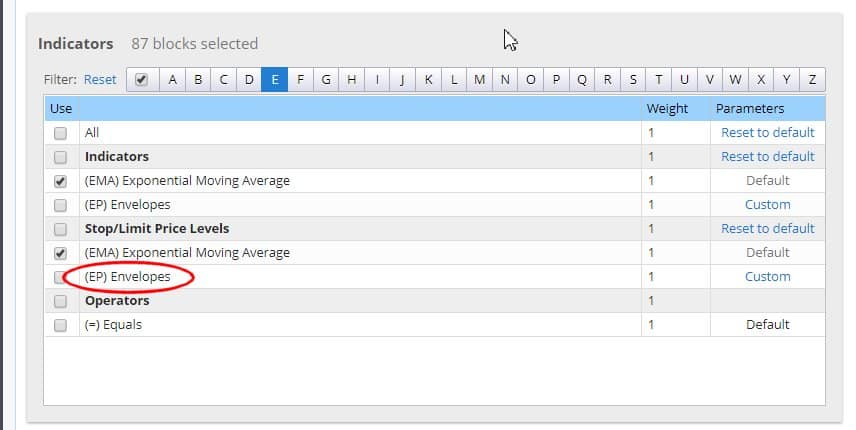
Full source code of our new indicator – you can download it also in the attachment to this article:
package SQ.Blocks.Indicators.Envelopes;

import com.strategyquant.lib.*;
import com.strategyquant.datalib.*;
import com.strategyquant.tradinglib.*;

import SQ.Internal.IndicatorBlock;

/**
 * Indicator name as it will be displayed in UI, and its return type.
 * Possible return types:
 * ReturnTypes.Price - indicator is drawn on the price chart, like SMA, Bollinger Bands etc.
 * ReturnTypes.Price - indicator is drawn on separate chart, like CCI, RSI, MACD
 * ReturnTypes.PriceRange - indicator is price range, like ATR.
 */
@BuildingBlock(name="(EP) Envelopes", display="Envelopes(#MA_Period#, #Deviation#)[#Shift#]", returnType = ReturnTypes.Price)
@Help("Envelopes indicator")
public class Envelopes extends IndicatorBlock {

  @Parameter
  public ChartData Input;

  @Parameter(defaultValue="14", isPeriod=true, minValue=2, maxValue=1000, step=1)
  public int MA_Period;

  @Parameter(defaultValue="0", minValue=0, maxValue=10, step=1)
  public int MA_Moved;

  @Parameter(name="Method", defaultValue="0")
  @Editor(type=Editors.Selection, values="Simple=0,Exponential=1,Smoothed=2,Linear weighted=3")
  public int MA_Method;

  @Parameter(defaultValue="0")
  @Editor(type=Editors.Selection, values="Close=0,Open=1,High=2,Low=3,Median=4,Typical=5,Weighted=6")
  public int Applied_Price;

  @Parameter(defaultValue="0.1", minValue=0.01, maxValue=10, step=0.01, builderMinValue=0.05, builderMaxValue=1, builderStep=0.05)
  public double Deviation;

  @Output(name="Upper", color=Colors.Green)
  public DataSeries Upper;

  @Output(name="Lower", color=Colors.Red)
  public DataSeries Lower;


  //------------------------------------------------------------------------
  //------------------------------------------------------------------------
  //------------------------------------------------------------------------

  @Override
  protected void OnBarUpdate() throws TradingException {
    double ma = computeMA();

    Upper.set( (1+Deviation/100d) * ma );
    Lower.set( (1-Deviation/100d) * ma );
  }

  //------------------------------------------------------------------------

  private double computeMA() throws TradingException {
    DataSeries MAInput;

    switch(Applied_Price){
      case 0: MAInput = Input.Close; break;
      case 1: MAInput = Input.Open; break;
      case 2: MAInput = Input.High; break;
      case 3: MAInput = Input.Low; break;
      case 4: MAInput = Input.Median; break;
      case 5: MAInput = Input.Typical; break;
      default: throw new TradingException(String.format("Undefined Applied price: %d !", Applied_Price));
    }

    switch(MA_Method){
      case 0: return Indicators.SMA(MAInput, MA_Period).Value.get(MA_Moved);
      case 1:	return Indicators.EMA(MAInput, MA_Period).Value.get(MA_Moved);
      case 2: return Indicators.SMMA(MAInput, MA_Period).Value.get(MA_Moved);
      case 3: return Indicators.LWMA(MAInput, MA_Period).Value.get(MA_Moved);
      default: throw new TradingException(String.format("Undefined MA Method: %d !", MA_Method));
    }
  }
}
SQ Xの新しいインジケーターをMTのデータと比較してテスト中
we just created (or we are in the process of develooping) our new indicator. How do we know that we implemented it correctly?
StrategyQuantで新しいインジケーターを作成し、コンパイルが正常に完了したら、それがMetaTraderと同じように実際に機能するかどうか、つまり、そのインジケーターによって計算された値がMT4での値と同じであるかどうかを確認する必要があります。.
この目的のために、コードエディターにはインジケーターテスターツールが用意されています。これは、SQで計算された値とMT4で計算された値を比較するだけで機能します。.
一般的に、いくつかの簡単なステップで機能します:
- MetaTraderでインジケーターデータを計算してエクスポートするにはヘルパースクリプトを使用します
- 計算されたデータファイルをSQが検出できるように適切な場所にコピーしてください
- SQでインディケータテストを設定して実行する
MetaTraderでインジケーターデータを計算してエクスポートするにはヘルパースクリプトを使用します
最初のステップとして、MT4のテストデータを準備する必要があります。つまり、多数のバーでインジケーターを計算し、その計算された値をファイルに保存するのです。.
そこで、皆様にご利用いただけるシンプルなEAをご用意しました。以下の場所に保存されています。 {SQ}/custom_indicators/MetaTrader4/Experts/SqIndicatorValuesExportEA.mq4
このEAをMetaTraderに追加し、インジケーターの値を計算して出力するように修正し、MT4のストラテジーテスターで任意のデータを使って実行します。最適なテストを行うには、少なくとも1000本以上のバーで実行する必要があります。.
Envelopesには2つの出力バッファがあるため、アッパーとロワーのバッファ用に、合計2回実行する必要があります。.
以下は、エンベロープ指標を算出するこのヘルパーエクスポートスクリプトの修正版コードです:
//+------------------------------------------------------------------+
//|                                   SQ_IndicatorValuesExportEA.mq4 |
//|                                                                  |
//|                    MetaTraderからインジケーター値をエクスポートするEA |
//|                出力先: /{データフォルダ}/tester/files/******.csv |
//+------------------------------------------------------------------+

#property copyright "Copyright © 2019 StrategyQuant"
#property link      "https://strategyquant.com"

string currentTime = "";
string lastTime = "";

//+------------------------------------------------------------------+

int start() {
   currentTime = TimeToStr(Time[1], TIME_DATE|TIME_MINUTES|TIME_SECONDS);
   if(currentTime == lastTime) {
      return(0);
   }

   double value;

   // 以下のファイル名を変更してください
   string fileName = "Envelopes_14_0_0_0_0.1_upper.csv";

   int handle = FileOpen(fileName, FILE_READ | FILE_WRITE, ";");
   if(handle>0) {
      FileSeek(handle,0,SEEK_END);

      // ここにインジケーターの値を指定します
      value = iEnvelopes(NULL, 0 , 14 , 0 , 0 , 0 , 0.1 , 1 , 1); // 上限値
      //value = iEnvelopes(NULL, 0 , 14 , 0 , 0 , 0 , 0.1 , 2 , 1); // 安値

      FileWrite(handle, TimeToStr(Time[1], TIME_DATE|TIME_MINUTES|TIME_SECONDS), Open[1], High[1], Low[1], Close[1], Volume[1], value);
      FileClose(handle);
   }

   lastTime = currentTime;
   return(0);
}
適切なパラメータを指定して内部メソッド iEnvelopes() を呼び出すことにより、MT4 上でエンベロープ指標を計算します。.
パラメータは設定可能であり、デフォルトのものを使用する必要はないことに注意してください。出力データファイルの名前にもパラメータ値を含めることは、私たちのケース(例:「Envelopes_14_0_0_0_0.1_upper.csv」)のように、どのようなパラメータで生成されたかがわかるため、良いプラクティスです。.
これで、MT Testerでこのスクリプトを2回実行できるようになります。
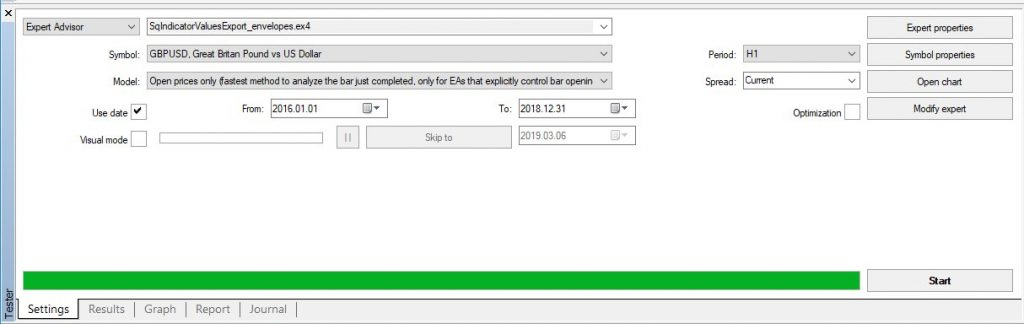
終了すると、すべてのバーの計算されたインジケーター値と、始値、高値、安値、終値のデータを含むデータファイルが作成されます。ファイルは MetaTrader4 -> に保存されます。 {データフォルダ}/tester/files/Your_FILE_NAME.csv
そこに2つのファイルがあるはずです:
Envelopes_14_0_0_0_0.1_upper.csv
Envelopes_14_0_0_0_0.1_lower.csv
計算されたデータファイルをSQが検出できるように適切な場所にコピーしてください
これらのファイルをフォルダにコピーしてください {SQ installation}/tests/Indicators/MetaTrader4
このフォルダーが存在しない場合は作成してください。SQ Indicators Testerはこのフォルダー内のファイルを検索します。.
データファイルの準備が整ったので、StrategyQuantでテストを開始しましょう。.
SQでインディケータテストを設定して実行する
Code Editorに移動し、ツールバーの「Test indicators」をクリックします。.
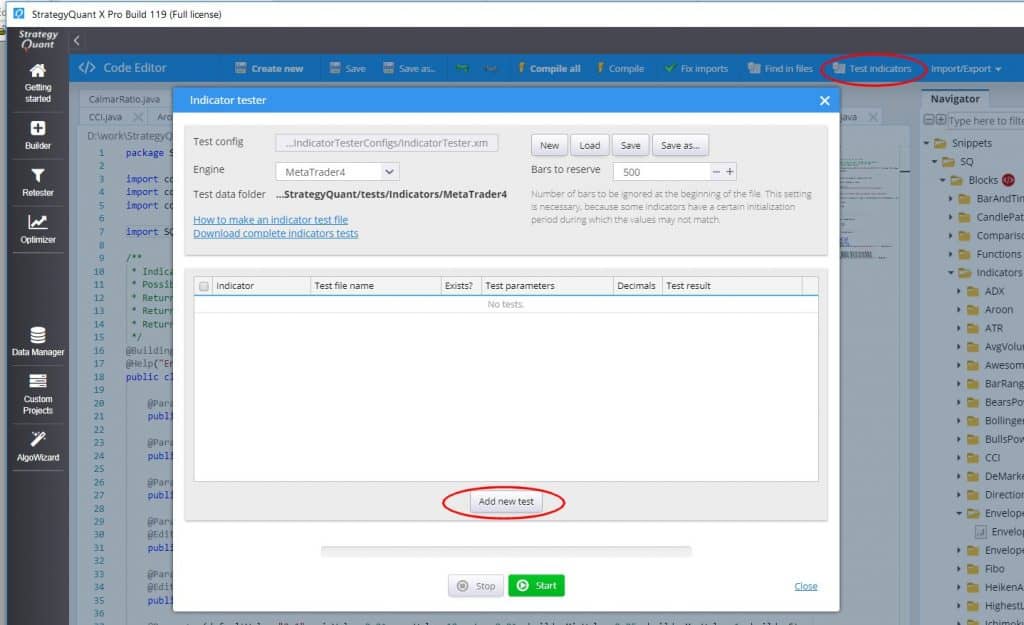
インジケーターテスターダイアログが開きますので、をクリックしてください。 新しいテストを追加. テストにアッパー出力とロワー出力の両方のエンベロープ指標を追加します。.
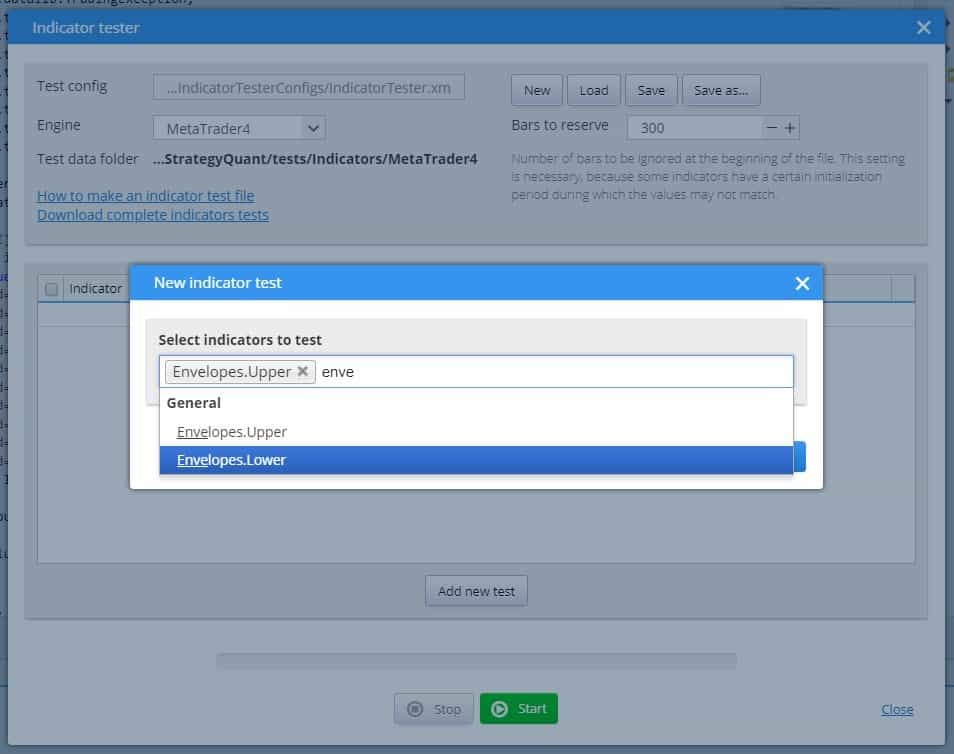
それは次のように表で見ることができます。私たちが最後に行う必要があるのは、 テストファイル名前のステップで作成された実際のテストデータファイル名に従って、オプションでさらに テストパラメータ, 、デフォルト以外のものを使用した場合:
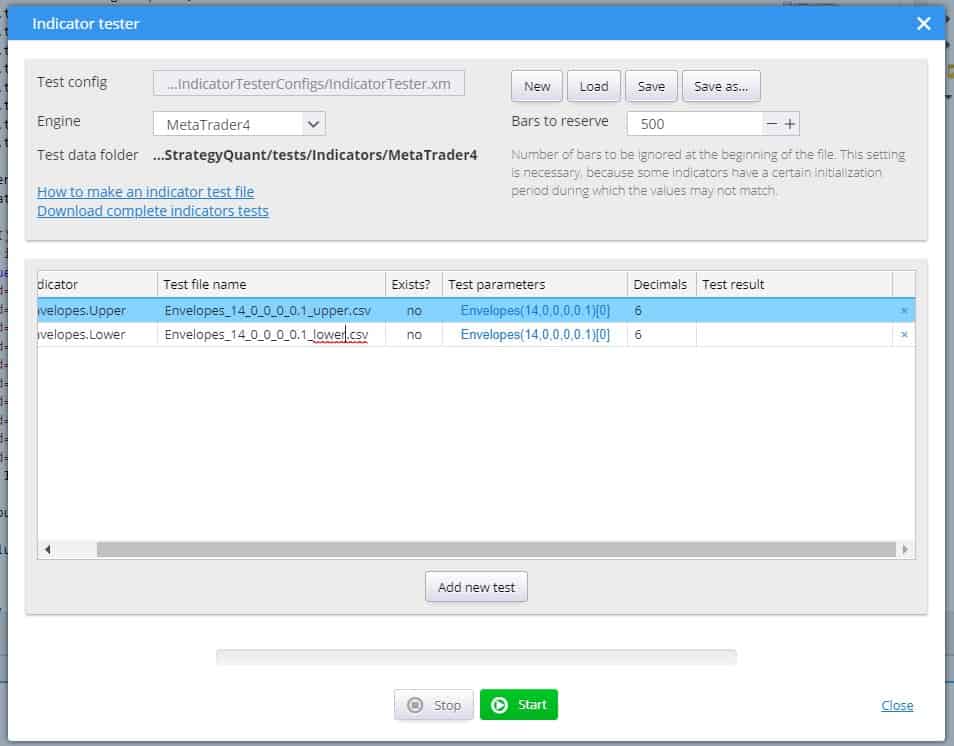
完了したら、をクリックしてください 開始 テストを実行するボタン.
理想的なケースでは、テストは成功し、SQで計算された値はMT4で計算された値と一致します:
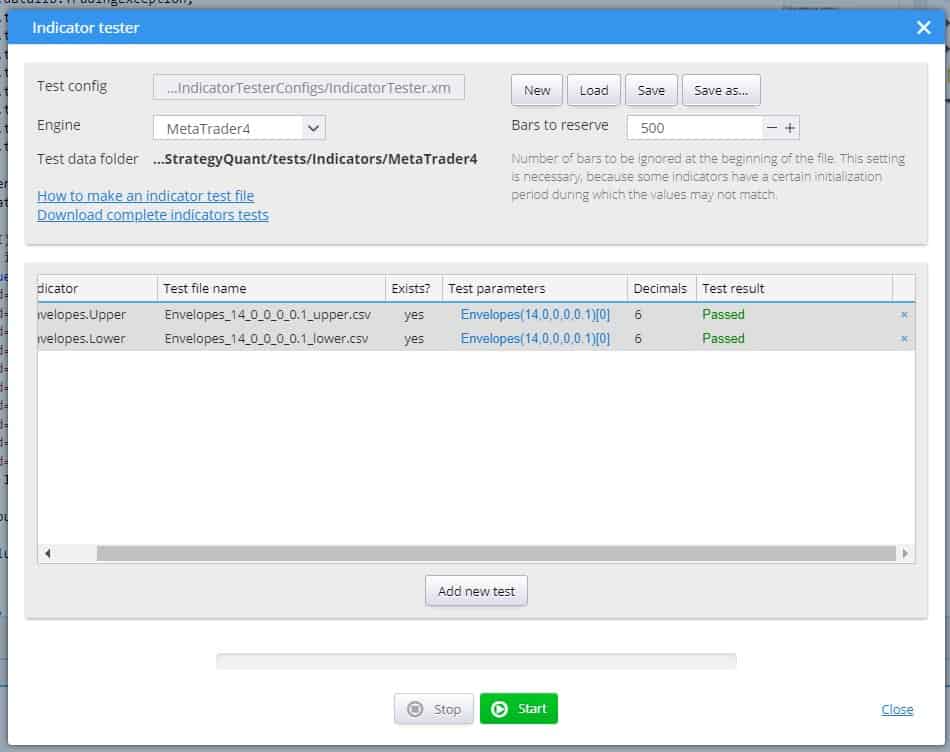
エラーが発生した場合、SQとMT4の値の間に差異が生じます。差異のメッセージをクリックすると、リストで確認できます:
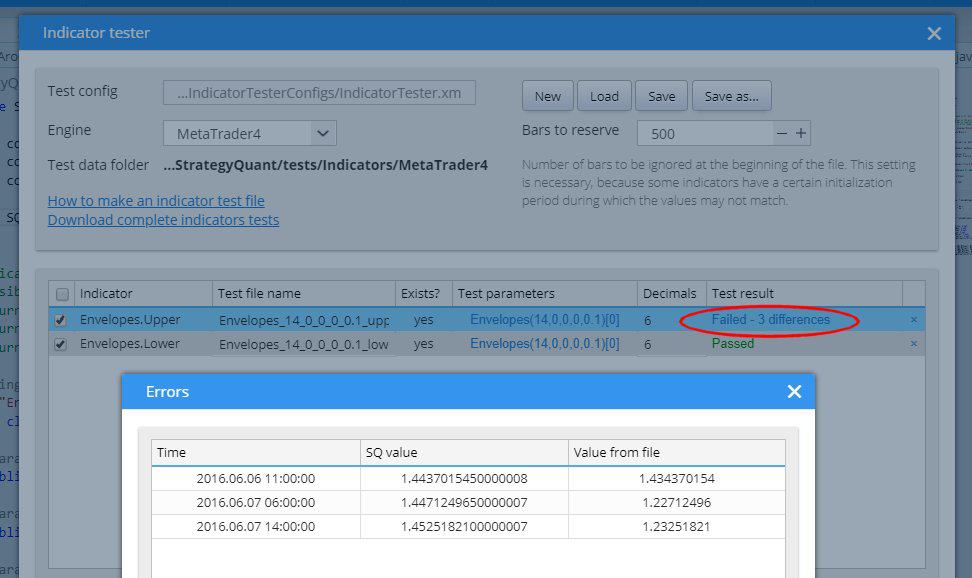
テストが失敗した場合は、まずMT4で生成されたテストデータが同じインジケーターパラメータを使用していたかどうかを確認してください。そこに間違いがある可能性があります。.
テストデータが正しいとすれば、あなたのインジケーターのSQ実装に何か問題があります。MT4版とは異なる動作をするため、修正する必要があります。.
インジケーターブロックの翻訳をターゲットプラットフォームの言語に追加しています
Now the indicator is correctly working in StrategyQuant. You can use it to generate some strategies based on it, or use it in AlgoWizard. But we are not done yet.
If you’ll go to source code of your strategy, you’ll se an error message like this:
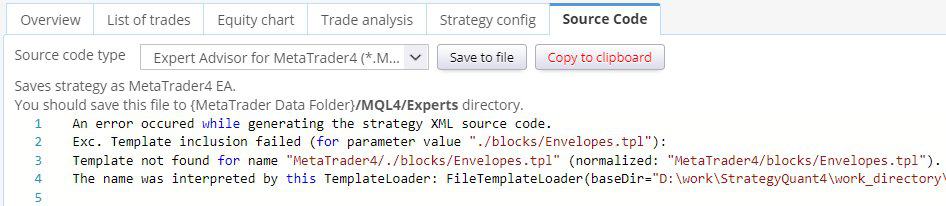
It means that when generating Pseudo Code / MT4 / MT5 or Tradestation code, StrategyQuant couldn’t find a template that will translate the block from internal SQ XML format to the language of target platform.
So far we created a code for Envelopes to be computed inside StrategyQuant. But StrategyQuant doesn’t know how to translate this indicator into a code in your trading platform – it depends on platform itself.
In StrategyQuant, generated strategies are internally saved into XML format. When you’ll switch to Strategy XML and look for Envelopes indicator, you’ll see it is saved like this:
<Item key="IsGreater" name="(>) Is greater" display="#Left# > #Right#" mI="Comparisons" returnType="boolean" categoryType="operators">
<Block key="#Left#">
<Item key="Envelopes" name="(EP) Envelopes" display="Envelopes(#Period#)[#Shift#]" help="Envelopes help text" mI="Envelopes" returnType="price" categoryType="indicator">
<Param key="#Chart#" name="Chart" type="data" controlType="dataVar" defaultValue="0">0</Param>
<Param key="#MA_Period#" name="MA _ Period" type="int" defaultValue="14" genMinValue="-1000003" genMaxValue="-1000004" paramType="period" controlType="jspinnerVar" minValue="2" maxValue="1000" step="1" builderStep="1">14</Param>
<Param key="#MA_Moved#" name="MA _ Moved" type="int" defaultValue="0" controlType="jspinnerVar" minValue="0" maxValue="10" step="1" builderStep="1">0</Param>
<Param key="#MA_Method#" name="Method" type="int" defaultValue="0" controlType="combo" values="Simple=0,Exponential=1,Smoothed=2,Linear weighted=3" builderStep="1">0</Param>
<Param key="#Applied_Price#" name="Applied _ Price" type="int" defaultValue="0" controlType="combo" values="Close=0,Open=1,High=2,Low=3,Median=4,Typical=5,Weighted=6" builderStep="1">0</Param>
<Param key="#Deviation#" name="Deviation" type="double" defaultValue="0.1" controlType="jspinnerVar" minValue="0.01" maxValue="10" step="0.01" builderMinValue="0.05" builderMaxValue="1" builderStep="0.05">0.1</Param>
<Param key="#Shift#" name="Shift" type="int" defaultValue="1" controlType="jspinnerVar" minValue="0" maxValue="1000" genMinValue="-1000001" genMaxValue="-1000002" paramType="shift" step="1" builderStep="1">1</Param>
<Param key="#Line#" name="Line" type="int" controlType="combo" values="Upper=0,Lower=1" defaultValue="0">0</Param>
</Item>
</Block>
<Block key="#Right#">
<Item key="Number" name="(NUM) Number" display="#Number#" help="Number constant" mI="Other" returnType="number" categoryType="other" notFirstValue="true">
<Param key="#Number#" name="Number" type="double" defaultValue="0" controlType="jspinner" minValue="-999999999" maxValue="999999999" step="1" builderStep="1">0</Param>
</Item>
</Block>
</Item>
This is only a part of strategy XML that contains comparison of Envelopes with number. Note that it uses blocks (<Item>) IsGreater, 封筒, 番号.
SQ will look for templates to translate each of the XML blocks to the language of target platform. Templates for IsGreater そして 番号 are by default in the system, but we are missing a template for 封筒.
Templates are stored in コード subtree. There, each supported platform has its own folder, and inside it there is a subfolder /ブロック that contains templates for every building block.
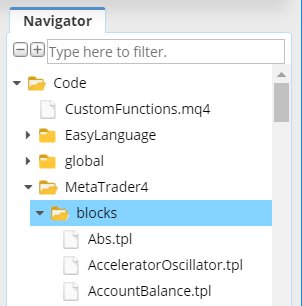
Template files have .tpl extension and they are very simple. They use Freemarker template engine (https://freemarker.apache.org) to translate XML of the indicator into the target platform code.
Note that templates DON’T contain code to compute the indicator in the target platform, they contain code to CALL the indicator.
If you’ll check it you’ll see that there is no template Envelopes.tpl, hence source code shows a message that the template for it is missing.
新しいブロックのための疑似コードテンプレートを追加する
When you’ll look at your Envelopessnippet in the Navigator window you’ll see that there is an error icon and when you mouse over it, you ‘ll see the error message – it is missing template code for every target platform.
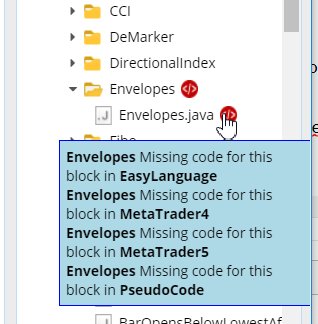
The easiest way to add it is to click on Envelopes.java file with right mouse button to open pull down menu and there
choose action Add all missing.
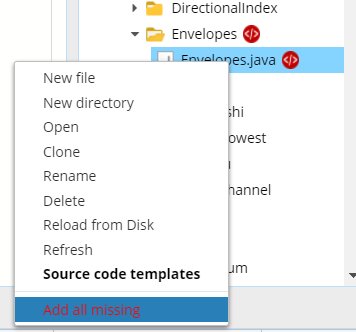
This will add default templates for all target platforms.
When you’ll go to Code -> Pseudo code -> blocks you’ll see that it added template Envelopes.tpl with some default content.
You can see that template its quite simple, it is usually just one line.
Now that the template is there, you can again check the source code of your strategy.
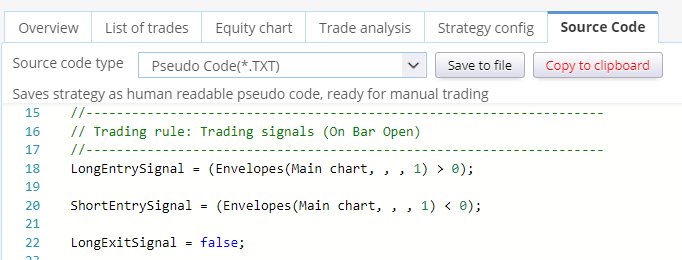
You can see that the source code was produced, but it is not really correct.
It shows 封筒(Main chart, , , 1) instead of real Envelopes parameters. It is because the Envelopes.tpl was created using default template, it didn’t use the real parameters of the indicators.
If you’ll check the PseudoCode/blocks/Envelopes.tpl code you’ll see it is as follows:
Envelopes(<@printInput block true /> <@printParam block "#Param1#" />, <@printParam block "#Param2#" />, <@printShift block shift />)
The methods printInput そして printShift are default methods to print data input and shift values and they work correctly by default because every indicator has some chart/data input and shift.
But we don’t have parameters named Param1 and Param2 in our indicator.
Instead we have five other parameters there: MA_Period, MA_Moved, MA_Method, Applied_Price, Deviation.
So we’ll modify the template like this:
Envelopes(<@printInput block true /> <@printParam block "#MA_Period#" />, <@printParam block "#MA_Moved#" />, <@printParam block "#MA_Method#" />, <@printParam block "#Applied_Price#" />, <@printParam block "#Deviation#" /><@printShift block shift />)
Now if you’ll look at the Pseudo Code you’ll see it is displayed with correct parameter values:
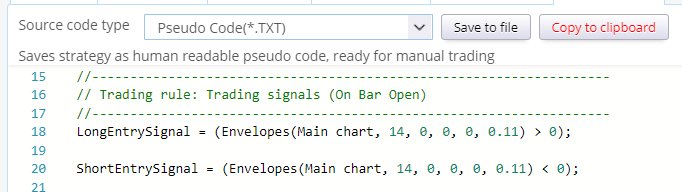
As you can see, printing a parameter in a template is very simple – you just have to use method:
<@printParam block “#PARAMETER_NAME#” />
どこ PARAMETER_NAME is name of the parameter variable name from Java code.
There is still one thing that can be improved – parameters MA手法 そして 適用価格 are displayed as numbers – we would like to display them as texts, so that we know what values were selected.
To do this, we can use method:
<@printParamOptions block “# PARAMETER_NAME #” “0=Option1,1=Option2,3=Option3” />
This method will translate the number value to the option based on its number.
Moreover, to be not overwhelmed wth unimportant information, we don’t need to display value of parameter MA_Moved in Pseud code at all. We can simply delete it from the template.
So our final Pseudo Code template code for Envelopes in PseudoCode will be as follows:
Envelopes(<@printInput block true /> <@printParam block "#MA_Period#" />, <@printParamOptions block "#MA_Method#" "0=Simple,1=Exponential,2=Smoothed,3=Linear weighted" />, <@printParamOptions block "#Applied_Price#" "0=Close,1=Open,2=High,3=Low,4=Median,5=Typical,6=Weighted" />, <@printParam block "#Deviation#" /><@printShift block shift />)
and it will produce output like this:
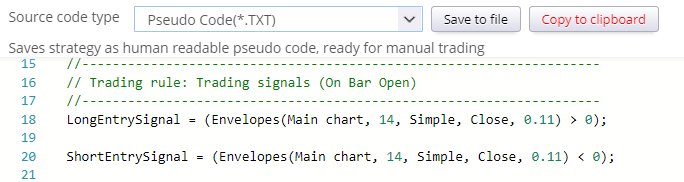
新しいブロックにMetaTrader 4のテンプレートを追加しています
In the previous step we added Pseudo Code template for our Envelopes indicator, so that we can see the strategy rules in Pseudo Code.
We must repeat this step for every target platform on which we want to use our strategy.
So let’s fix the template for MetaTrader MQL. There are two possibilities in MetaTrader:
- either the indicator is build-in into MetaTrader and then we can call it using its MQL function call,
- or it is a custom indicator and we must call it using iCustom MQL call.
We’ll show both ways, they differ only slightly in the code of the template.
First possibility – indicator is build-in in MetaTrader
In this case you can find the indicator in the list of available indicators in the MT4 navigator, and you
can also find the method to call it in MQL Reference guide:
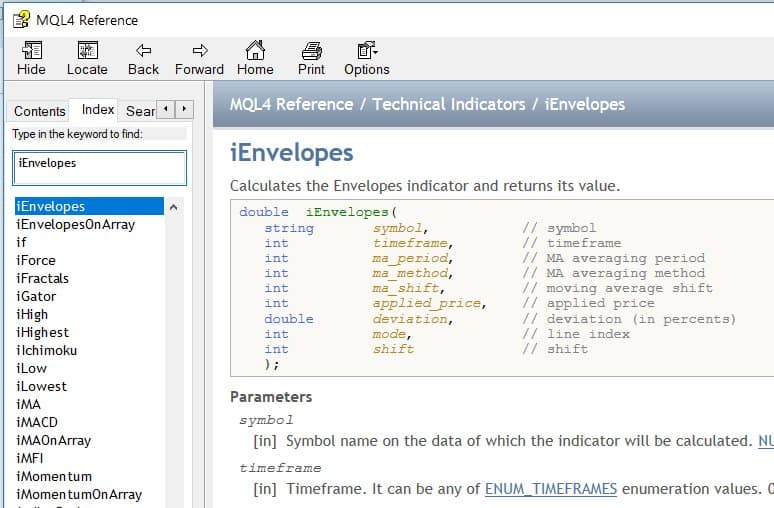
From the MQL documentation we know that when calling this indicator we have to call function iEnvelopes() with the right parameters.
So we’ll open file Code / MetaTrader4 / blocks / Envelopes.tpl and change it as follows:
iEnvelopes(<@printInput block />, <@printParam block "#MA_Period#" />, <@printParam block "#MA_Method#" />, <@printParam block "#MA_Moved#" />, <@printParam block "#Applied_Price#" />, <@printParam block "#Deviation#" />, <@printParam block "#Line#" />+1, <@printShift block shift />)
What we did is that we renamed the method and added the correct parameters. Methods printInput そして printShift produce correct output by default.
Note one more parameter – Line. Because Envelopes has two lines (Upper, Lower), also the call to iEnvelopes allows you to specify value for which line you want to retrieve – it is the 8th parameter mode, which is the line index.
This parameter in MQL is 1 for Upper, or 2 for Lower.
Line parameter is also by default created by SQ – just check the XML of this block. But it is zero based, and line index depends on order of @Output variables defined in the Java class. So in SQ 0 = Upper, 1=Lower. To get the same values as in MT4, we have to add 1 to the line value.
When we’ll go to MT4 source code we see it produced this output:
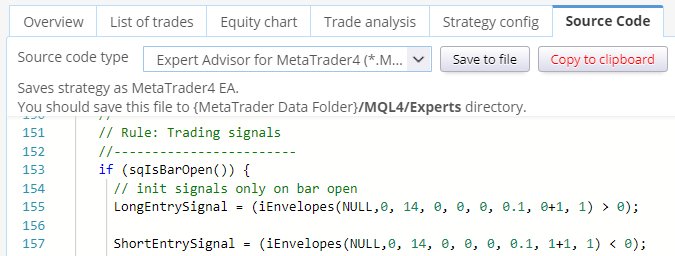
Which is a correct way to call Envelopes indicator in MQL .
Second possibility – it is custom (external) indicator for MetaTrader
Now what if the indicator is not build-in into Metatrader? The situation is only slightly more complicated.
As an example let’s say that Envelopes indicator doesn’t exists in MT4, and we have to use it as custom indicator.
First, download the Envelopes indicator from this link: https://www.mql5.com/en/code/7975 and save it to a file to {MT4} -> Data Folder/MQL/Indicators/Envelopes.mq4
This way it will become available in MetaTrader and can be used and called.
Custom indicators are called using MQL function iCustom:
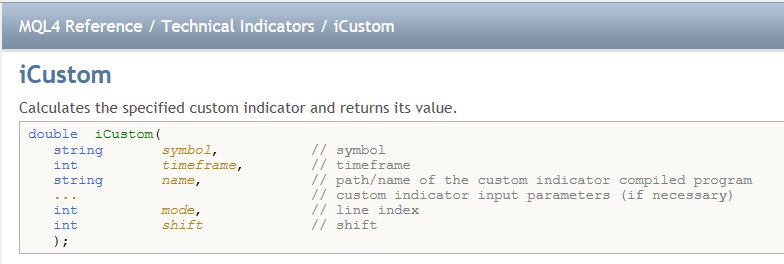
So the correct call of Envelopes custom indicator in MQL would be:
iCustom(Symbol, Timeframe, "Envelopes", MA_Period, MA_Moved, MA_Method, Applied_Price, Deviation, 1, Shift)
to get the Upper line, and
iCustom(Symbol, Timeframe, "Envelopes", MA_Period, MA_Moved, MA_Method, Applied_Price, Deviation, 2, Shift)
to get the Lower line.
We define our template as follows:
iCustom(<@printInput block />, "Envelopes", <@printParam block "#MA_Period#" />, <@printParam block "#MA_Moved#" />, <@printParam block "#MA_Method#" />, <@printParam block "#Applied_Price#" />, <@printParam block "#Deviation#" />, <@printParam block "#Line#" />+1, <@printShift block shift />)
which again produces correct MQL code, using custom indicator call:
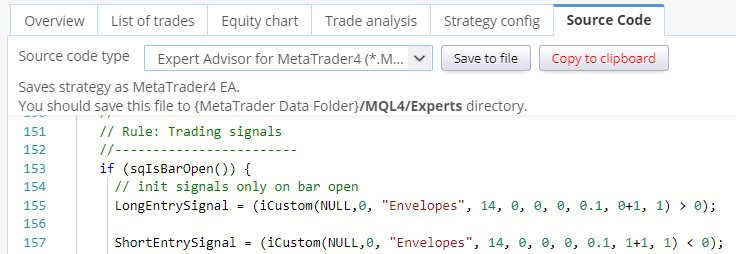
The only difference from previous option is that we don’t use predefined MQL method iEnvelopes, but a general method iCustom that allows us to call any external custom indicator.
この記事は参考になりましたか? この記事は役に立った この記事は役に立たなかった
Thanks Marc
Just looking at the envelopes indicator trying to pull this into SQ from the article you wrote
https://strategyquant.com/doc/programming-sq/adding-envelopes-indicator-step-by-step
The CSV file generated below only returns a single file in MT4 tester file when the indicator has ran the test.
// change the file name below
string fileName = “Envelopes_14_0_0_0_0.1_upper.csv”;
Will SQ still be able to read the upper and lower values or is there another line of code required?
Really like this indicator so it will be a good addition to the test libary.
ありがとう
デイブ
You need to export 2 separate CSV files. One containing values for the upper envelope using this code value = iEnvelopes(NULL, 0 , 14 , 0 , 0 , 0 , 0.1 , 1 , 1); and then export another CSV file with values for the lower envelope using the code value = iEnvelopes(NULL, 0 , 14 , 0 , 0 , 0 , 0.1 , 2 , 1); Note the changed values to number 2 used at the the last but one position in the second code line. So now you have 2 CSV files both Envelopes_14_0_0_0_0.1_upper.csv and Envelopes_14_0_0_0_0.1_lower.csv… 続きを読む »
Hi all, just been implementing Envelopes indicator from MT4 and MT5, but there is something I do not understand. The code for MT4 is resolved via a template and translated in a iEnvelopes for MT4 with all the values mapped correct and this returns a value for the indicator. In MT5 we have a handle for indicators. This means that a Shift and the selection of upper and lower values are to be found via buffers in the arrays. I can’t find the MQ5 template or the correct java code that handles this. iEnvelopes The function returns the handle of… 続きを読む »