


 Spanish
 Portuguese
 French
 Italian
 German
 Japanese
Documentation & User Guides
Learn the basics, or refine your skills with tutorials designed to inspire.
Last updated on 26. 8. 2025 by Kornel Mazur
Program Layout
Page contents
Program Layout
When you start StrategyQuant X, you are presented with a user interface organized into functional modules and navigation tabs. Each component of the platform is designed to support a specific part of the strategy development, testing, or deployment process.
Below is a summary of the primary tools and features available:
Refer to the visual layout in the screenshot below.
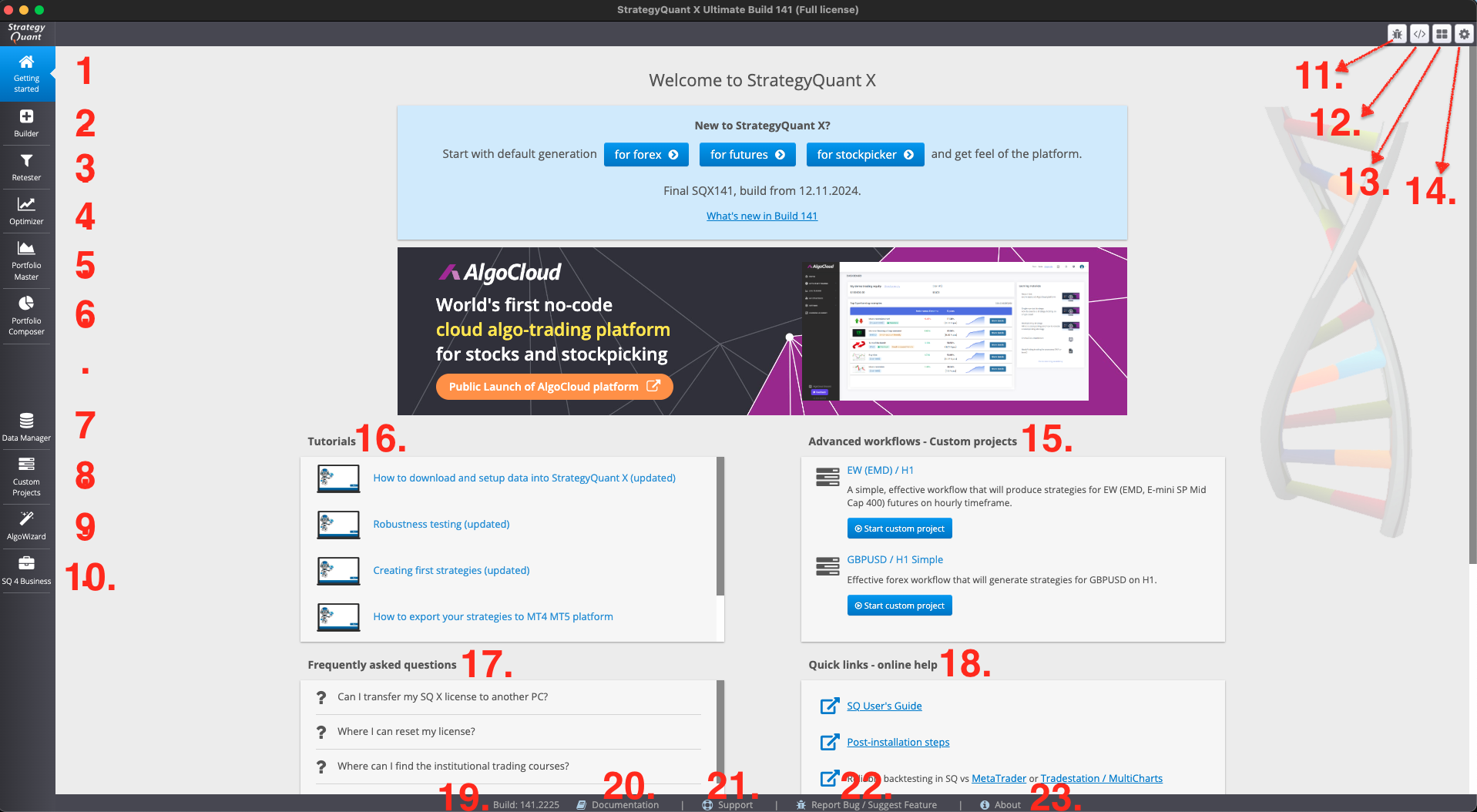
1. Getting Started
The welcome screen provides quick access to:
- Sample configuration settings
- News and updates related to StrategyQuant
- Links to tutorials, documentation, and other essential resources
2. Builder
The core engine of StrategyQuant X:
- Generate new strategies or enhance existing ones
- Leverage advanced algorithmic generation techniques
- Entry point for all strategy creation workflows
3. Retester
- Retest existing strategies using alternate market data, timeframes, or settings
- Validate how strategies perform under different conditions
4. Optimizer
- Optimize strategy parameters to maximize key performance metrics
- Run advanced analyses such as Walk-Forward Simulations for improved robustness
5. Portfolio Master
- Build optimized strategy portfolios
- Identify the best-performing combination of strategies to align with specific trading goals
6. Portfolio Composer
- Simulate and refine portfolio compositions
- Assign strategy-specific capital weights for optimal performance distribution
- Works with “Modern portfolio theory”
7. Data Manager
- Central hub for managing data sets
- Download, import, and export historical data
- Maintain data accuracy for reliable backtesting
8. Custom Projects
- Automate repetitive tasks and define personalized workflows
- Streamline your strategy development process
9. AlgoWizard
- No-code visual editor for strategy creation
- Define strategy rules step-by-step without writing code
- Ideal for users preferring a GUI-driven approach
10. SQ 4 Business
- Monetize your strategies directly through StrategyQuant X
- Export and list strategies on the MQL5 Market
11. Debug Console
- View real-time log messages and error outputs
- Critical for troubleshooting and refining custom code or snippets
12. Code Editor
- Create and manage custom components:
- Indicators
- Building blocks
- Databank columns
- Customize and extend StrategyQuant’s capabilities
13. Grid Control
- Monitor active and queued tasks on the local or distributed computing grid
- Manage resources and parallel executions efficiently
14. Settings
- Access global configuration options
- Adjust preferences, performance parameters, and user environment settings
15. Advanced Workflow – Custom Projects
- Explore example workflows showcasing advanced automation and customization
- Learn from pre-built project templates
16. Interactive Tutorials
- Step-by-step guides to learn key features and workflows
- Ideal for onboarding and skill development
17. FAQ
- Quickly find answers to commonly asked questions
18. Quick Link – Online Help
- Direct access to the online help portal for immediate assistance
19. Build Version
- Displays the currently installed version of StrategyQuant X
20. Documentation Link
- Shortcut to the full online StrategyQuant documentation
21. Support Link
- Access the support portal for troubleshooting, questions, or technical help
22. Report Bug / Suggest Feature Link
- Submit feedback or feature requests via the StrategyQuant X Roadmap
23. About
- Displays license details and system information
- View your active license and installed build information
Was this article helpful? The article was useful The article was not useful
Please login to comment
0 Comments
Oldest
Page contents