


 Spanish
 Portuguese
 French
 Italian
 German
 Japanese
Documentation & User Guides
Learn the basics, or refine your skills with tutorials designed to inspire.
Last updated on 23. 4. 2026 by Kornel Mazur
Screens
Page contents
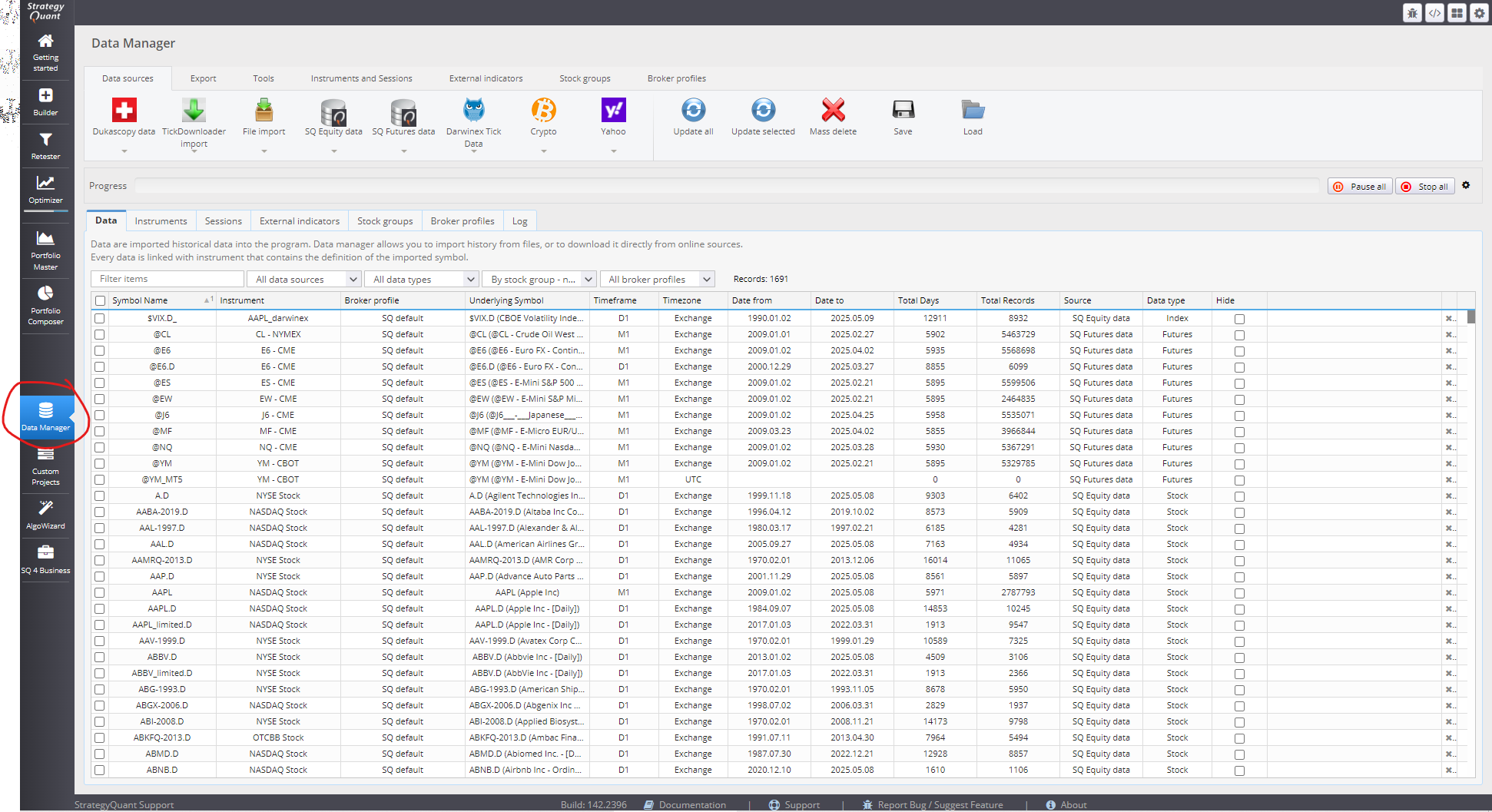
Data Tab:
Data refers to historical data that can be imported into the program. The data manager allows you to import OHLC data from files or download it directly from online sources. Every piece of data is linked with an instrument that contains the definition of the imported symbol.
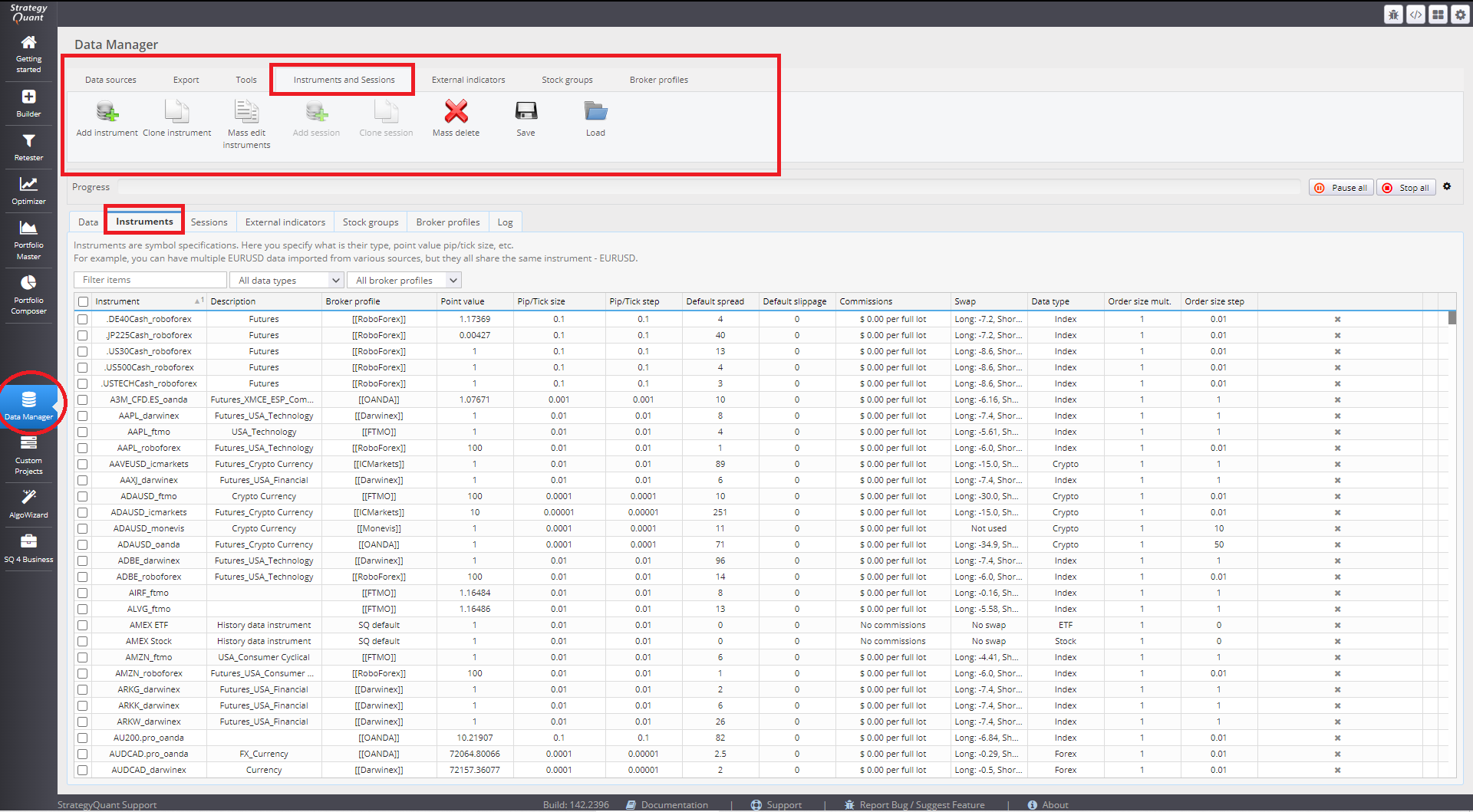
Instruments:
Instruments are symbol specifications. Here you specify what their type, point value, pip/tick size, etc. are.
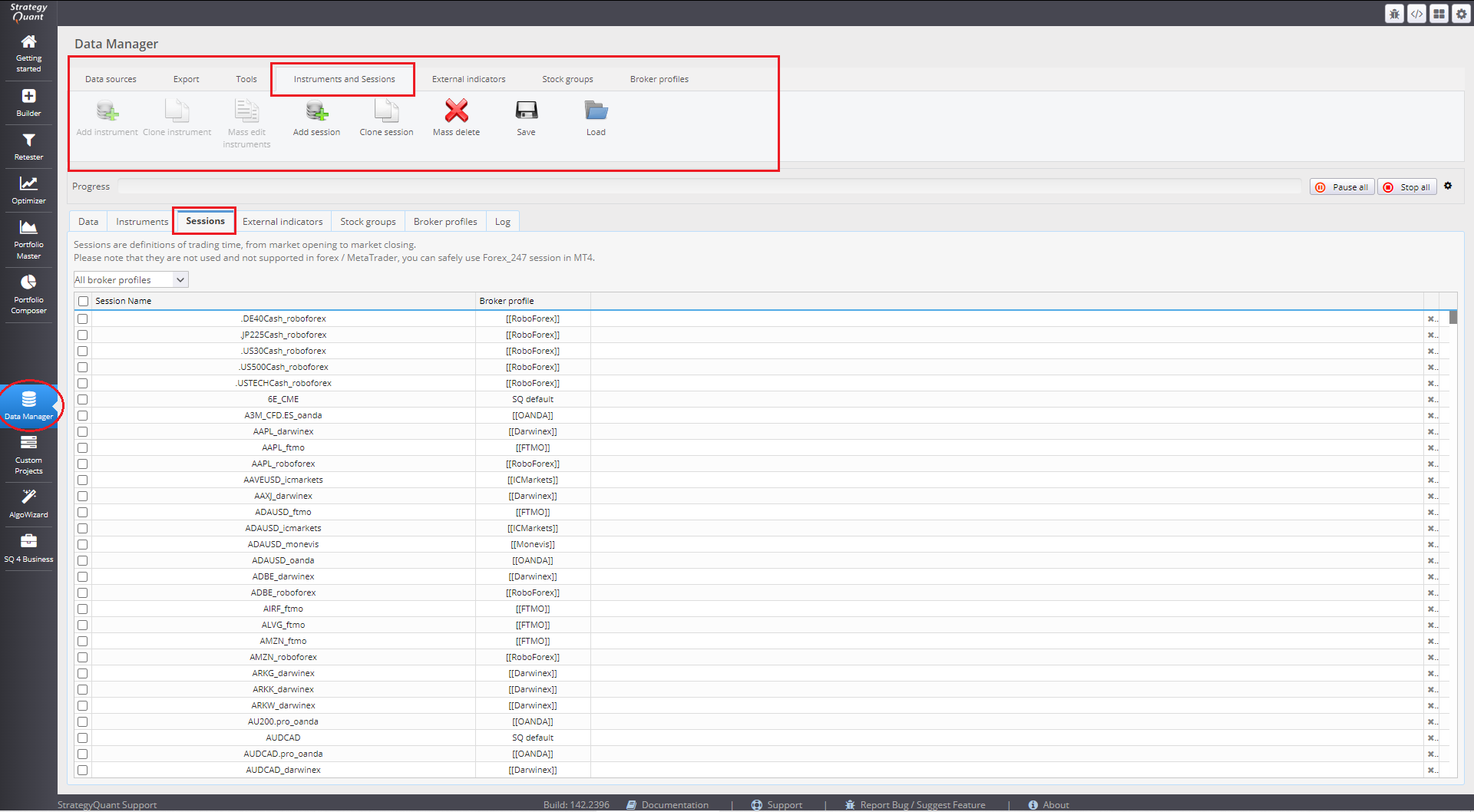
Sessions:
Sessions are definitions of trading time, from market open to market close.
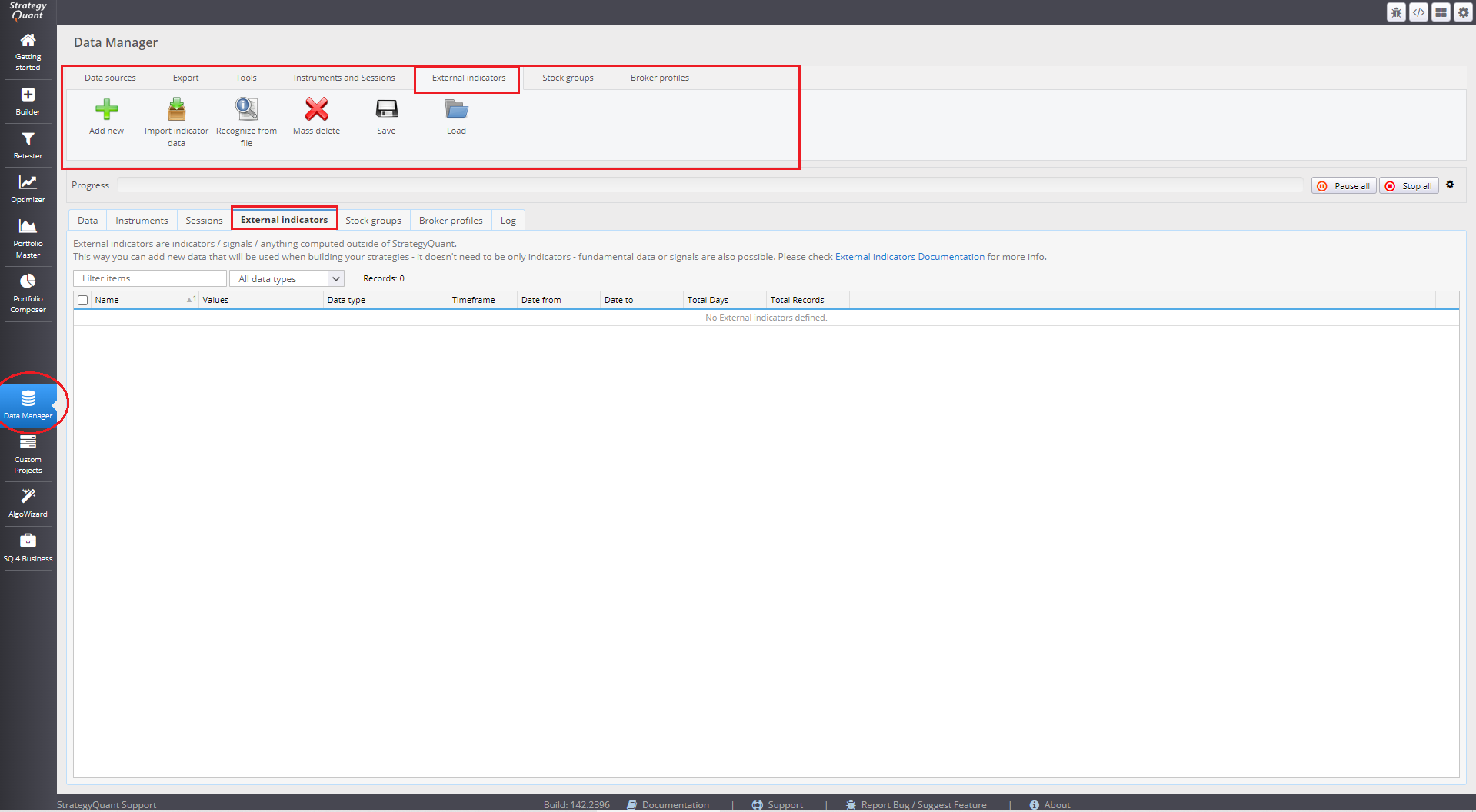
External Indicators:
External indicators are indicators / signals or anything computed outside of SQX. This allows you to incorporate new information when developing your strategies.
+https://strategyquant.com/forum/topic/how-to-import-custom-data-or-indicators/
Stock groups:
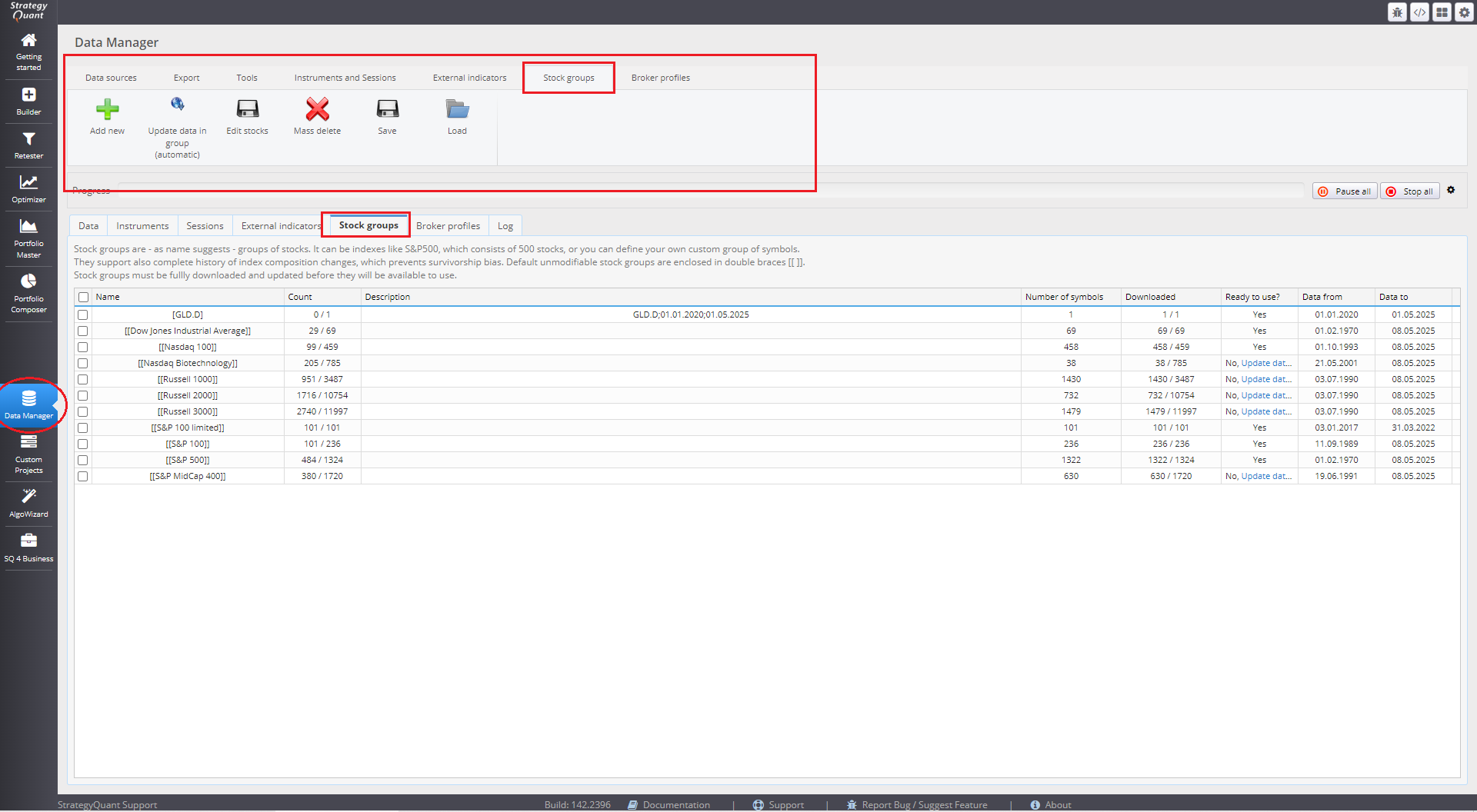
Stock groups, as the name implies, are collections of stocks. These can include indexes like the S&P 500, which is made up of 500 different stocks, or you can create your own custom group of symbols. Stock groups also provide a complete history of changes in index composition, helping to avoid survivorship bias. Default, unmodifiable stock groups are enclosed in double braces: [[ ]].
Please note that stock groups must be fully downloaded and updated before you can use them.
Log:
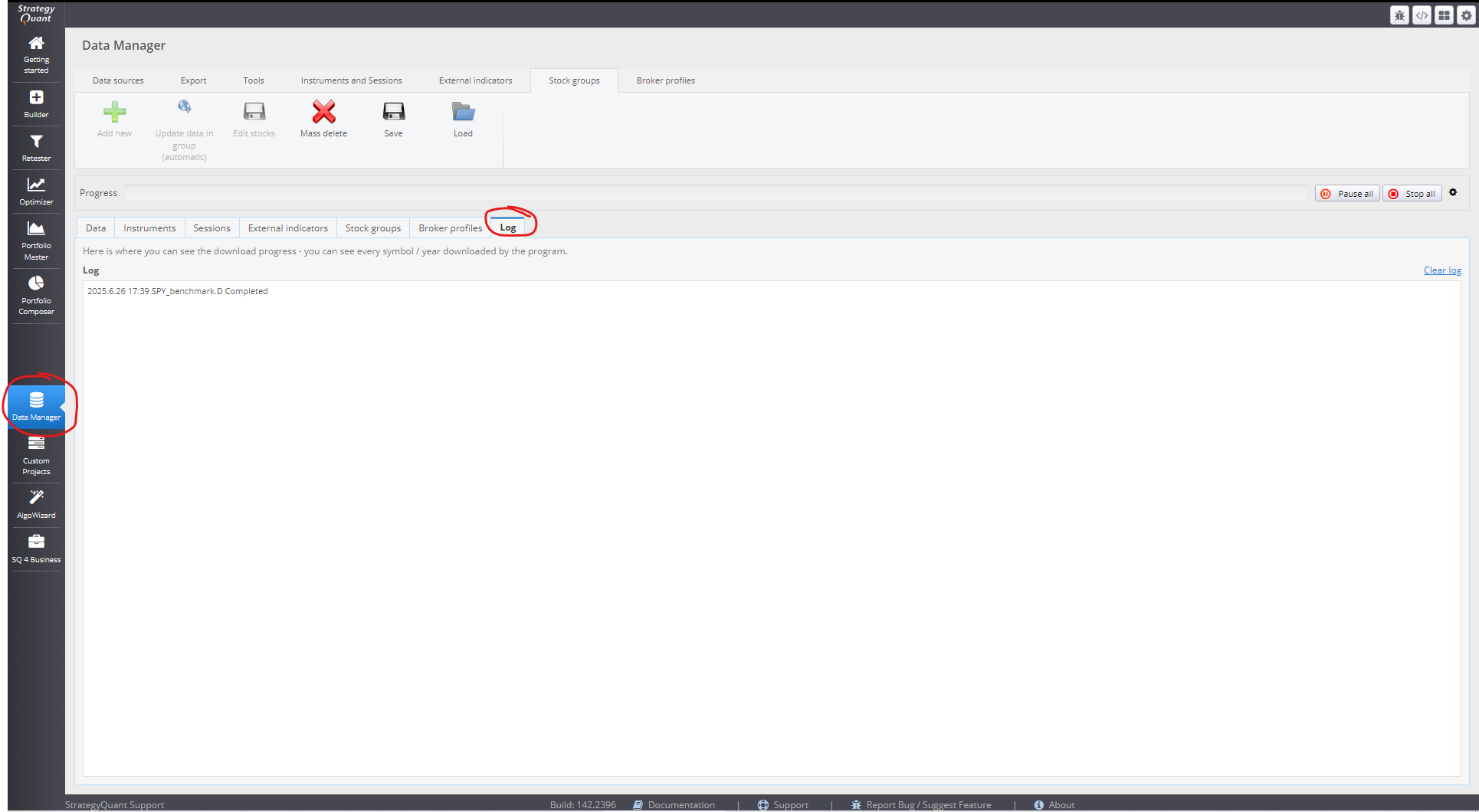
Here is where you can view the download progress and additional information; you can see each symbol and year downloaded by the program.
Broker Profiles:
Broker Profiles
Overview
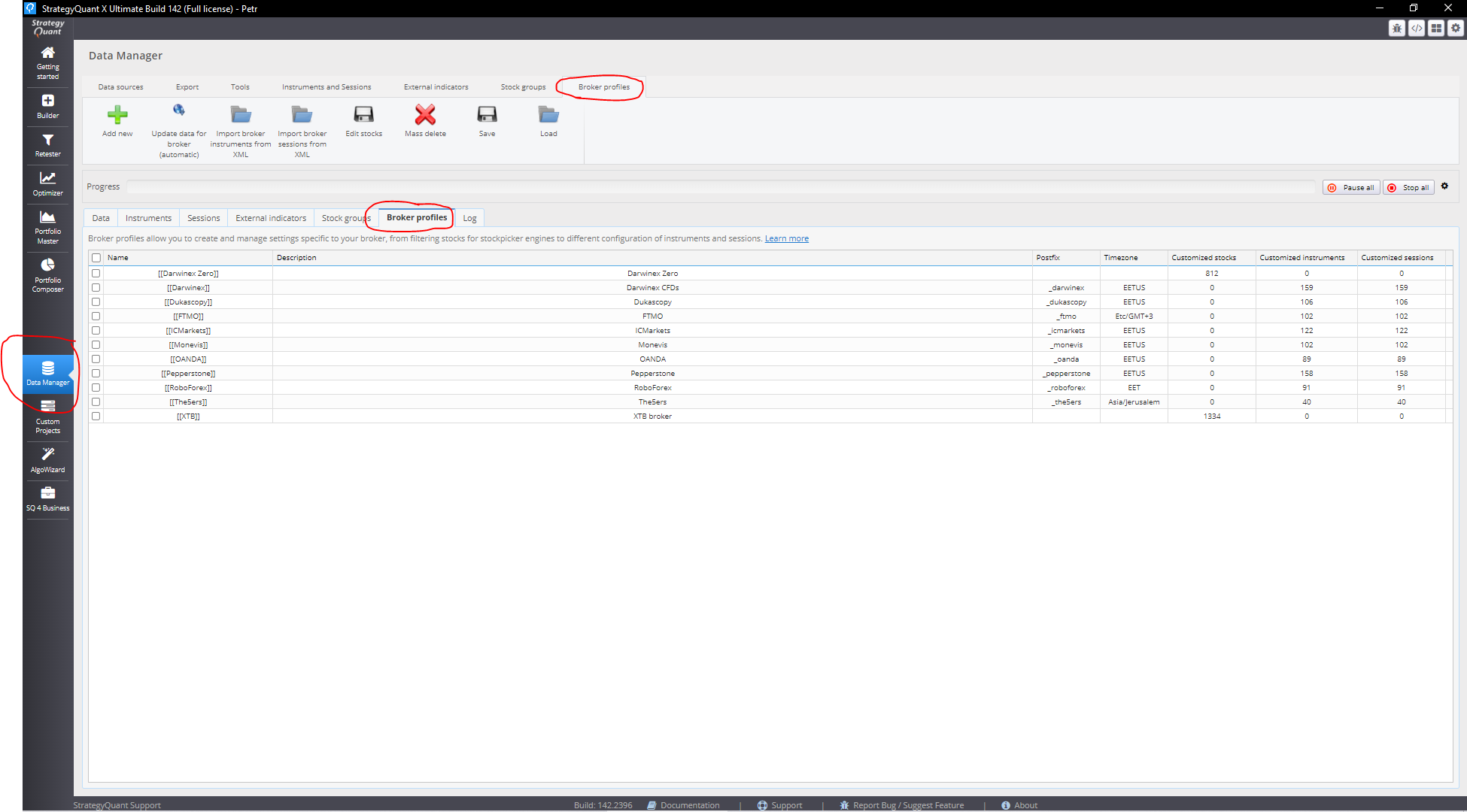
The Broker Profile feature, introduced in StrategyQuant X Build 141, allows users to configure specific broker-related settings to better reflect real-world trading environments. This includes time zones, instrument configurations, and trading sessions that may differ significantly across brokers. Broker profiles enhance the realism of backtesting and strategy development by aligning StrategyQuant X settings with those of your actual broker.
Key Functional Areas
Broker profiles support two main functions:
- Stock Picker Filtering
- Limits the stock universe based on the availability from a specific broker.
- Custom Instrument & Session Settings
- Enables use of broker-specific time zones, instrument definitions, and trading sessions.
Predefined Broker Profiles
StrategyQuant X comes with a set of predefined profiles for widely-used brokers:
- IC Markets
- RoboForex
- Pepperstone
- OANDA
- Darwinex
- Dukascopy
- 5ers
- FTMO
- Monevis
These profiles include typical instrument settings and time zones used by each broker.
Stock Picker Integration
Broker profiles can restrict which stocks are available in the Stock Picker engine based on a broker’s offering. For instance, XTB allows trading only a few thousand stocks out of the tens of thousands available on global exchanges. Using a broker profile, you can ensure the Stock Picker includes only tradable assets, improving the realism of your strategy tests.
MetaTrader 5 Compatibility
With MT5-specific functionality, broker profiles allow:
- Defining the broker’s time zone.
- Creating broker-specific instruments and trading sessions.
- Overriding default settings such as Point value, tick size, etc.
This ensures alignment between StrategyQuant X and the MetaTrader 5 platform in terms of trading instrument behavior.
Custom Instruments & Sessions
You can define instruments and trading sessions specific to your broker, which are then used instead of the default SQX settings. This ensures that your backtests more accurately reflect your broker's specifications.
Steps:
- Create instruments and sessions in the Instruments and Sessions tabs.
- Assign them to your broker profile.
- Apply the profile to relevant data or backtest configurations.
Usage with Dukascopy and Darwinex Data
Broker profiles can also be applied when importing data from public sources like Dukascopy or Darwinex:
- When adding data, select a predefined broker profile instead of the default SQX profile.
- The system applies the selected broker's instrument settings.
- Downloaded data is automatically converted from the source’s time zone to the broker’s time zone.
⚠ Important Note:
While broker profiles help apply correct settings, they do not eliminate differences in data quality or content. For accurate backtesting:
- Prefer using data exported directly from your broker’s MT5 platform.
- Refer to Exporting and Importing MT5 Data for a detailed tutorial.
- All point values default to USD; if using a different account currency, adjust the values manually.
Importing Broker Instruments & Sessions via Script
If your broker is not covered by the predefined profiles, you can import settings using a dedicated script:
- Script Location:
- custom_indicatorsBrokerProfileInstrumentsSessionsScriptsUpdate_SQX_Instruments_information.ex5
- How it Works:
- Run the script in MT5. It will:
- Scan all symbols in your Market Watch.
- Extract instrument info and trading sessions.
- Generate XML configuration files.
- Import the XML files into SQX to populate a custom broker profile.
Broker profiles are meant to be exported from MT5 only. MT4 is not supported for this feature
Was this article helpful? The article was useful The article was not useful
Page contents