


 Spanish
 Portuguese
 French
 Italian
 German
 Japanese
Documentation & User Guides
Learn the basics, or refine your skills with tutorials designed to inspire.
Last updated on 23. 4. 2026 by Kornel Mazur
Simple Optimization
Page contents
Simple Optimization
Overview
Simple Optimization in StrategyQuant X allows you to test a trading strategy across a range of input parameters to identify which combinations produce the best historical
performance. This is one of the foundational methods used in algo strategy development.
What Is Optimization?
Optimization involves adjusting strategy parameters—such as indicator periods, entry / exit logic, and execution filters—to improve a target metric like Net Profit, Return/Drawdown (R/DD) ratio, or Sharpe Ratio.
Example:
A basic moving average crossover strategy:
- Long Entry: EMA(10) crosses above EMA(20)
- But would performance improve with EMA(9) and EMA(40) instead?
Simple Optimization answers that question by systematically testing all specified combinations.
Step-by-Step: Performing a Simple Optimization
Step 1: Load a Strategy for Optimization
- Open the Optimizer module.
- Load the strategy (e.g., EMA_Cross) into the optimizer.
- The strategy will appear as the Original Strategy in the optimization databank.
Configure Variable Parameters
- If the strategy uses different values for long and short positions and you want them to be the same, enable:
- Symmetric variables for Long / Short
This consolidates long and short parameters into shared variables for unified optimization.
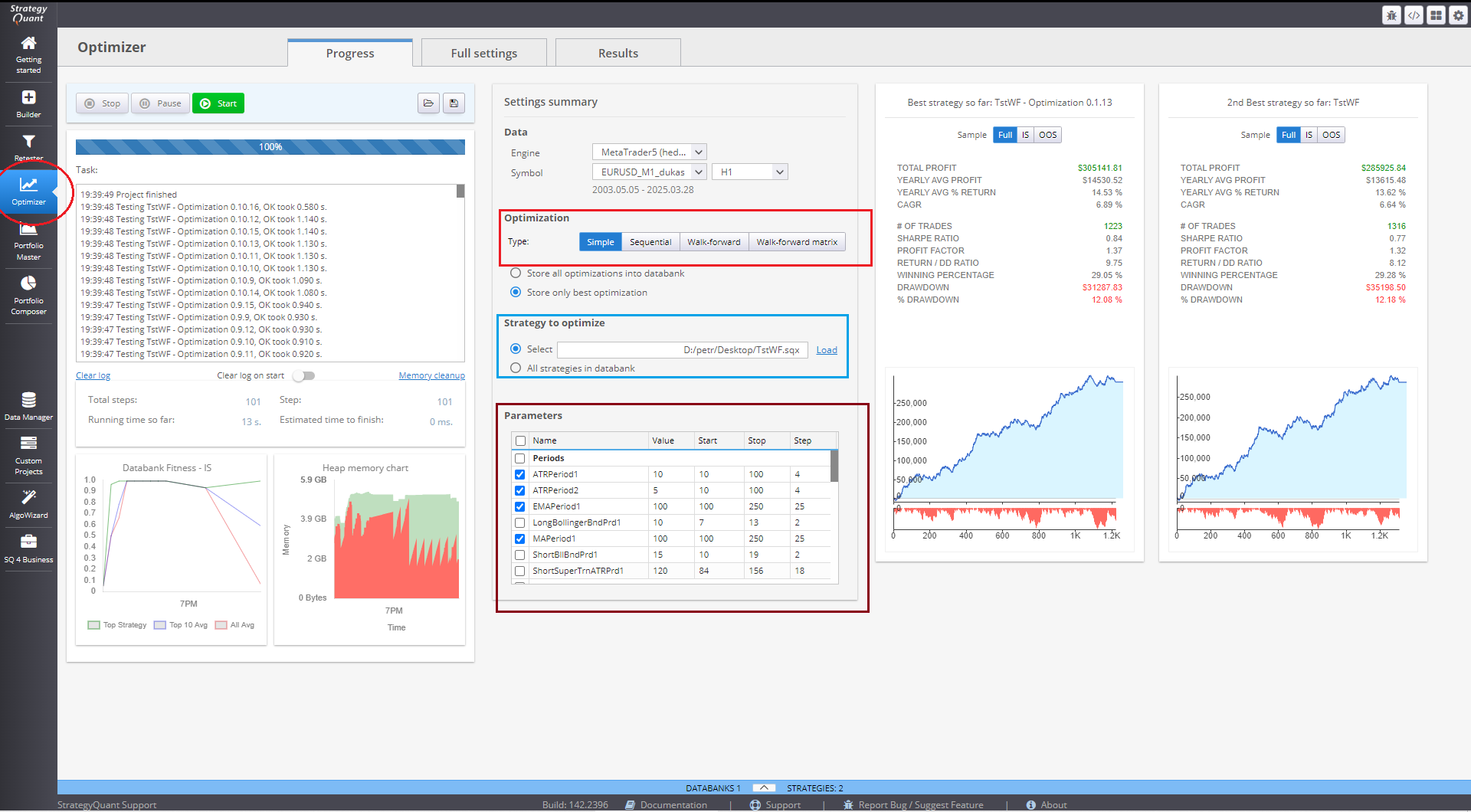
Step 2: Set Optimization Values
Navigate to Settings → Parameters and choose how you want to define the parameter ranges.
Option 1: Parameters – Automatic Mode
- StrategyQuant generates value ranges automatically using:
- Value Distribution (%)
- Maximum Steps
- Suitable for quick setups with default distribution rules.
Option 2: Parameters – Manual Mode
- Manually define:
- Start, Stop, and Step for each parameter.
- Original Value for baseline comparison.
- The Total Combinations field shows the number of tests StrategyQuant will run.
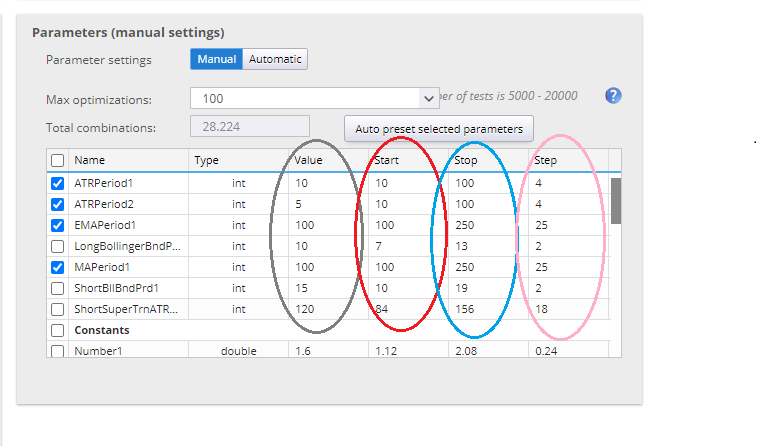
You can limit testing via the Maximum Optimizations setting.
Optimization of Strategy Options
In addition to standard strategy variables, StrategyQuant can also optimize:
- Trade frequency
- Time range for trades
- Indicator shift values
- Other system-level options
Step 3: Select Testing Data
- Go to the Data tab.
- Choose your symbol and timeframe (e.g., EURUSD on H1).
Step 4: Configure Result Storage
Define maximum strategies for storage, and if you wish to save the original strategy.
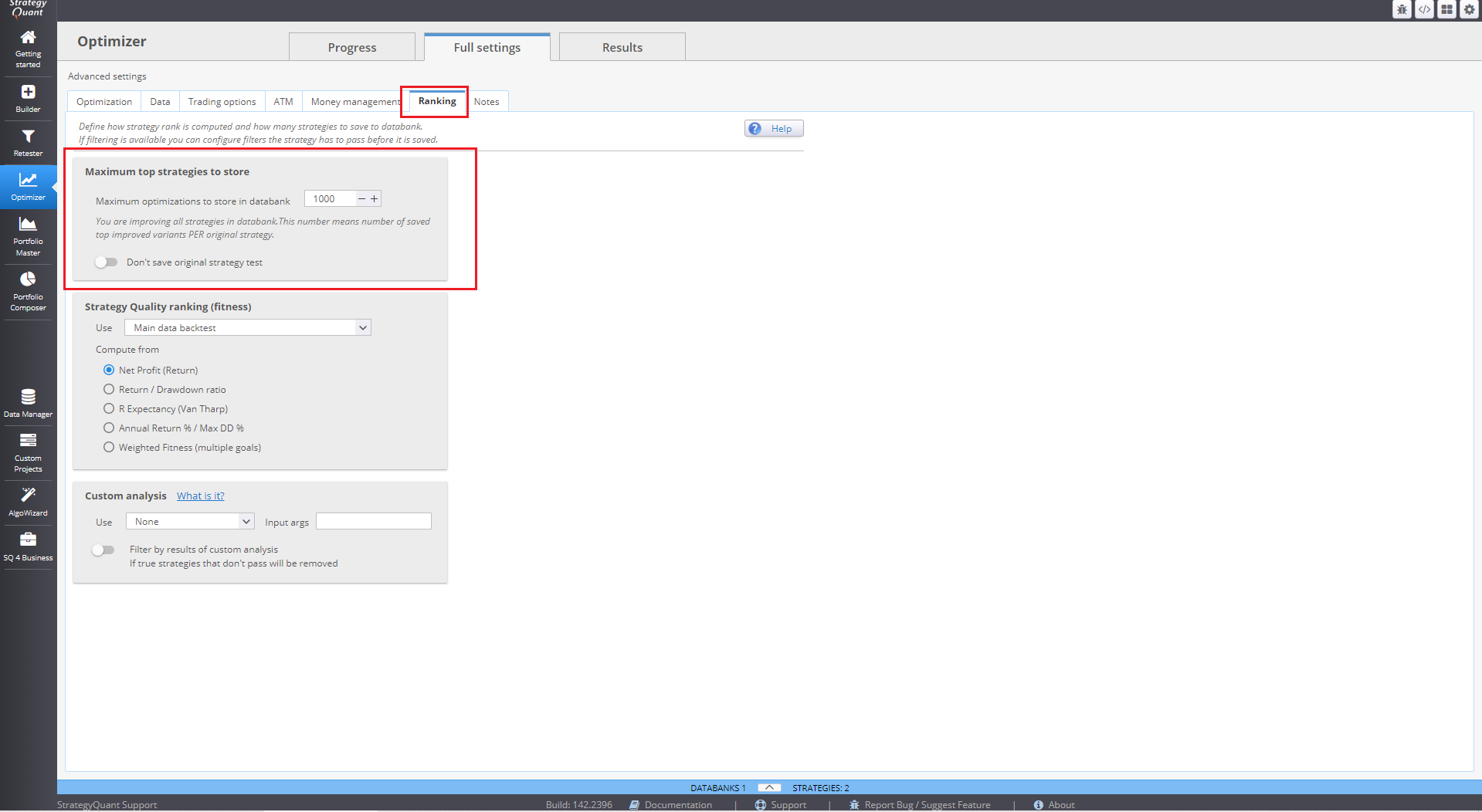
Step 5: Run the Optimization
Click Start to begin. The optimizer evaluates each parameter combination and saves the results to the Databank.
Reviewing Results
- Use column sorting (e.g., Net Profit) to identify top-performing combinations.
- Example:
- EMAPeriod = 9 and EMAPeriod2 = 40 might produce the best profit.
⚠ Note: An exclamation mark (!) next to a strategy indicates abnormal behavior—manual inspection is advised.
Interpreting the Results
While optimization identifies high-performing parameter sets, it's essential to be cautious:
- Curve Fitting Risk:
- Overfitting parameters to past data can lead to poor real-world performance.
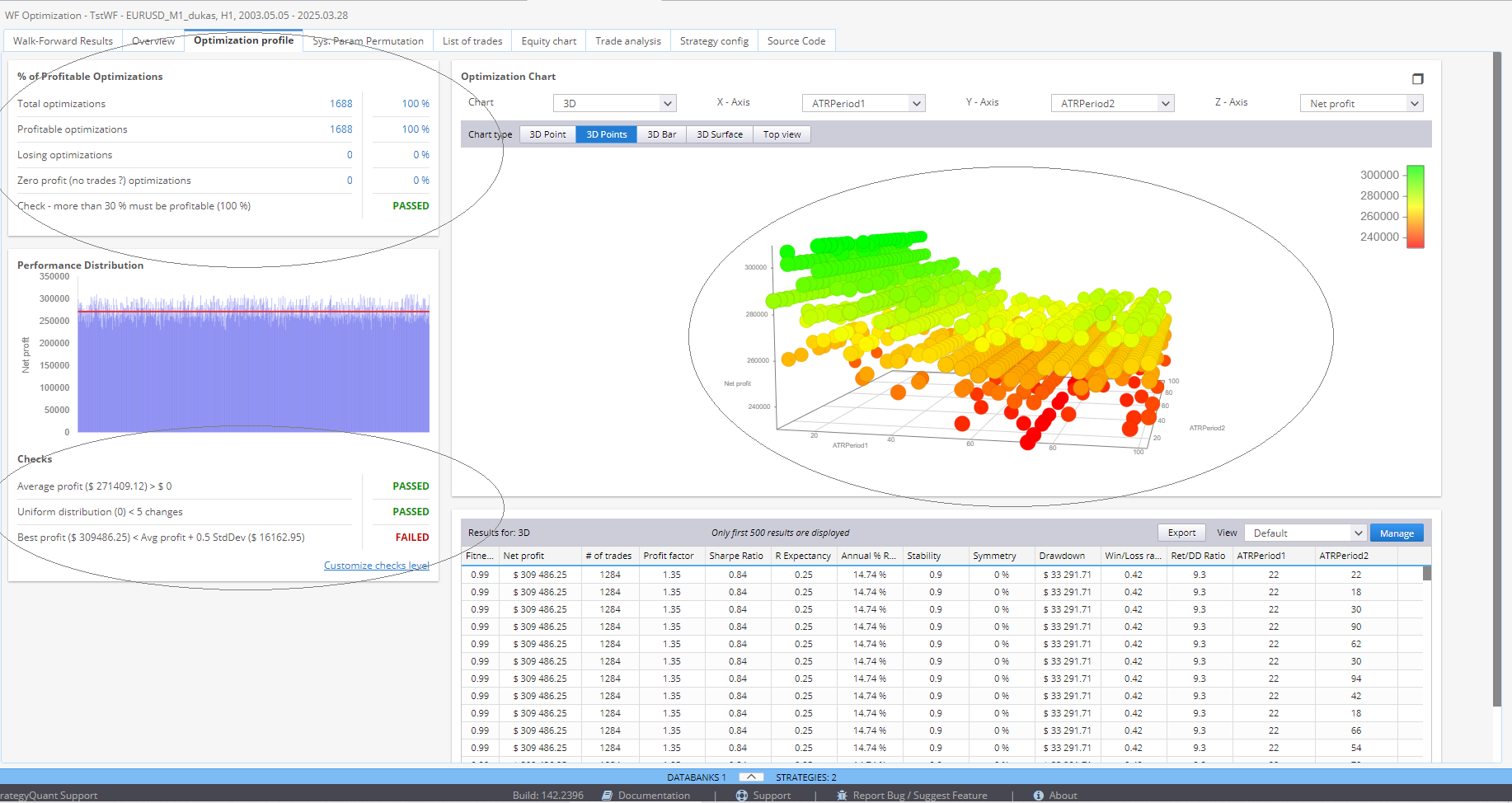
Two Common Approaches
- Avoid Optimization
- Rely only on robust logic that works across a wide range of parameters.
- Use Reoptimization
- Regularly reoptimize parameters to adapt to evolving market conditions.
StrategyQuant offers tools like Walk-Forward Optimization and Walk-Forward Matrix to evaluate whether reoptimization improves performance and how frequently it should be done.
Was this article helpful? The article was useful The article was not useful
Page contents