


 Anglais
 Espagnol
 Portugais
 Italien
 Allemand
 Japonais
Documentation et guides de l'utilisateur
Apprenez les bases ou affinez vos compétences grâce à des tutoriels conçus pour vous inspirer.
Dernière mise à jour le 9 septembre 2025 par Kornel Mazur
Blocs de construction
Contenu des pages
Settings → Building Blocks
Blocs de construction define the structural components used to generate trading strategy logic. These include indicators, order types, exit methods, and parameter configurations.
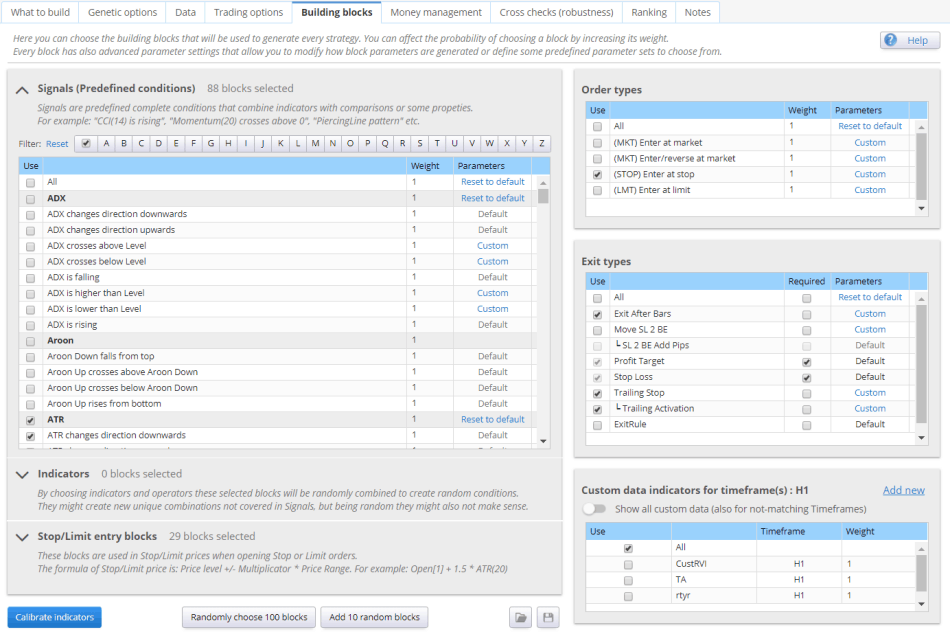
Vue d'ensemble
- Vous pouvez enable/disable specific building blocks.
- Assign weights to influence how frequently a block is selected.
- Configurer paramètres to define or constrain value ranges.
- Choose between default values ou custom parameter sets.
Conseil : For best results, limit the selection to a curated set of indicators relevant to your strategy goals.
Building Block Categories
Signals / Indicators / Stop-Limit Entry Blocks
- Signaux: Predefined conditions like “CCI crossed above 0” or “ADX is rising.”
- Indicateurs: Basic components used to form conditions (CCI, RSI, etc.).
- Stop/Limit Blocks: Define price offset rules for pending orders.
Types de commandes
- Specifies allowable order methods:
- Marché
- Arrêter
- Limit
- Enter/Reverse
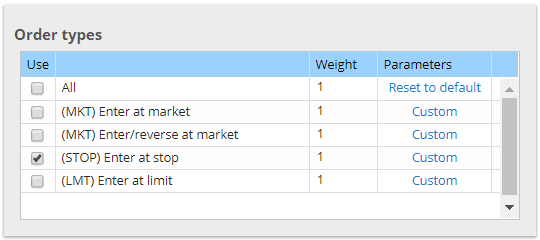
Exit Types
- Choose among different exit strategy mechanisms:
- Fixed SL/PT
- Exit after X bars
- Mave SL 2 BE
- SL 2 BE Add Pips
- Trailing Stop
- Trailing Activation
- Exit rule
Custom Data Indicators
- External, user-imported indicators.
- Valid only for the timeframe for which they were defined.
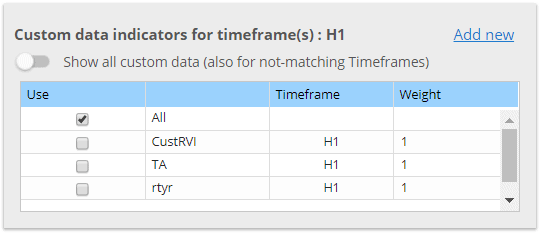
You can check more here: https://strategyquant.com/doc/strategyquant/external-indicators
Advanced Block Configuration
Edit Block Parameters
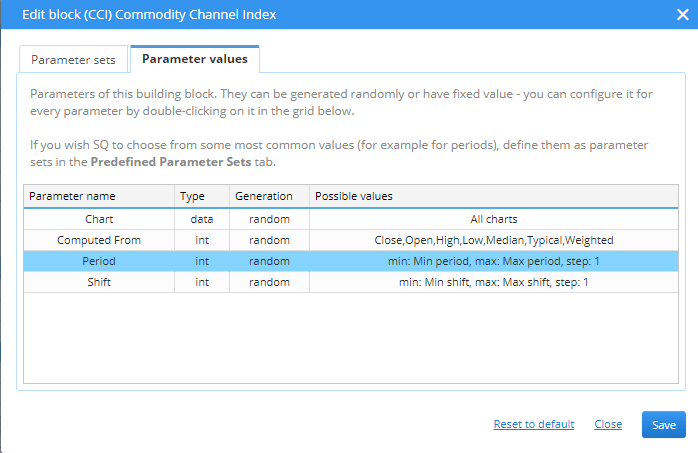
- Double-click any block to customize parameter generation logic:
- Fixed value
- Random value from a list
- Numeric range (min–max)
Example (CCI block):
- Graphique: Source chart for calculation
- Calculé à partir de: Price type (e.g., Close, Typical)
- Période: Indicator period
- Déplacement: Lookback bar index
Jeux de paramètres
- Define multiple sets with different parameter values.
- Appliquer weights to control selection probability.
- Useful for defining favored indicator configurations.
Exemple :
- Set A: CCI period = 14 (weight = 1)
- Set B: CCI period = 30 (weight = 1)
- Disable random generation by setting default parameter weight = 0.
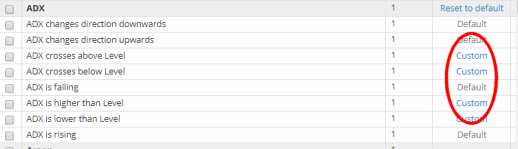
Indicator Value Ranges
Allows definition of expected value ranges for each indicator. Helps the generator understand how an indicator behaves when comparing to static values (e.g., RSI between 0–100).
Indicators Calibration
- Calibrate indicator ranges based on the current market instrument.
- Adjusts for instruments with differing price scales (e.g., EURUSD vs. indices).
- Introduced in Build 131 with support for automatic calibration:
- Computes min, max, and step based on historical data.
Indicator Calibration:
Indicator Calibration
Vue d'ensemble
Indicator Calibration, introduced in StrategyQuant X Build 131, is designed to automatically configure indicator parameters within building blocks, ensuring they operate within a statistically meaningful range based on your data settings. This leads to more efficient strategy generation by eliminating parameter values that produce irrelevant or unrealistic results.
Purpose and Benefits
Calibration identifies and assigns effective min, maxet étape values for each indicator parameter. These values are computed from historical data and reflect actual market behavior, thus improving the quality and relevance of generated strategies.
How the Calibration Works
- Initialization
- Each indicator is initialized with default parameter values and executed across the entire historical dataset defined in your data settings.
- Value Collection
- All calculated values (per bar) are collected and stored in memory.
- Statistical Analysis
- Minimum value = Mean − Standard Deviation
- Maximum value = Mean + Standard Deviation
- Step value = Based on user-defined step settings in the Calibrate Indicators popup
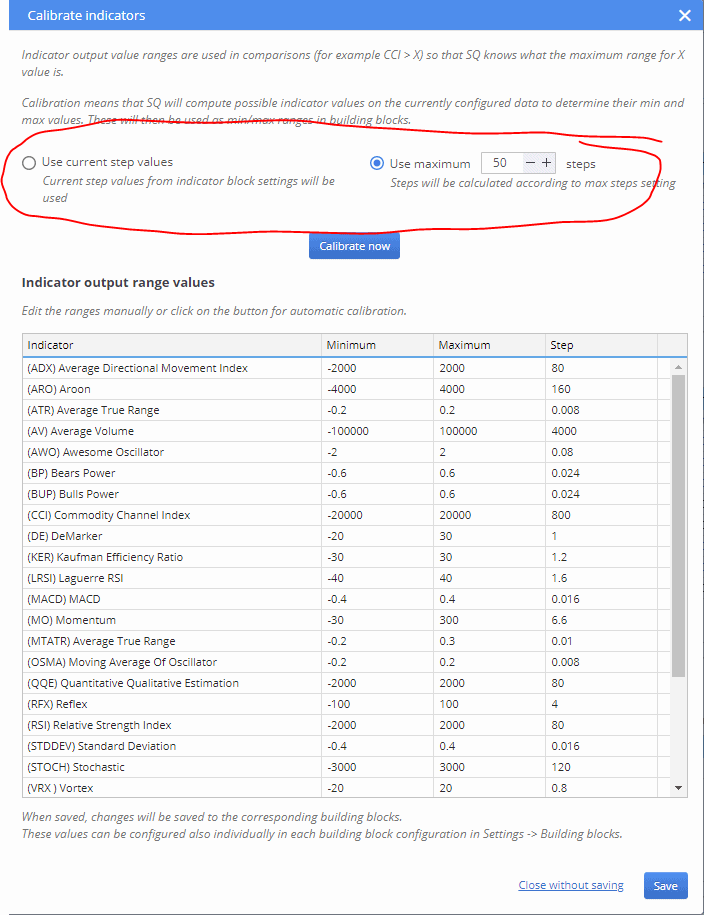
Calibration Interface
Calibration can be performed via:
- Manual Execution:
- Cliquez sur le bouton Calibrer maintenant button in the Building Blocks Settings tabulation.
- Automatic Execution:
- Enable the Calibrate before start option to perform calibration automatically at each project start.
After calibration:
- Results are displayed in the indicator table.
- You can manually adjust the min/max/step values.
- Cliquez sur Économiser to apply these settings to the building blocks.
Extended Calibration (Multi-Instance)
The default calibration uses only a single set of parameters per indicator, which may not reflect the full operational range. To improve accuracy, an extended calibration process runs multiple instances of the same indicator with various parameter configurations.
This enhances the statistical representativeness of min/max/step values.
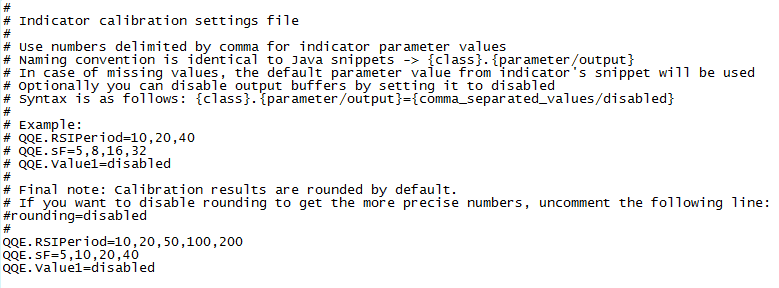
Custom Configuration via File
To configure extended calibration, edit the calibrationSettings.txt file located in:
bash
CopyEdit
user/settings/calibrationSettings.txt
File Format
- Comments: Lines beginning with #
- Empty lines are ignored
- Naming conventions match Java snippets
- You can define:
- Specific parameter sets for each indicator
- Output buffers to exclude (to reduce processing time)
Example Configuration (QQE Indicator)
ini
CopyEdit
QQE.RSIPeriod=10,20,50,100,200
QQE.sF=5,10,20,40
QQE.wF=4.236
QQE.Value1=disabled
This configuration creates five QQE indicator instances with combinations of RSIPeriod and sF. The Value1 buffer is excluded from calculation to improve efficiency.
Sample Instances:
TABLE !!
InstanceRSI PeriodsFwF
1 10 5 4.236
2 20 10 4.236
3 50 20 4.236
4 100 40 4.236
5 200 5 4.236
Rounding Calibration Results
By default, calibrated values are arrondi for presentation clarity. This can be disabled for higher precision by adding the line:
ini
CopyEdit
rounding=disabled
in the calrationSettings.txt file.
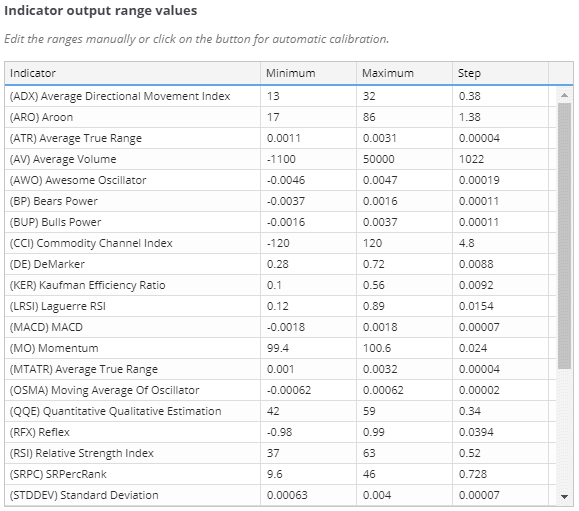
Effect of Rounding
- Rounded values: Easier to read, fewer decimal points
- Unrounded values: More accurate, suitable for advanced users
Comme vous pouvez le constater, les valeurs de la deuxième capture d'écran sont un peu plus précises. C'est à vous de décider si vous laissez l'arrondi activé ou si vous le désactivez.
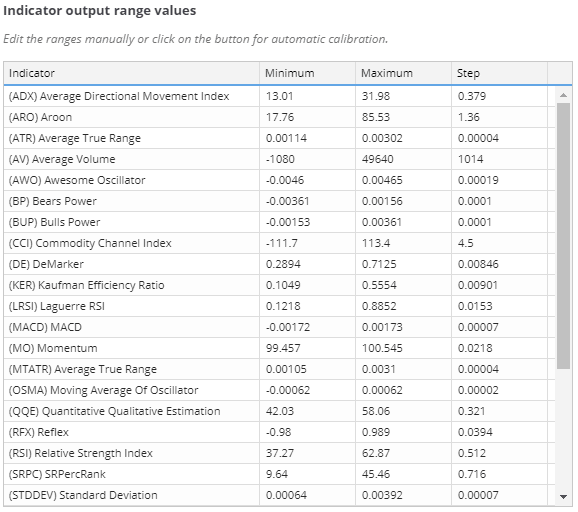
Users may choose to enable or disable rounding based on their precision requirements.
Cet article a-t-il été utile ? L'article était utile L'article n'était pas utile
Contenu des pages