


 Spanish
 Portuguese
 French
 Italian
 German
 Japanese
Documentation & User Guides
Learn the basics, or refine your skills with tutorials designed to inspire.
Last updated on 21. 10. 2026 by Libor Stepan
Q Introduction
Page contents
Q is StrategyQuant’s AI. It is a product in its own right, not a chat window bolted onto the application — it has its own memory, its own plugins and skills, its own credit balance, and it works on your installation.
That is the whole difference. A general AI answers the story you tell it. Q opens the actual file, reads what is really in it, and changes what you asked it to change. It reads your databanks, configures and runs projects, exports data, computes over it in Python, writes files and reports back.
You reach Q from the AI assistant item in the left menu, or from the small Q tab on the right edge of the window. There is nothing to install and no API key to enter — Q runs on StrategyQuant models and is paid for with AI credits that come with your license.
Note!
AI can make mistakes. Everything Q produces is a draft you should check, and nothing it writes is investment advice. The sections Staying in control and Before you trust an answer are the two you should not skip.
Step 1: Open Q
Click AI assistant in the left menu. Q opens as a panel on the right side of the application, next to whatever you are working on.
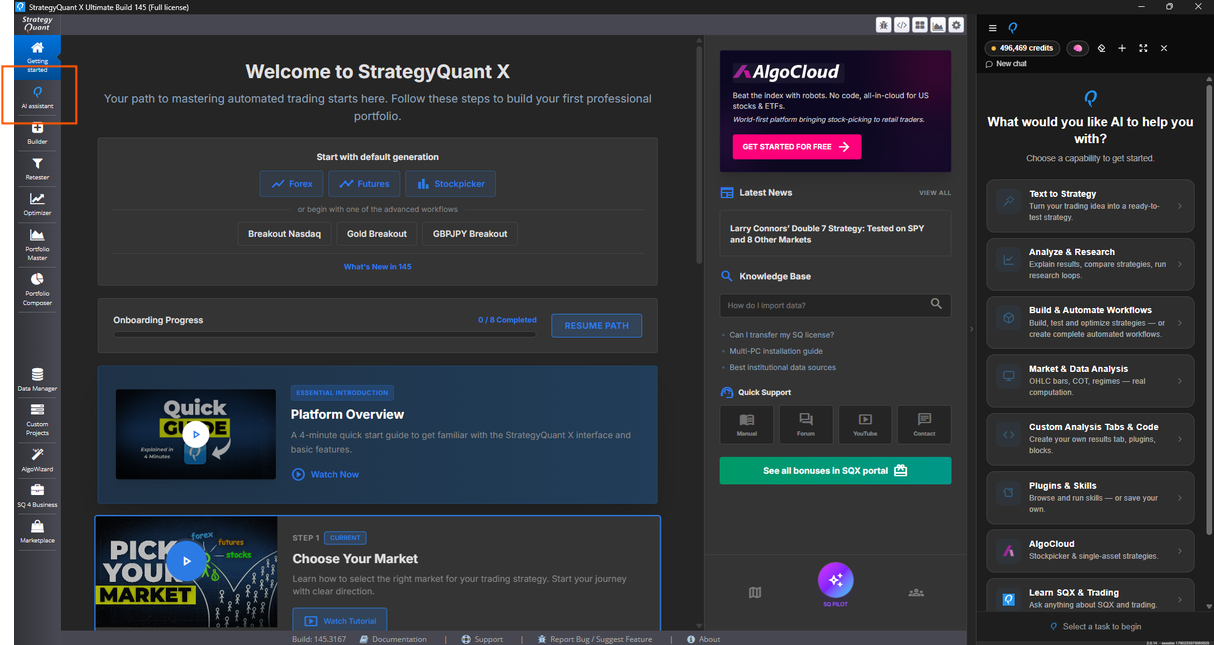
Q lives inside StrategyQuant, not in a browser tab. Whatever you were working on stays visible next to it.
There is a second way in, and it is the one you will use most. Whenever the panel is closed, a small Q tab sits pinned to the right edge of the window, halfway down.
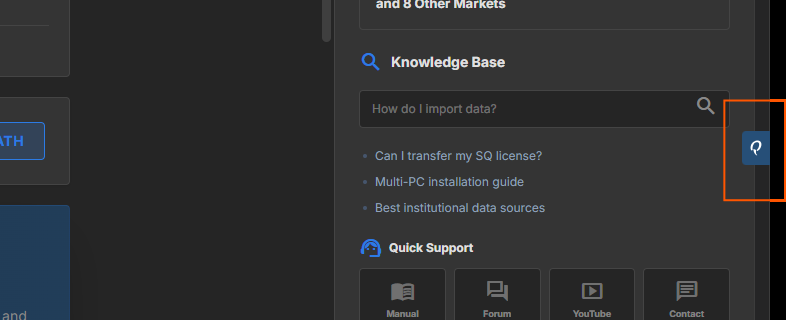
Easy to miss until you know it is there. Click it and the panel slides open on whatever screen you happen to be on — no trip back to the menu. Close the panel and the tab comes back.
The header of the panel holds everything you need:
- Conversations — your chats, grouped into projects, with pinned ones on top
- AI Brain — what Q remembers and has learned, described in Step 4
- Clear chat — empties this conversation, on the server too
- New session — starts a second, independent conversation
- Maximize — expands the panel over the whole window; the conversation stays as it is
- your remaining AI credits, with View Usage & Credits next to them
Under the input field you pick the Model, and the input field itself accepts slash commands — type / and the list of commands opens.
Maximized, the panel takes the whole window and opens the list of conversations on the left. The header then carries the full name — the Q mark, by StrategyQuant and the line A quant you can talk to. Chats can be grouped into projects and pinned, and the conversation you were in stays exactly as it was.
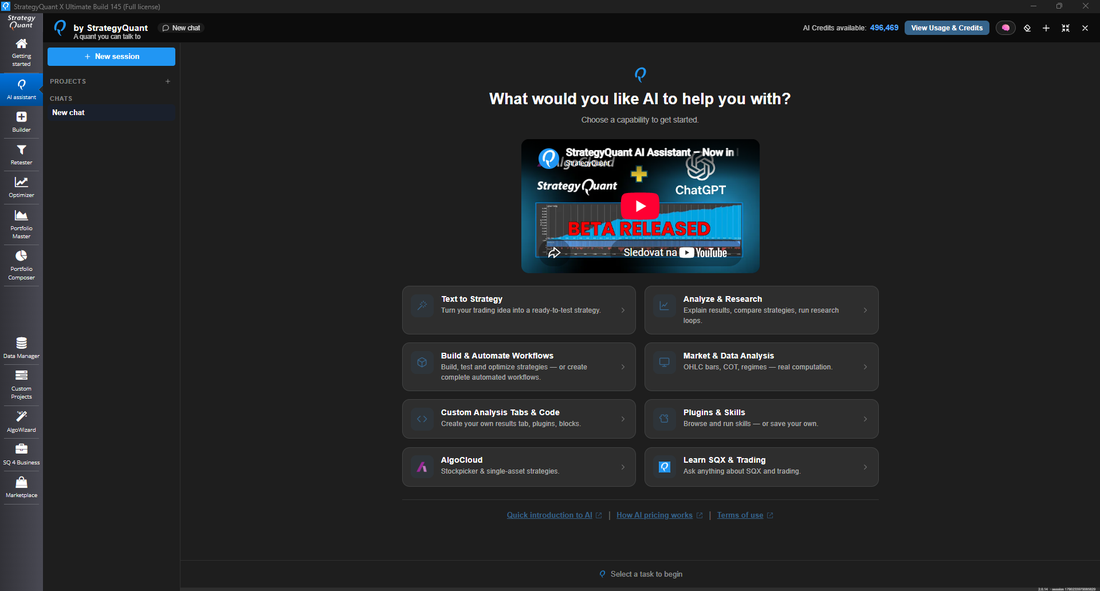
The same assistant maximized. Projects and pinned chats on the left, the home screen in the middle.
Note!
Sessions are conversations, not memory. Starting a new one does not make Q forget you — what it remembers lives in the AI Brain and is described in Step 4.
Two ways to start
The home screen of a new chat offers eight areas, one for each kind of work Q does. Step 2 goes through them one by one.
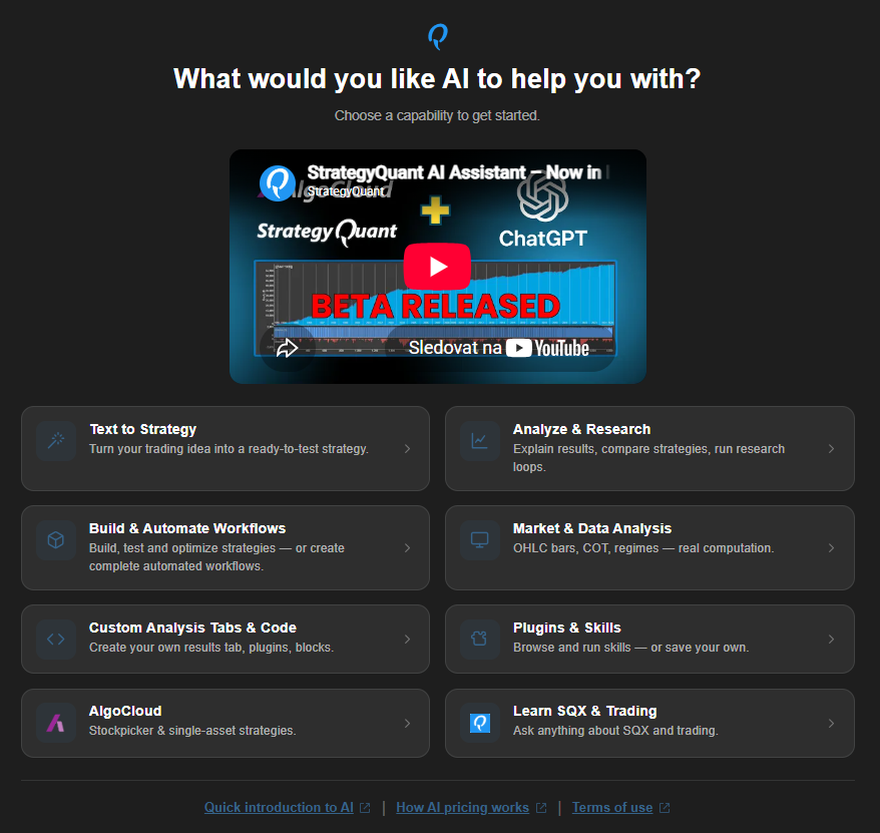
The home screen of a new chat. The links at the bottom open the introduction, the pricing page and the terms of use.
Open any of them and you get a description and a handful of example sentences you can send as they are — the fastest way to see what a request should look like.
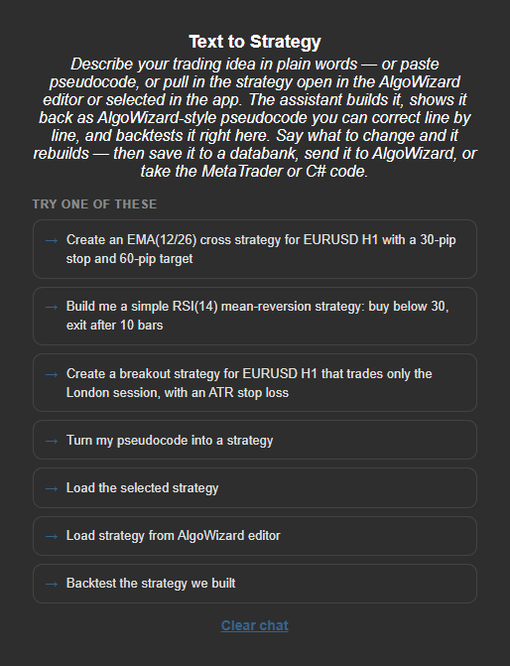
Every area comes with example sentences. Send one as it is, or use it as a pattern for your own.
You can also just write your own sentence. The areas are a starting point, not a mode you switch into — one conversation can move from building a strategy to analyzing it to writing a results tab for it.
Most chips are sentences, but one is not. In Text to Strategy, Load strategy from AlgoWizard editor is wired to an action rather than a prompt: it pulls the strategy you have open in the editor straight into the conversation. Load the selected strategy next to it is an ordinary sentence — it asks Q to fetch whatever is selected in the application and show it back as pseudocode.
The panel also volunteers. Open a backtest in the editor and it notices: Backtest in editor detected, with a button to load those results into the chat.
Step 2: The eight areas
- Text to Strategy — describe an idea in plain words, paste pseudocode, or pull in a strategy you already have. You get it back as readable rules, backtested.
- Analyze & Research — explain, audit and compare strategies and databanks. Also longer work: robustness screens, experiments, research loops.
- Build & Automate Workflows — set up and run Builder, Retester, Optimizer and custom projects, or have a whole multi-task pipeline assembled.
- Market & Data Analysis — the market itself: OHLC bars, COT positioning, regimes. Real computation, not an opinion.
- Custom Analysis Tabs & Code — have missing functionality written: a results tab, an indicator, a building block, a plugin.
- Plugins & Skills — browse and run the shipped procedures, or turn your own workflow into one.
- AlgoCloud — stockpicker and single-asset cloud strategies.
- Learn SQX & Trading — ask about StrategyQuant itself and about trading. The knowledge base ships with the application.
In your language
Q speaks the language StrategyQuant is set to. The tiles, their descriptions and every example sentence are translated — twelve languages ship with the application. The fallback is per entry, not per file: anything a translation has not caught up with shows in English, and the rest of the screen stays in your language.
That is only the interface. Q answers in the language you write in whichever way the tiles are set, so a Czech question gets a Czech answer and reaches exactly the same tools.
Note!
The tiles are not fixed. They come from a catalog that ships with the application, and you can rename them, reword the example sentences or add a tile of your own — see Extending Q.
Text to Strategy in one minute
Write what the strategy does — buy below RSI(14) 30, exit after 10 bars. Q builds it, then shows it back as readable pseudocode so you can check it understood you before any number is computed.
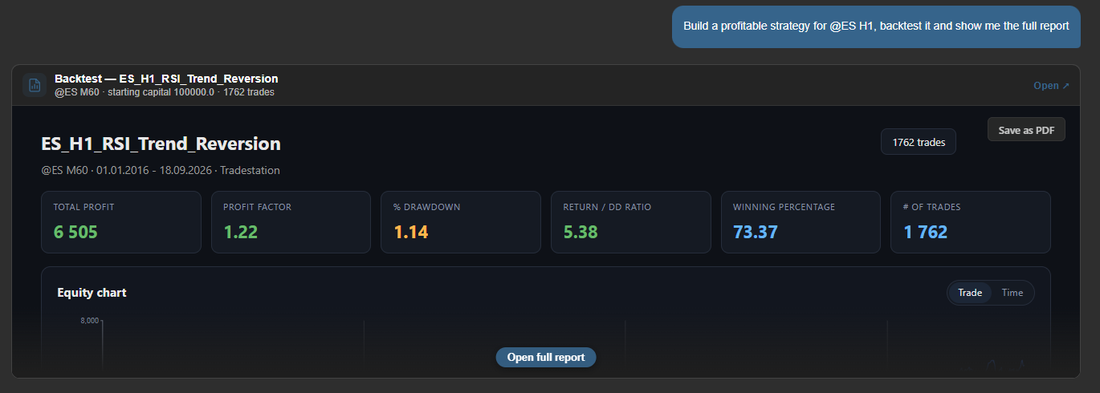
One sentence in, a tested strategy out: the rules it used, the numbers, the equity curve. Q reports what came out — here a profit, and the plain note that the edge is modest — not what you hoped for. Nothing is saved anywhere until you say so.
The pseudocode is there to be read, not edited — to change the strategy you say what you want different: another exit, a filter on top, a longer period. It rebuilds and shows you the new version. When you are happy with it, it saves to a databank, opens in the strategy editor, or hands you the code for MetaTrader, Tradestation, MultiCharts and the rest.
If you do not know where to start, the Quick Strategy Setup panel asks four questions — asset, platform, style, direction — and turns your answers into the first request for you.
Note!
Nothing lands in your databanks until you ask for it. A strategy that only exists in the conversation disappears with it.
When a picture is better than a table
Every backtest comes back as a card you can open, with the metrics and the equity curve in the conversation, Open full report for the whole thing and Save as PDF to keep it.
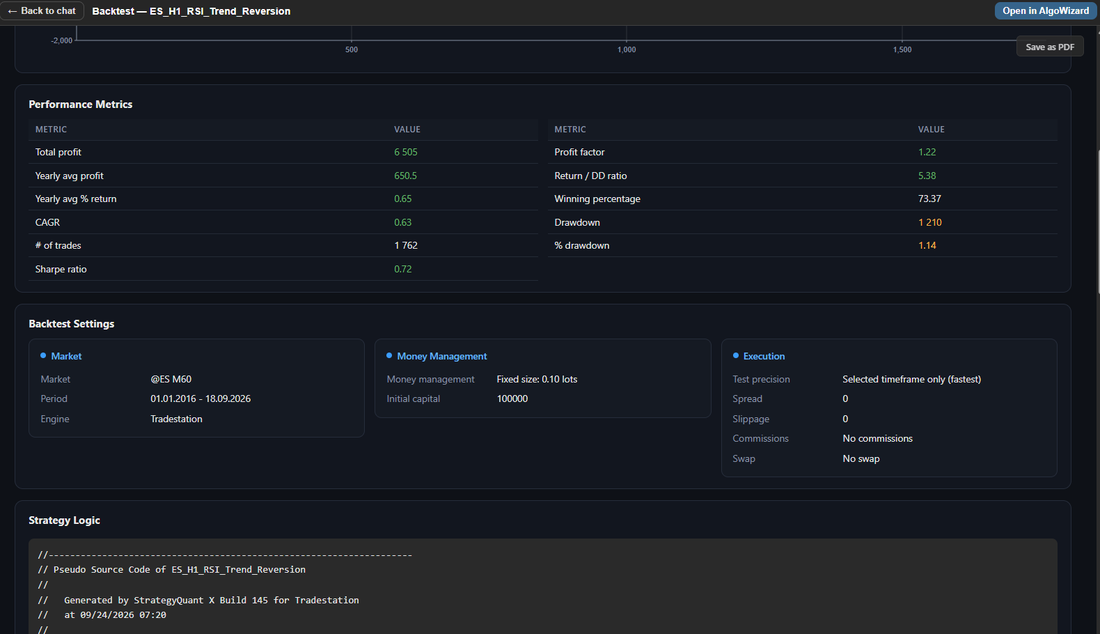
Further down the same report: the performance table, the settings the test actually ran with — market, period, money management, costs — and the strategy’s own source.
For anything larger — comparisons across markets, per-year breakdowns, research summaries — Q renders a full-page visual report from the real numbers, opened over the chat and saveable the same way.
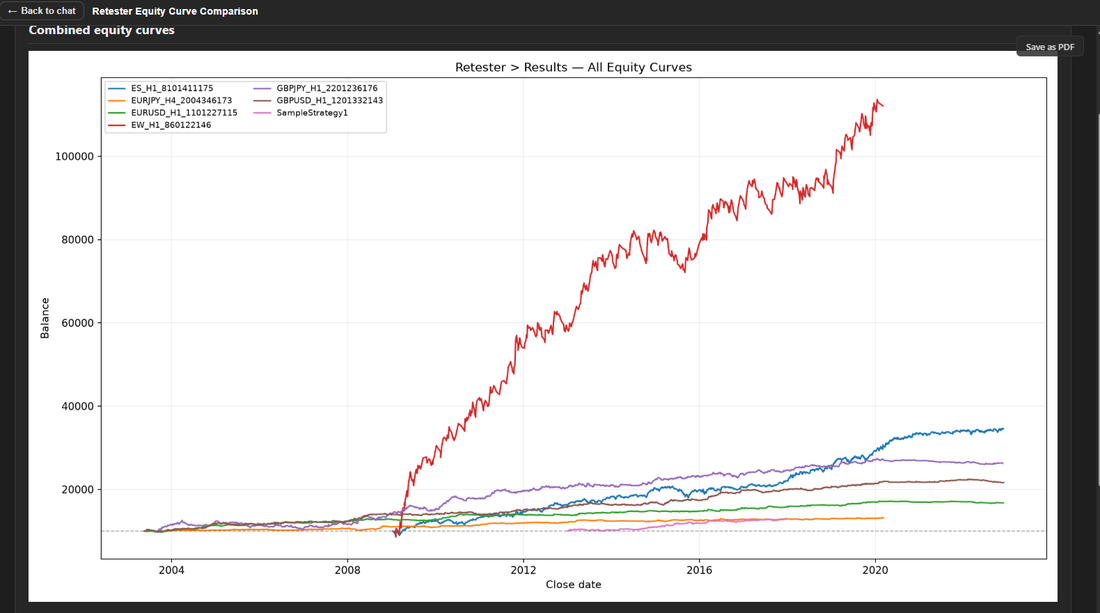
Seven strategies from a Retester databank, their equity curves drawn in one chart. The report opens over the chat and Save as PDF keeps it.
A whole project from one sentence
The same goes for work that is not a single test. Describe a pipeline — build here, retest the survivors there, keep only what stays profitable — and Q assembles the custom project, validates it and registers it in your installation, where you can inspect every task before starting it.
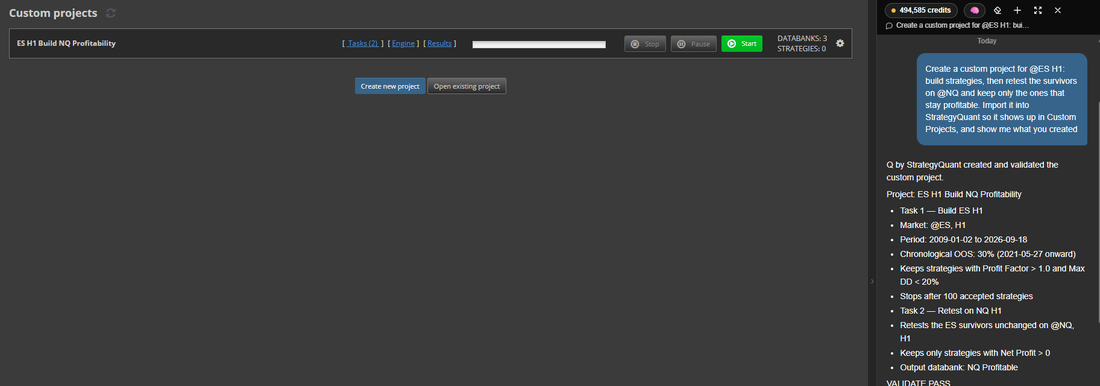
The project Q wrote appears under Custom Projects with its tasks, and the chat lists exactly what each one does.
And the same for the cloud
AlgoCloud strategies work the same way from the chat — describe a stockpicker that ranks a stock group, or a single-asset strategy for one instrument, and Q builds and backtests it against the real constituents.
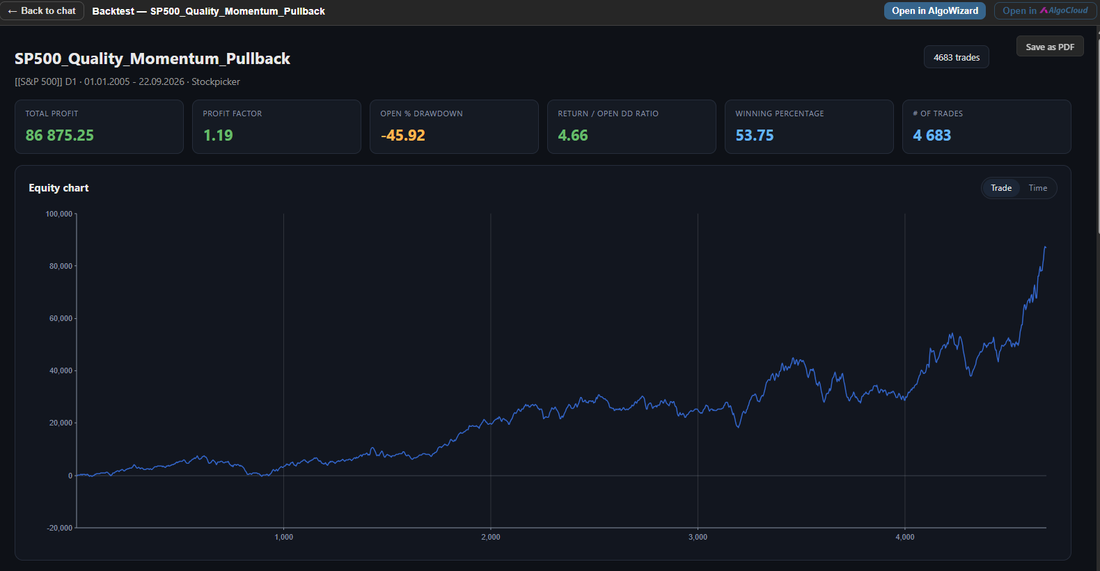
A stockpicker built on the S&P 500 and tested over 20 years, straight from the conversation.
From there it does not have to stay in the chat. Ask Q to open it in AlgoWizard and it hands the strategy over to the editor, where you confirm the name and then have the whole thing in front of you — rules to inspect, parameters to change, tests to run.
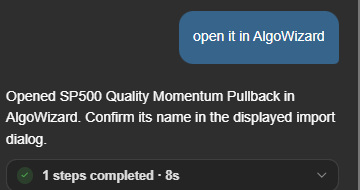
One sentence and the strategy is in the editor. The import dialog asks what to call it.
And once it is there, the Source Code tab has a new entry of its own: AlgoCloud platform, next to MetaTrader, Tradestation and the rest. Pick it and you get the button that sends the strategy straight into the AlgoCloud editor — no file to export, nothing to upload by hand.
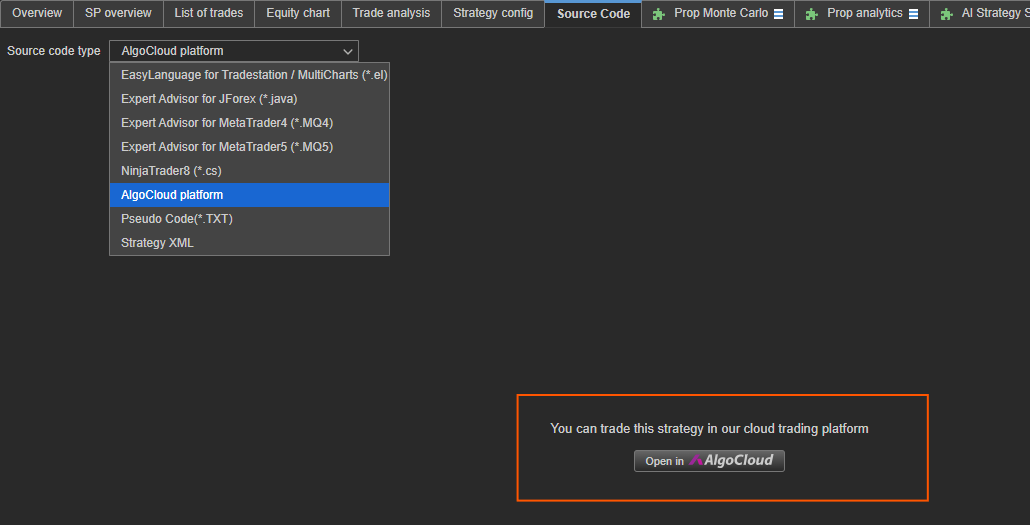
The last step out of the desktop: Open in AlgoCloud puts the strategy into the cloud editor, ready to deploy.
Step 3: How a request is answered
A request is not one question and one answer. Q plans, calls tools, reads what came back, corrects itself and continues — round after round — until the job is done or you stop it.
While it works, the panel shows exactly that: elapsed time, how many tool calls it has made, and a Stop button.
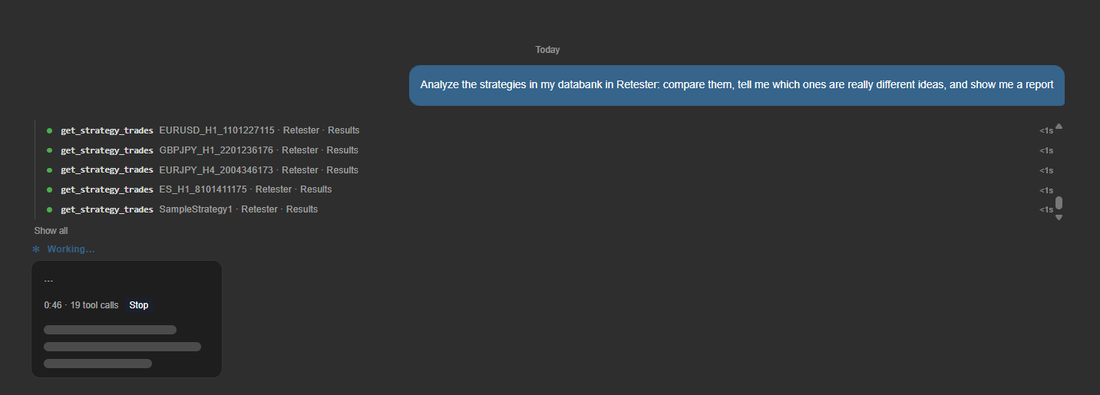
Working… 0:37 · 3 tool calls. Every step is visible while it happens, and Stop keeps whatever has been done so far.
When the turn ends, the step list folds into one line you can open again — every call by name, so nothing happens that you cannot see afterwards.

Six steps in 54 seconds: the backtest it ran, and the two files it wrote afterwards.
Several tools run at once where it makes sense, and longer side tasks go to sub-agents — a second assistant with a narrow job, whose result comes back into the main conversation.
It computes, it does not estimate
Numbers come from computation. The installation ships with Python and pandas, so when you ask something the databank columns do not answer — profit by hour of day, correlation between two strategies’ real trade lists, behaviour in calm versus violent markets — Q exports the data and computes it.
Note!
Licensed StrategyQuant market data is a special case: it may not leave the application, so the raw-bar tools refuse it. That is not a limit on what you can find out about it — the Builder, the backtests and the retests use it normally, so the answer comes from running the test rather than from reading the bars. If Q tells you it cannot analyze such a symbol at all, say that you do not need the raw bars and that it should run the backtest instead.
Give it your own material
Anything you drop, paste or attach to the conversation becomes part of it — a screenshot of an equity curve you want an opinion on, a data file to compute over, a document with the rules you want implemented. Images are seen, tabular files go straight into pandas.
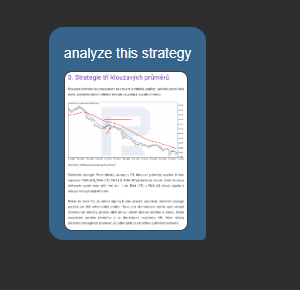
What going in looks like: a page about a strategy dropped into the chat, with three words asking what to do with it.
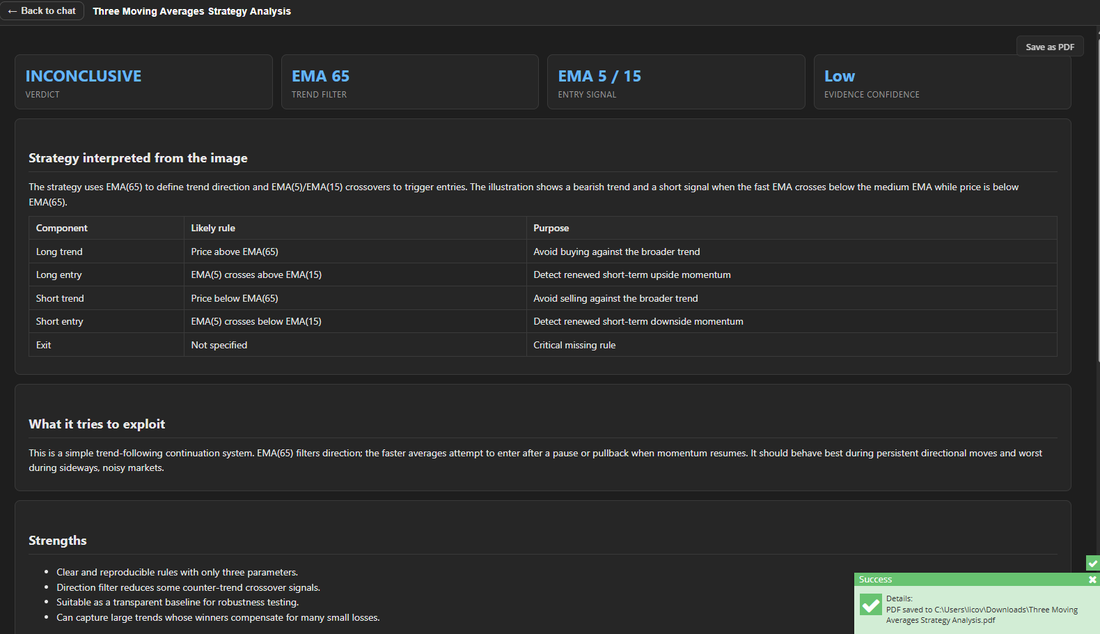
And what came back. Q read the rules off the chart and the text, wrote them out as a table — and marked the verdict INCONCLUSIVE, because the exit rule was missing.
Note!
The language of the material does not matter. The page in that example is Czech; the analysis came back in the language of the question.
Long work, overnight end
For work that does not finish in one turn, Q can schedule its own continuation: it tells you when it will pick up again, the panel counts down, and you can cancel it. That is what makes overnight research possible — form a hypothesis, build, evaluate out of sample, record the verdict, start the next round.
Note!
Give it boundaries when you leave it alone — at most three rounds, stop at 7 a.m. It keeps to them, and in the morning the step list tells you what it actually did.
Step 4: What Q remembers
Most AI chats start from zero every time. Q keeps what was worth keeping, and it keeps it as plain files you can read.
Click AI Brain in the chat header.
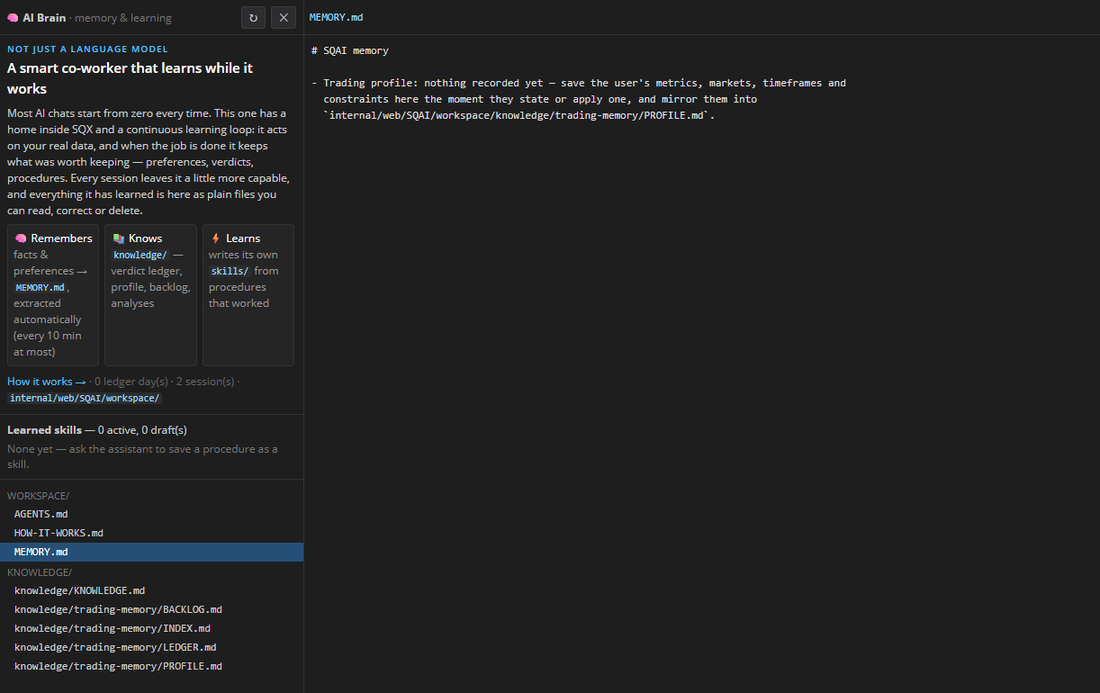
Remembers, Knows, Learns — the file list on the left, the file itself on the right, editable and saveable.
It keeps four layers:
- Long-term memory — facts and preferences, picked up automatically as you work and carried into every conversation
- Daily ledger — what was worth keeping from each day, folded into the long-term memory in the background
- Knowledge base — reference notes, including the trading ledger of verdicts, your profile and the ideas still on the list
- Learned skills — procedures Q wrote for itself after getting something right
All of it survives chats and restarts. The chat history does not carry knowledge — this does.
Why it matters in practice: tell Q once that you judge strategies by return-to-drawdown and not by net profit, and every later judgement uses that. Reject an idea and give a reason, and it will not be proposed back to you next month, because the ledger is read before new work starts.
Note!
This is the part people are most suspicious of, so it is deliberately boring: plain Markdown files, a panel that opens them, and an editor. Correct a fact, delete a note, discard a learned skill. New skills can be held back for your approval instead of loading on their own. What you leave there is what Q reads on its next turn.
Step 5: Staying in control
Q acts on your installation, so its limits are worth knowing exactly.
- You see everything, while it happens. The step list names every tool call. Nothing runs silently.
- Stop works mid-turn. It stops, and keeps what it has finished.
- Files are fenced in. The file tools reach the StrategyQuant data root and nowhere else. A path outside it needs your explicit permission.
- It may not click around the application. Driving the user interface is locked; only plain navigation is allowed. It unlocks when you type /drive-ui in the chat — Q cannot unlock it for itself.
- Every file write is snapshotted first, so a change can be rolled back.
- Everything goes into an audit log, which you can ask it to show you.
- Nothing is saved to your databanks until you say so.
Note!
Two things are genuinely irreversible and both ask first: clearing a chat empties it on the server as well, and closing a session can delete its transcript. Work Q did — files, strategies, projects — is not affected by either.
Step 6: Credits and models
Q runs on StrategyQuant models, so there is nothing to set up and no key to paste. Usage is paid for with AI credits, and a number of them comes with your license. If you pay for your license in instalments, the credits arrive in instalments too.
When they run out you top up at portal.strategyquant.ai/billing — a one-off package, or a monthly plan where each credit costs less. How much a request consumes depends on how long and how involved it is: short questions are cheap, an overnight research loop is not.

The balance sits in the chat header. View Usage & Credits opens the page where you can see what has been spent and add more.
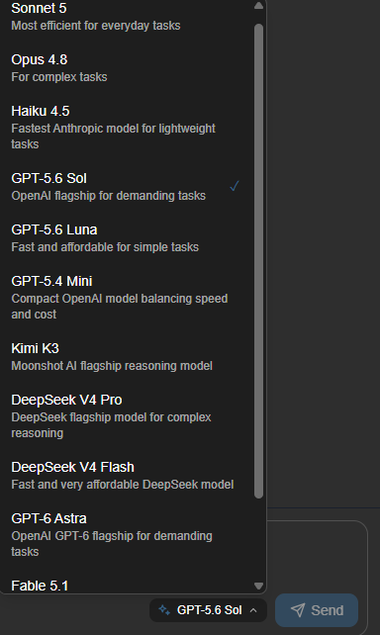
Models from several providers, switchable per message.
You are not tied to one model. The picker under the input field lists what is available and switches per message, so a quick question and a demanding build do not have to run on the same one. Everything Q does — the chat, the sub-agents, the completions your own results tab asks for — is billed from this one balance.
Before you trust an answer
- The numbers came from a run you can point at — a backtest, a project, a Python computation — not from a summary of a summary.
- The period and the market in the result are the ones you meant. Check the header of the report, not the sentence above it.
- A strategy was judged out of sample, not on the data it was built on.
- A comparison between strategies used their real trade lists, not their databank rows.
- Costs and slippage were in the test. Ask if you are not sure.
- Anything Q says about your installation — how much data you have, what a setting is — is worth one click to verify, because it is one click.
- If a claim surprises you, ask for the step that produced it. The step list is there for exactly this.
Troubleshooting
The panel says no models are available. The Q backend is not running. Restart StrategyQuant; if it persists, check that the AI plugin is present in your installation.
Access denied, or the credit balance does not load. Q authenticates through your StrategyQuant account. Check that the application is signed in and that your license covers AI usage.
It refuses to analyze a symbol, saying the data is licensed. Correct for raw bars, wrong for everything else — the engine computes inside the application and nothing leaves it. Tell Q you do not need the raw bars and that it should run the backtest instead.
It says it cannot click something in the interface. By design. Type /drive-ui yourself to unlock it for that conversation. Most changes do not need it: settings, projects and configurations are changed through the tools.
It cannot read a file. The path is outside the StrategyQuant data root. Either move the file in, or grant access to that path explicitly.
It forgot something I told it in another chat. Facts are picked up after a turn ends, not instantly, and only the durable ones. Open the AI Brain panel and write it into the long-term memory yourself — that is read on every turn.
A long conversation started losing the thread. Older rounds are compacted into a summary as a conversation grows; the full transcript stays on disk. For a genuinely new task, start a new session — memory carries over, the clutter does not.
It stopped in the middle of long work. Check whether a scheduled continuation is pending — the panel shows a countdown when one is — and whether the turn ran out of rounds. Ask it to continue.
What to expect
Q is good at work that is well defined and tedious: setting up projects, reading results, writing code against an interface it knows, computing things the columns do not cover, and keeping a record of what was already tried. That is most of the work, and it is where the time goes.
It is not a substitute for judgement. It will build what you describe, including ideas that do not hold up — and it can only tell you so if you let it test properly. The verdicts are as good as the discipline around them, which is why out-of-sample rules are built into the shipped procedures instead of being left to the conversation.
Treat Q as a fast, literal, tireless colleague who has read the manual and remembers what you decided. Check its work the way you would check theirs.
Where to learn more
- Extending Q — the plugins and skills it ships with, how to save your own workflow as one, and how to call Q from a results tab you wrote yourself
- Quick introduction to AI and How AI pricing works — the two links at the bottom of the chat’s home screen
- The documentation Q itself reads ships with the application: StrategyQuant concepts, custom projects, AlgoCloud, and a trading section on overfitting, position sizing and portfolio construction
Was this article helpful? The article was useful The article was not useful
Page contents