


 Spanish
 Portuguese
 French
 Italian
 German
 Japanese
Documentation
Applications
Last updated on 30. 4. 2026 by Tomas Vanek
MetaTrader 5 Direct API Data Import
Page contents
The Import data from MT5 dialog in StrategyQuant X Data Manager lets you pull historical price data directly from a local MetaTrader 5 installation into Quant Data Manager (QDM). It is the fastest way to get broker-accurate history for any symbol your MT5 terminal can see — forex, CFDs, indices, stocks and futures.
Availability
This feature is available since StrategyQuant X build 144. Earlier builds do not include the MT5 import tile in Data Manager — update to build 144 or later to use it.
Before you start
- MetaTrader 5 must be installed on the same machine as StrategyQuant X.
- The MT5 terminal must have been launched at least once and logged into a broker account so symbol metadata is available.
- For best results, increase the MT5 history buffer: in MetaTrader 5 go to Tools → Options → Charts and set Max bars in chart to a high value (e.g. 99,999,999), then restart MT5. Without this, MT5 only keeps a limited window of bars in memory and the import will be truncated.
Opening the dialog
- Open Data Manager in StrategyQuant X.
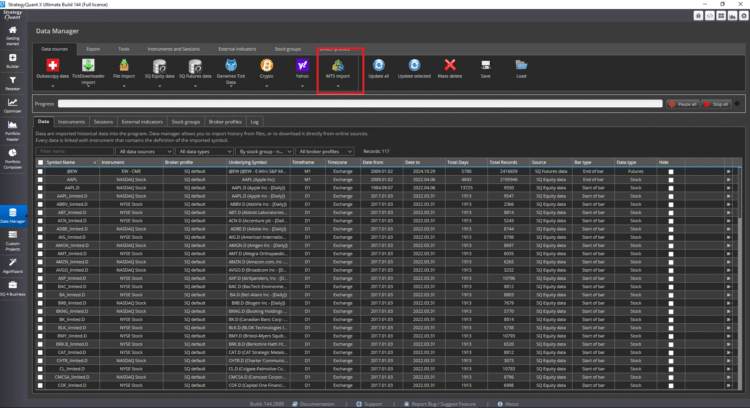
- On the Data sources tab, click the MT5 import tile.
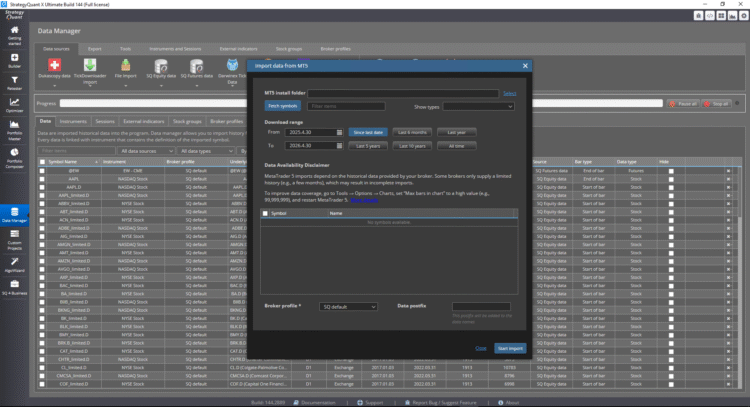
- The Import data from MT5 dialog opens.
Dialog fields
MT5 install folder Click Select and point to the folder of the MetaTrader 5 installation you want to read from. The folder must contain terminal64.exe.
You can choose either a standard installation or a portable MT5 instance — StrategyQuant detects the layout automatically. If the folder does not contain terminal64.exe, the import fails with a clear error.
Fetch symbols After the install folder is selected, click Fetch symbols to load the symbol list from MT5. Only symbols visible to the connected MT5 terminal can be fetched — if a symbol is missing, open it in MT5 first (Market Watch → Show All) and fetch again.
Filter items Text filter over symbol names. Useful for narrowing long broker symbol lists.
Show types Limits the symbol list to a specific instrument category (forex, CFD, futures, stock, …) as reported by MT5.
Download range Defines the historical window to import.
- From / To — manual start and end dates.
- Since last date — incremental update; downloads only data newer than what is already in QDM for the selected symbol.
- Last 6 months, Last year, Last 5 years, Last 10 years, All time — quick presets that fill From and To for you.
The actual amount of data you receive is capped by what your broker stores. The dialog warns about this in the Data Availability Disclaimer: some brokers only keep a few months of M1 history, which can make long ranges look incomplete even though the import worked correctly.
Symbol table After fetching, tick the symbols you want to import. Multi-select is supported; each selected symbol becomes (or updates) an instrument in QDM.
Broker profile Select the broker profile under which the imported instruments will be stored. The profile groups instruments by broker so backtests use consistent spread, commission and trading-hours definitions. SQ default is the built-in fallback.
Data postfix Optional suffix appended to the imported data name in QDM (for example _MT5 or _BrokeX). Use it to keep parallel imports of the same symbol from different brokers separate. Leave empty if you don’t need the distinction.
Running the import
- Select the MT5 install folder.
- Click Fetch symbols and wait for the list to populate.
- Filter and tick the symbols to import.
- Pick a download range.
- Choose the broker profile and, optionally, a data postfix.
- Click Start import.
Progress is shown by the Progress bar at the top of Data Manager. You can pause or stop the queue with Pause all / Stop all in the top-right of the window. When the import finishes, the new instruments appear in the Data tab below.
What gets imported
For every selected symbol StrategyQuant pulls from MT5:
- OHLC bar history for the requested range.
- Symbol metadata: digits, tick size, tick value, contract size, base/profit currency, calculation mode, raw spread.
From this metadata QDM derives the instrument’s Pip/Tick size, Pip/Tick step, Point value and Default spread.
Updating data later
The MT5 import is designed to always create a new symbol in QDM — it is not an incremental update tool. Each run produces a fresh instrument entry rather than appending bars to an existing one.
If you want to refresh data for a symbol you already imported, delete the existing instrument in Data Manager first and then run the MT5 import again. This also ensures the symbol profile (tick size, point value, contract size, spread) is rewritten with the latest values from your broker — useful when broker specs have changed since the original import.
Use the Data postfix field if you want to keep the old import alongside a new one (for example, tag the new run with _v2 or a date) instead of replacing it.
Troubleshooting
- “Selected folder doesn’t contain terminal64.exe” — You pointed at the wrong folder. Pick the MT5 installation root that contains terminal64.exe.
- Fetch symbols returns nothing or fails — MT5 has never been launched, is not logged in, or the symbol list is empty. Open the terminal, log in, then fetch again.
- Imported range is much shorter than requested — Broker doesn’t store deeper history, or MT5’s Max bars in chart is too low. Raise the limit in Tools → Options → Charts, restart MT5, reimport.
- A symbol is missing from the list — Symbol is not visible in MT5’s Market Watch. In MT5, right-click Market Watch → Show All (or add the symbol manually), then fetch again.
- Tick size, point value or spread looks wrong in QDM — Broker metadata anomaly. Delete the instrument and reimport. If the value is still wrong, the symbol may need a metadata override on the import side
Was this article helpful? The article was useful The article was not useful
‘Start import’ button not available
Great new feature.
But unfortunatly the ‘Start import’ button (as shown in your picture) is not available in my StategyQuant installation(Windows 10)…