


 英語
英語 スペイン語
スペイン語 ポルトガル語
 フランス語
フランス語 イタリア語
イタリア語 ドイツ語
ドイツ語ドキュメント
アプリケーション
最終更新日:2024年10月15日(マーク・フリック)
ブローカープロフィール
ページのコンテンツ
Broker profile is a new feature in StrategyQuant X introduced in Build 141.
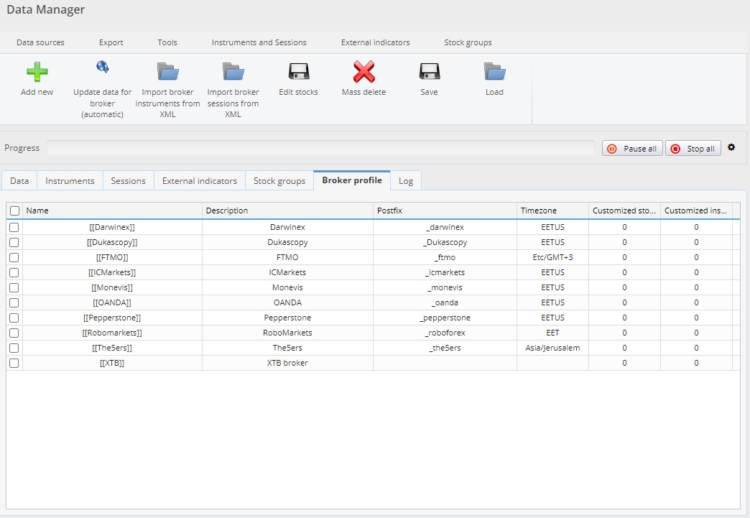
Generally, the idea is that you can create a “profile” for a given broker, where you can use specific settings of this broker.
It is because different brokers can have different settings – they are in different time zones, they can even have different settings for some symbols or use different trading sessions.
Broker profiles are a way to configure this in StrategyQuant X, moving one more step towards the realistic backtest with your broker.
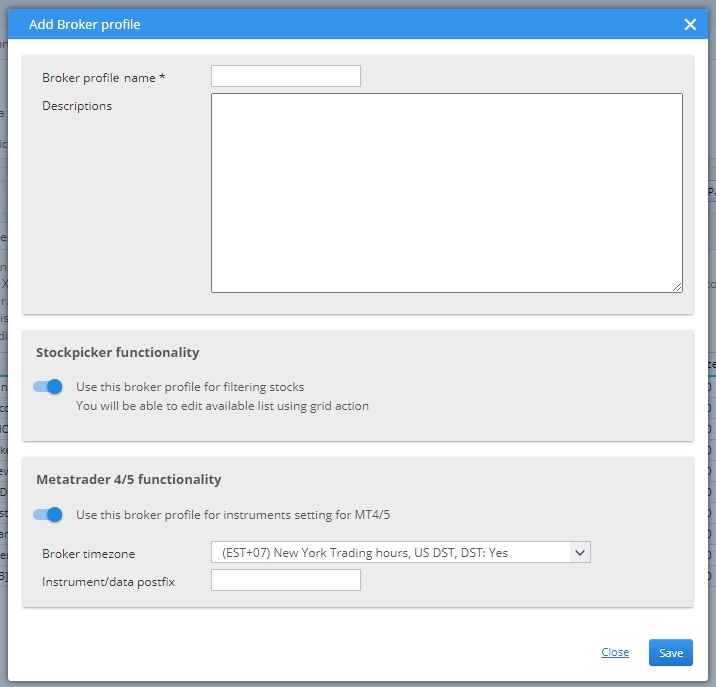
Broker profile functionality can be divided into two areas:
- It can limit the groups of stocks traded in Stockpicker engine – because some brokers support only a subset of stocks.
- Use broker instrument settings and time zone instead of the default one used in SQX
SQX 141 already comes with a set of predefined broker profiles for most common brokers. Here is the list of default brokers:
- IC Markets
- RoboForex
- PepperStone
- OANDA
- ダーウィンエックス
- デュカスコピー
- 5ers
- FTMO
- Monevis
Broker profile Stock Picker functionality
It can limit the groups of stocks traded in Stockpicker engine – because some brokers support only a subset of stocks.
An example is XTB broker – they allow trading a few thousands major stocks from tens of thousands that are generally available on stock exchange.
You can use Broker profile to list stocks that are traded on XTB, and then use this broker profile in Stockpicker backtest – it will ignore stocks that are not traded on XTB, leading to a realistic result.
Broker profile Metatrader 5 functionality
With this functionality you can specify a timezone of your specific broker, and you can also create Instruments and Sessions specifically for this broker.
Some brokers use different instrument settings on certain symbols – for example, they use different Point value, tick step, etc.
Usage with Instruments and sessions
It is simple for Instruments and Sessions – you can create instruments/sessions that are specific for your broker. Then you can have data that uses these instruments instead of default SQ instruments, and this way your backtests in SQX will match backtests in your MT5 platform as far as instrument configuration or sessions are considered.
Usage when downloading data from Dukascopy or Darwinex
Predefined broker profiles can be newly used also when adding and downloading data from free sources like Dukascopy and Darwinex.
You can now select a broker profile when adding these data:
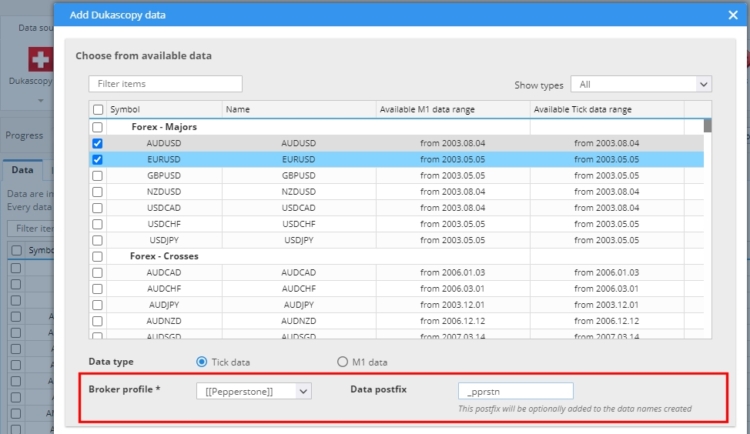
And when you select a broker profile different from SQ Default you will be able to choose your own instrument settings for the added data.
Also, the downloaded data is automatically converted from the timezone of the source to the timezone of your broker.
IMPORTANT NOTE:
PLEASE BE AWARE THAT THIS SCRIPT RESOLVES THE ISSUE EXTRACTING CORRECT DATA SETTINGS, HOWEVER IT DOES NOT RESOLVE THE ISSUE WITH DATA DIFFERENCES.
PLEASE READ THIS ARTICLE ABOUT THE DATA DIFFERENCES.
FOR ACCURATE RESULTS YOU SHOULD USE BROKER DATA FROM PLATFORM IF THEY ARE AVAILABLE IN METATRADER 5 PLATFORM. CHECK THIS TUTORIAL ON HOW TO EXPORT DATA FROM METATRADER 5 AND IMPORT TO STRATEGYQUANT X.
All point values are calculated in USD currency, if you are using different account currency, you need to update the values from script manually.
Getting correct Instruments & sessions from broker
How can you get the correct instrument and session settings for your broker?
As said above, there already are predefined profiles for most common brokers. If you use a different broker, there is another simple solution – a script originally created by SQ power user カリス, now maintained by StrategyQuant.
You can download the script (see below) – for MetaTrader 5 version, and when you’ll run it in MT it will go through all the symbols currently on your Market watch, checks instrument info + sessions for all of them and outputs this info to a set of XML files.
You can then import these files in SQX to your broker profile – and you’ll have the correct settings of your broker in the SQX.
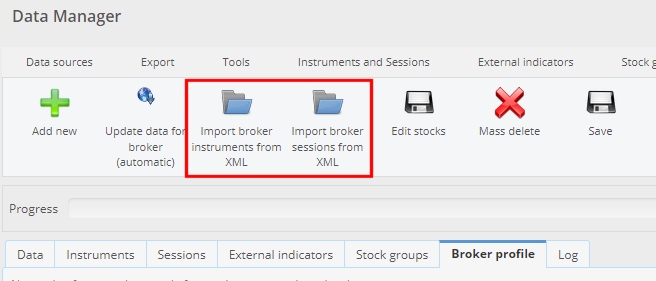
The script is available online or directly in SQ X installation folder
\custom_indicators\BrokerProfileInstrumentsSessionsScripts\Update_SQX_Instruments_information.ex5
この記事は参考になりましたか? この記事は役に立った この記事は役に立たなかった
Thanks. I don’t get how to use the FTMO settings in algowizard. Can you please explain?
Hello, could you please share more details? What do you mean by that?
To use a predefined FTMO Asset with its Symbol details, simply input the correct data and the appropriate sessions, in Trading Options.
Salve, manca lo script per MT4 c’è solo per MT5 nella cartella di installazione, potete caricare il file in modo da poterlo scaricare? Grazie
Dear Sir or Madame,
your MT4-script “Update_instrument_settings.ex4″ isn`t in the installation-Folder of the new SQx 141.
Where can i download it?
敬具
アルヴィッド
There is no Script folder for MT5. (SQX Build 141)
That is correct. The ExportProperties file is mean to be used only in MT4
How can I add IG Index CFD as a broker profile. I can export the mt4.properties but there does not seem to be any way to import that information to be used in SQ ?
Is there an example .xml available so I can see the format required for import ?
IG Index is a MT4 only broker so I have no option to move to MT5. Most UK regulated brokers are MT4 only offerings.
Broker profiles are meant to be exported from MT5 only. MT4 is not supported for this feature
How to configure broker profile to crypto download?
Broker profiles are supported only for MetaTrader 5 brokers. Let me know if any questions
I use TradeStation. How Do I set it up here?
Please, someone who could explain me why the point value (in dollars) that I get from the script, for instance for AUDxxx is different.
AUDCAD – 72941
AUDCHF – 124931
AUDJPY – 674
AUDUSD – 100000
I am probably wrong and there is an explanation, but a standard lot of AUD is 100.000 AUD, and that should be the same value of USD, around 65.000 USD, no matter if it is AUDCAD, AUDCHF or any other.
よろしくお願いします。.
In relation to my last message, I think I got it. It is true that the lot is 100k the base currency, but the pip value depends on the quote currency so it is not the same for different quote currencies. The point value refers to the amount of x times the pip value, for instance 10.000 times if the pip is 0.0001 For the AUDCAD the pip value is 7.2941 dollars, so the point value is 72941. That means that if we buy 1 lot (100k AUD) of AUDCAD and the pair move 1 point, our account moves 72941… 続きを読む »
Yes, that seems to be correct
When i execute this script, do i need to set any values manually? i.e: Commission per round lot