


 Inglês
 Espanhol
 Francês
 Italiano
 Alemão
 Japonês
Documentação
Aplicações
Última atualização em 19. 5. 2026 por Tomas Vanek
Integração de MCP
Conteúdo da página
O que é MCP
StrategyQuant X (SQX) and QuantDataManager (QDM) both run a Contexto do modelo Protocol (MCP) server while the application is open. Any MCP client, such as Claude Code or Claude Desktop, can connect to it and work with your projects, strategies and market data through a fixed set of tools.
The MCP server offers the raw tools of the product only. Q, the AI assistant built into the application, has its own knowledge (skills, rules, report recipes, background loops), and none of that is part of the MCP server. Your AI client brings its own reasoning and works with the application the way the command line or the user interface would.
Ativar o MCP no SQX
The server starts automatically with the application; there is nothing to switch on. The MCP Server dialog shows the address, ready-made commands for your client and the list of tools.
The address has the form
http://127.0.0.1:<port>/mcp
(MCP Streamable HTTP). The server uses the same port as Remote access, so always take the port from the dialog. SQX and QDM share that port, so only one of them serves it at a time; the server name in the MCP handshake (StrategyQuant X or QuantDataManager) tells you which product answered.
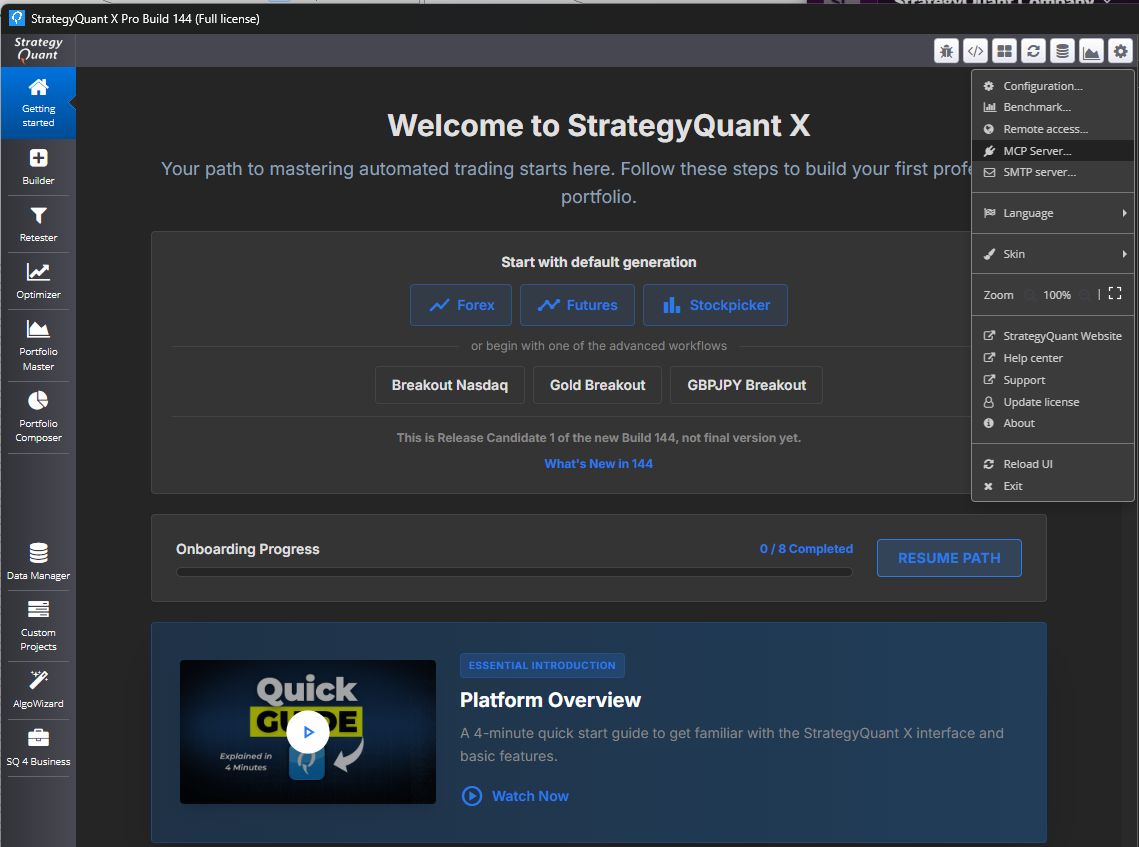
A caixa de diálogo mostra o URL do servidor e os comandos exatos necessários para conectar seu cliente de IA.
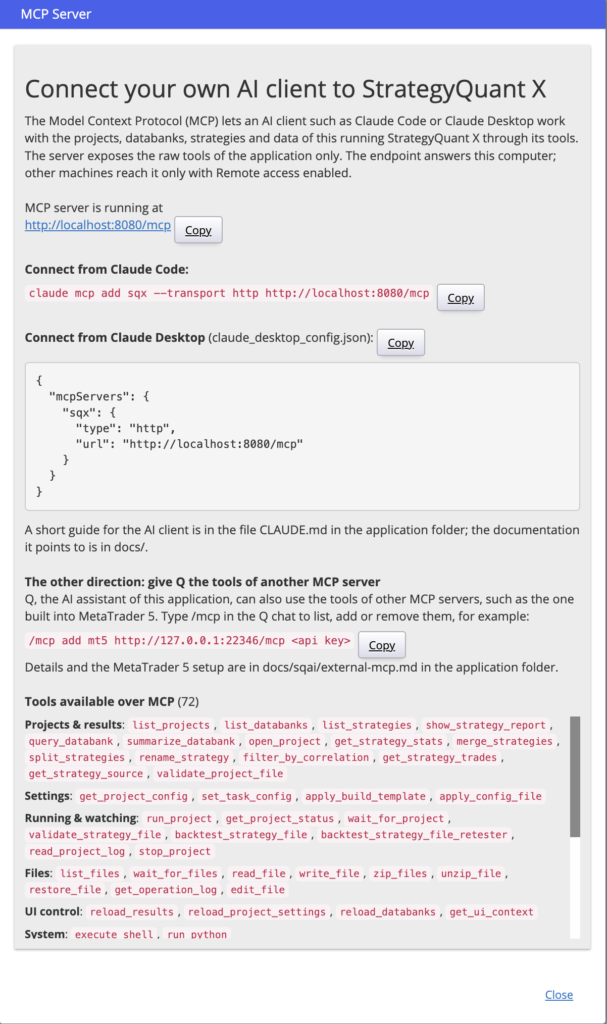
Conectar um cliente de IA
Área de trabalho do Claude
Add the following block to your claude_desktop_config.json file (find it under Configurações → Desenvolvedor dentro do Claude Desktop):
{
  "mcpServers": {
    "sqx": {
      "type" (tipo): "http",
      "url": "http://localhost:8080/mcp"
    }
  }
}
Reinicie o Claude Desktop depois de salvar o arquivo. As ferramentas SQX aparecerão automaticamente na próxima conversa.
Or you can use
Connect from Claude Code:
claude mcp add sqx --transport http http://localhost:8080/mcpFerramentas disponíveis
Uma vez conectado, seu cliente AI tem acesso às seguintes ferramentas SQX. Você pode listá-las a qualquer momento digitando list tools of sqx mcp no Claude Code.
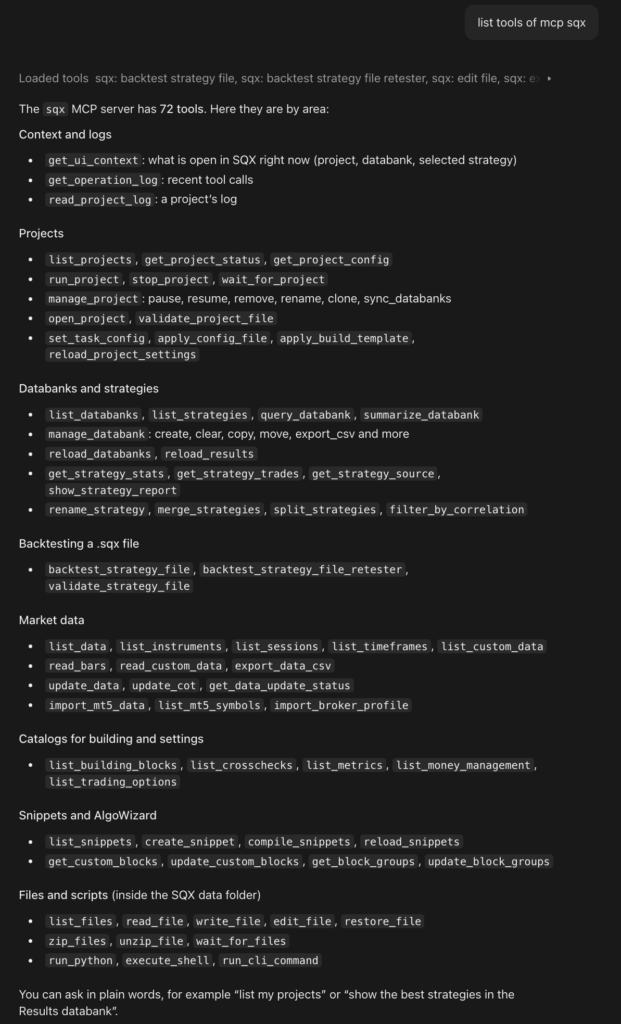
Available tools:
| Ferramenta | Descrição |
|---|---|
| get_ui_context | Return what the user sees in SQX right now: the open project, task, databank, and the selected or checked strategies. |
| get_operation_log | Return the most recent tool calls (when, which tool, arguments, success). |
| read_project_log | Read the log of a project. |
| list_projects | List all available SQX projects with their databanks and strategy counts. |
| get_project_status | Return the current state of a project: running, paused or finished, active task, strategies generated/accepted/rejected, ETA. |
| get_project_config | Read a project's configuration, one task, or one section of a task. |
| run_project | Start running a project (e.g. launch the Builder or Retester). |
| stop_project | Interromper um projeto em execução. |
| wait_for_project | Wait until a running project finishes. |
| manage_project | Pause, resume, remove, rename or clone a project, or re-read its databanks from disk. |
| open_project | Register a .cfx project file in the running SQX without a restart. |
| validate_project_file | Check a .cfx project file for errors. |
| set_task_config | Change one section of a task's settings (data, money management, rankings and more). |
| apply_config_file | Save a project's task configuration to a .cfx file, or load one back. |
| apply_build_template | Apply a built-in Builder style template (Trend following, Mean reversal and more) to a Build task. |
| reload_project_settings | Reload a project's settings from disk. |
| bancos de dados | Lista todos os bancos de dados em um projeto. |
| list_strategies | List the strategies in a databank of a project. |
| query_databank | Return the databank table: strategies as rows, metrics as columns, sorted and paged. |
| summarize_databank | Summarize the strategies in a databank. |
| manage_databank | Create, remove or clear a databank; copy, move or delete strategies; save or load reports; export to CSV/XLSX. |
| reload_databanks | Reload databanks from disk. |
| reload_results | Reload results from disk. |
| get_strategy_stats | Estatísticas de desempenho de retorno para uma estratégia específica (aptidão, lucro líquido, número de negociações, índice de Sharpe, rebaixamento e muito mais). |
| get_strategy_trades | Return the closed trades of a strategy (times, prices, P/L, MAE/MFE, running balance), optionally as a CSV file. |
| get_strategy_source | Return a strategy's pseudocode, XML, or platform code (MetaTrader, NinjaTrader and more). |
| show_strategy_report | Show a strategy's report card: statistics table and equity curve. |
| rename_strategy | Rename a strategy in a databank. |
| merge_strategies | Merge two or more strategies into one portfolio strategy. |
| split_strategies | Split a portfolio strategy back into its strategies. |
| filter_by_correlation | Delete the weaker strategy from every pair whose P/L correlation is above a limit. |
| backtest_strategy_file | Backtest a single .sqx file with its own saved settings and return its statistics and report card. |
| backtest_strategy_file_retester | Backtest a .sqx file with a project's settings (load, run, wait, return results in one call). |
| validate_strategy_file | Check a .sqx file for structural errors without running it. |
| list_data | List imported market data: symbols with date range, timeframe and bar count. |
| list_instruments | List instruments with point value, tick size, spread, commissions and swaps. |
| list_sessions | List trading-session templates (market hours). |
| list_timeframes | List the timeframes SQX supports. |
| list_custom_data | List external and custom indicators (COT, fundamentals, custom feeds). |
| read_bars | Read price bars of a symbol. |
| read_custom_data | Read values of external or custom indicator data. |
| export_data_csv | Export imported price data to a CSV file. |
| update_data | Download or update market data. |
| update_cot | Download or update COT data. |
| get_data_update_status | Show live download progress per symbol. |
| import_mt5_data | Import price history from a MetaTrader 5 terminal. |
| list_mt5_symbols | List the symbols a MetaTrader 5 terminal offers. |
| import_broker_profile | Import a broker profile XML (brokers, sessions, instruments). |
| list_building_blocks | List Builder building blocks: indicators, rules, operators, order and exit types. |
| list_crosschecks | List available cross-checks (Monte Carlo, Walk-Forward, What-If and more). |
| list_metrics | List fitness functions and databank metrics with their exact names. |
| list_money_management | List money and risk management methods with their settings. |
| list_trading_options | List trading options (session filters, reserved bars and more) with defaults. |
| list_snippets | List built-in and custom snippets (indicators or source files). |
| create_snippet | Create a custom snippet (indicator, signal, column, statistic, money management and more) from a template. |
| compile_snippets | Compile one or all snippets and return any compiler errors. |
| reload_snippets | Reload snippets in the running SQX. |
| get_custom_blocks | Read AlgoWizard custom blocks. |
| update_custom_blocks | Change AlgoWizard custom blocks. |
| get_block_groups | Read AlgoWizard block groups. |
| update_block_groups | Change AlgoWizard block groups. |
| list_files | List files and folders in the SQX data directory. |
| read_file | Read a text file in the SQX data directory. |
| write_file | Write a text file in the SQX data directory (previous version kept for undo). |
| edit_file | Replace an exact piece of text in a file (previous version kept for undo). |
| restore_file | Restore the previous version of a file changed by write_file or edit_file. |
| zip_files | Pack files into a zip or .cfx archive. |
| unzip_file | Extract a zip or .cfx archive. |
| wait_for_files | Wait until exported files are written. |
| run_python | Run Python code on the Python bundled with SQX (numpy, pandas, matplotlib). |
| execute_shell | Run a shell command in the SQX data directory. |
| run_cli_command | Run an SQX command-line command. |
Exemplos de uso
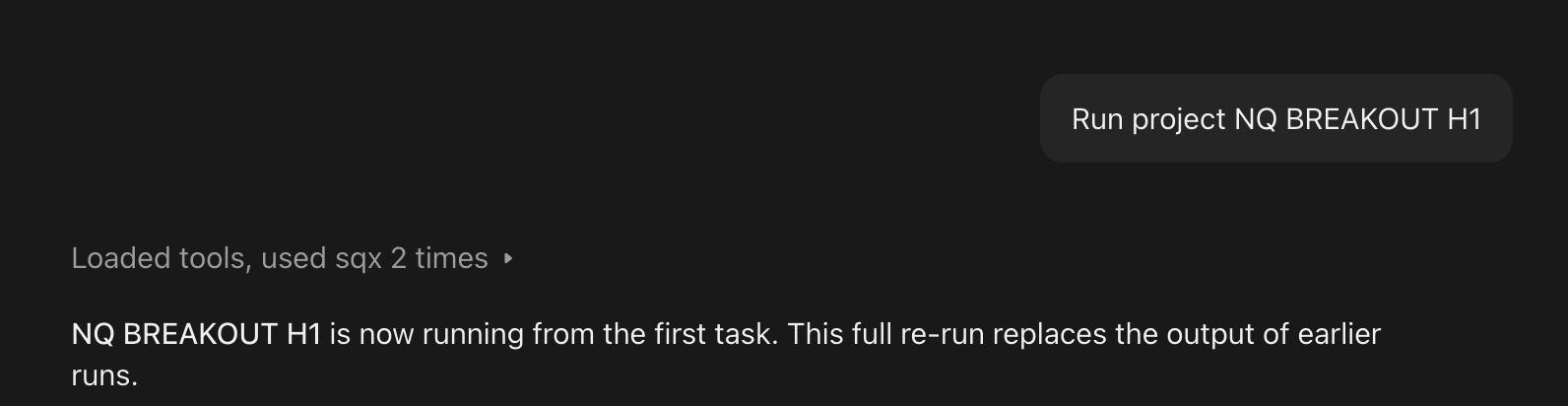
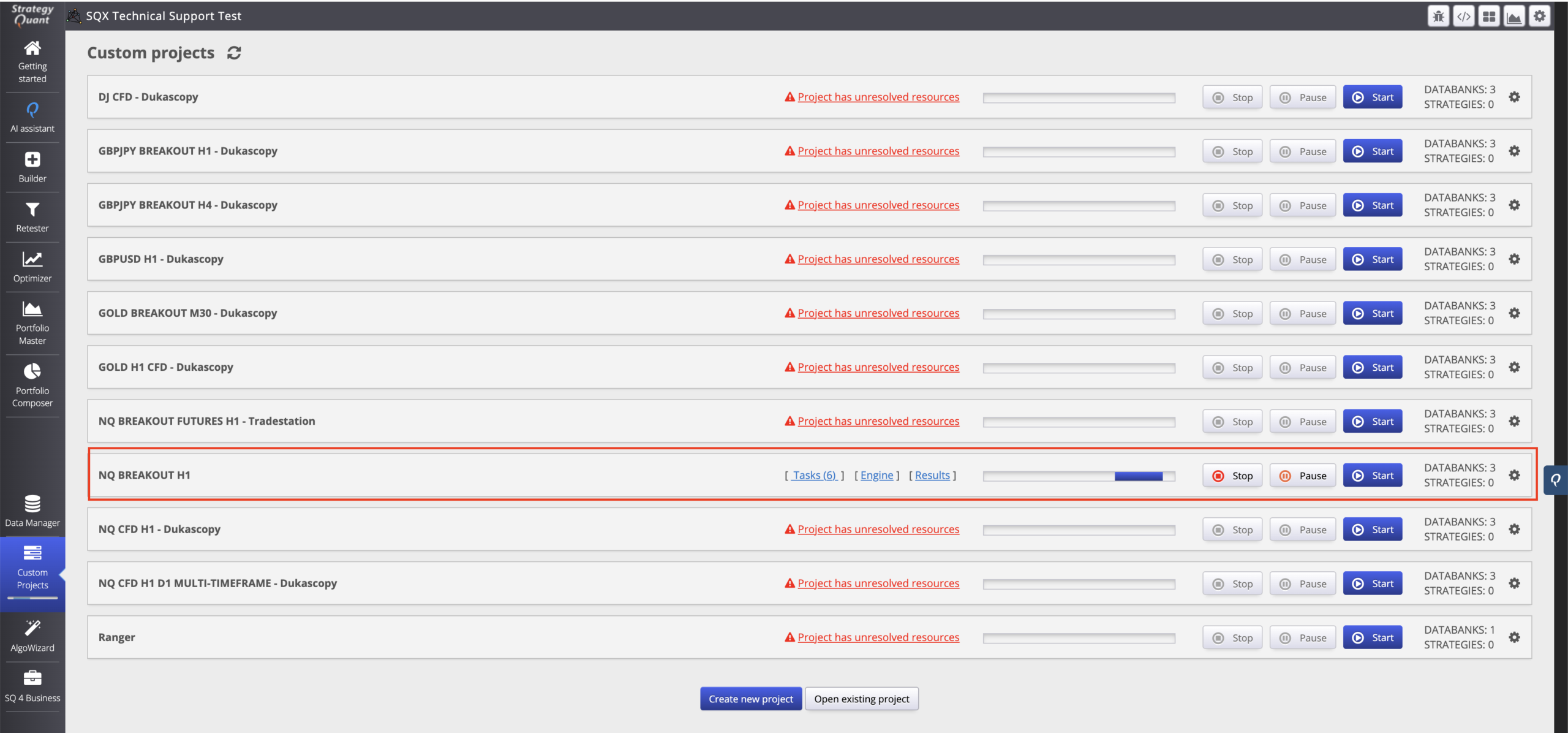
Execução de um projeto
Peça ao Claude para localizar e iniciar um projeto pelo nome. Claude listará os projetos disponíveis, identificará o correto e chamará run_project - tudo em um único turno de conversa.
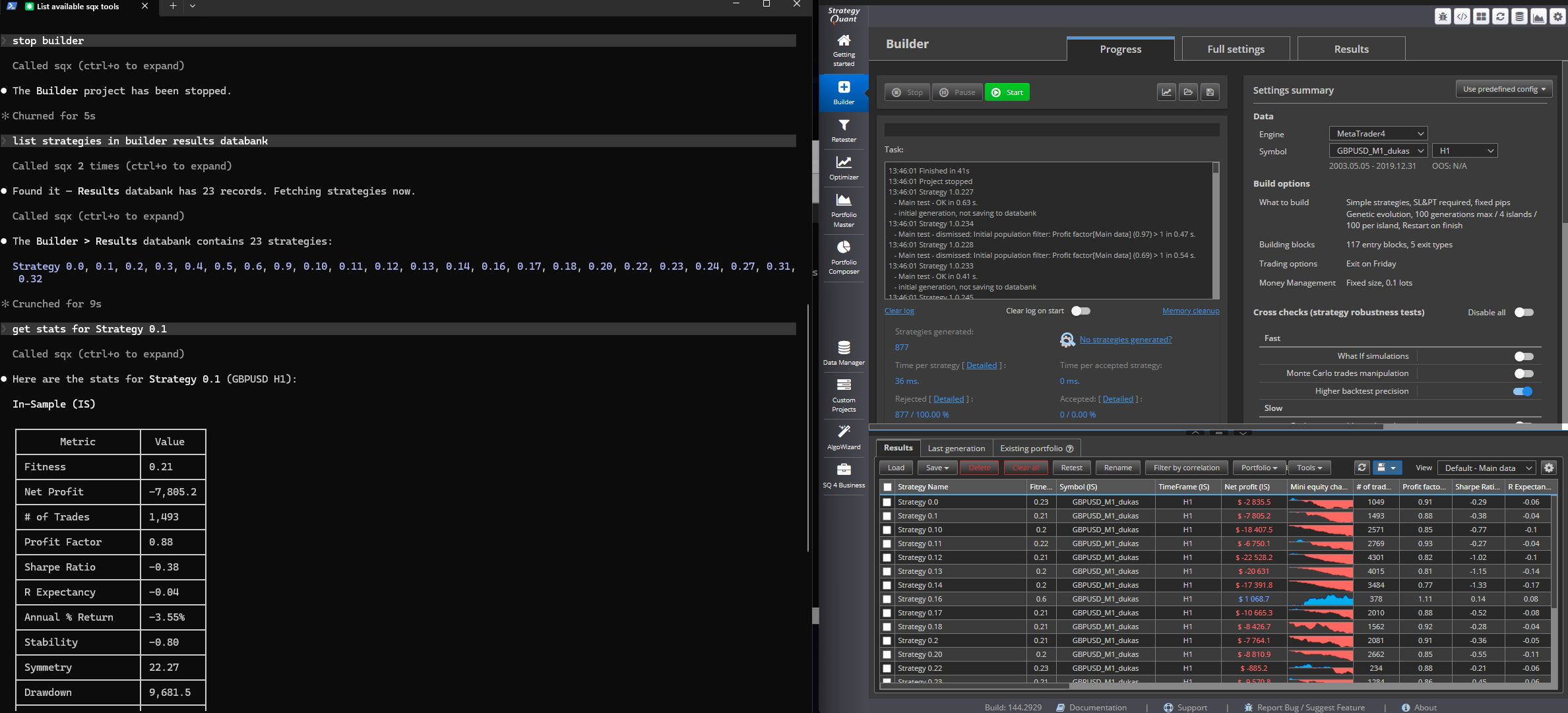
Inspeção de estatísticas de estratégia
Peça ao Claude para listar estratégias de um banco de dados e recuperar estatísticas detalhadas de qualquer uma delas. Os resultados são apresentados como uma tabela estruturada diretamente na conversa.
Tools in QuantDataManager
QDM has no projects, databanks, strategies, snippets or building blocks, so it serves only the tools its screens back: 27 built-in tools. A call to an SQX-only tool is answered with "Tool not found".
Avaible tools:
| Categoria | What you can do | Ferramentas |
|---|---|---|
| Dados | Same 13 data tools as SQX: symbols, bars, CSV export, downloads, custom data, MetaTrader 5 import (the MT5 import screen), broker profiles (Broker profiles > Import), COT (the COT button) | list_data, list_instruments, list_sessions, list_timeframes, read_bars, export_data_csv, get_data_update_status, list_custom_data, read_custom_data, list_mt5_symbols, import_mt5_data, import_broker_profile, update_cot |
| CLI & admin | Run one qdmcli command (-symbol, -instrument, -data, -stockgroup, -brokerprofile, -license); download fresh data (the Update button) | run_cli_command, update_data |
| Arquivos | Same file tools as SQX | list_files, read_file, write_file, edit_file, zip_files, unzip_file, restore_file, wait_for_files, get_operation_log |
| System | Python on the bundled runtime, shell commands | run_python, execute_shell |
| UI control | The screen the user has open (the selected symbol is not reported) | get_ui_context |
| Custom AI tools | Your own ext_* snippet tools, when any exist | ext_* |
Downloads started by update_data and import_mt5_data run in the background; get_data_update_status reports their progress. Exported CSV files use these headers: bars Date,Time,Open,High,Low,Close,Volume (Date yyyyMMdd, Time HH:mm:ss), ticks DateTime,Bid,Ask,Volume, custom data Date,<value columns> (Date yyyy.MM.dd HH:mm:ss).
How the tools work
- Paths are relative to the install folder. Absolute paths inside it work too; anything outside the folder is refused.
- Working folder: everything a tool writes without an explicit target (CSV exports, trade lists, generated source code, backtested strategy files) lands in user/mcp-work/. Pass your own path to put it elsewhere inside the install folder.
- Resultados are JSON. A failed call carries isError and an error message. A long listing says truncated and accepts offset and limit.
- Long operations (run_project, wait_for_project, export_data_csv, wait_for_files) wait on the server in steps of up to 300 seconds, so your client never has to poll in a loop.
- Python runs on the Python 3.13 runtime bundled with the application, with numpy, pandas and matplotlib. Each run_python call gets a fresh output folder in user/mcp-work/analyses/ (environment variable SQX_OUT_DIR); inline scripts are kept in user/mcp-work/scripts/.
- Undo: write_file and edit_file keep a snapshot of the previous content; restore_file puts it back. get_operation_log lists what was already done.
- get_ui_context asks the open application window what the user is looking at. It times out when no window is open.
Who can connect
The tools write files and start runs, so by default the server accepts connections from your own computer only. Connections from other machines follow the Remote access setting (Settings > Remote access...).
execute_shell runs with your full user permissions and is not limited to the install folder. Every call is logged; review get_operation_log if you are unsure what a client did.
What MCP does not expose
| Not available over MCP | Por que |
|---|---|
| Q's skills, rules, agents, commands and report recipes | They belong to Q inside the application |
| Report building and PDF export of reports | Q's report pipeline is bound to a chat session |
| Background loops (scheduled wake-ups) | Q's autonomous runs are bound to a chat session |
| Clicking through the UI and the AlgoWizard editor tools | They need the user's explicit go-ahead in the chat |
| Web search and fetch | Your client has its own |
| Q's own files (internal/web/SQAI/) and StrategyQuant's own AI plugins in user/extend/AIPlugins/ | Chat history, sessions, configuration and compiled engines of the assistant |
Your own AI plugins in user/extend/AIPlugins/ and your own ext_* snippet tools stay reachable.
The other direction: Q uses other MCP servers
Q, the assistant built into SQX and QDM, can also use the tools of outros MCP servers, such as MetaTrader 5's built-in MCP server, a server on your computer or a remote data service. Add one with the /mcp command in the Q chat. The last section of the MCP Server dialog points to this as well.
Details and the MetaTrader 5 setup are in docs/sqai/external-mcp.md in the application folder.
Be sure to check out our video tutorial for more details:
https://www.youtube.com/watch?v=LqtKGyeio50
Este artigo foi útil? O artigo foi útil O artigo não foi útil
Excelente!