

 Inglese
 Spagnolo
 Portoghese
 Francese
 Tedesco
 Giapponese
Documentazione
Applicazioni
Last updated on 29. 10. 2026 by Tomas Matejka
Backtesting and Trading with NinjaTrader 8
Contenuto della pagina
This guide covers the integration of StrategyQuant X with NinjaTrader 8, including historical data management, trading sessions, strategy backtesting, and live trading.
It provides step-by-step instructions and best practices to help you maintain consistent data and testing configurations across both platforms, validate exported strategies, and prepare them for automated trading.
Version requirement: Native NinjaTrader 8 backtesting and NinjaScript strategy export were introduced in the StrategyQuant X Build 145 series. Use a build that includes this integration.
1. Installing StrategyQuant Custom Indicators
StrategyQuant X includes NinjaTrader 8 indicators for exporting historical price data and trading session definitions into formats compatible with StrategyQuant X.
- SqDataExport exports historical OHLCV bars from a NinjaTrader chart.
- SqSessionExport exports NinjaTrader Trading Hours templates.
Find the indicator source files in your StrategyQuant X installation folder:
{StrategyQuantX}\custom_indicators\NinjaTrader\Indicators
Copy the indicator files into the NinjaTrader 8 indicator directory:
Documents\NinjaTrader 8\bin\Custom\Indicators
Aperto NinjaTrader 8 → New → NinjaScript Editor and press F5 to compile. Make sure compilation completes without errors. The indicators should then appear in the StrategyQuant folder in the NinjaTrader Indicators window.
2. Exporting Trading Sessions
Trading Hours templates define when the market is open and when a trading day ends. Consistent sessions help both platforms build comparable bars and trading signals.
Export sessions from NinjaTrader 8
- Open an instrument chart in NinjaTrader 8.
- Aggiungi StrategyQuant → SqSessionExport.
- Choose the desired export mode. The export runs automatically when the chart data is loaded.
- Check the NinjaScript Output window for the export result.
The default output file is Documents\NinjaTrader 8\SQX\Sessions.xml.
| Export mode | What it exports |
|---|---|
| ChartTradingHours | The Trading Hours template assigned to the current chart (default). |
| AllTemplates | All Trading Hours templates available in NinjaTrader 8. |
| NamedTemplates | Only the templates specified in Template names (comma- or semicolon-separated). |
Il Target time zone parameter is optional. Leave it empty to preserve each template’s original session times. You can also change the output folder and file name. A conversion is refused if the two time zones do not maintain a constant offset throughout the year.
Import sessions into StrategyQuant X
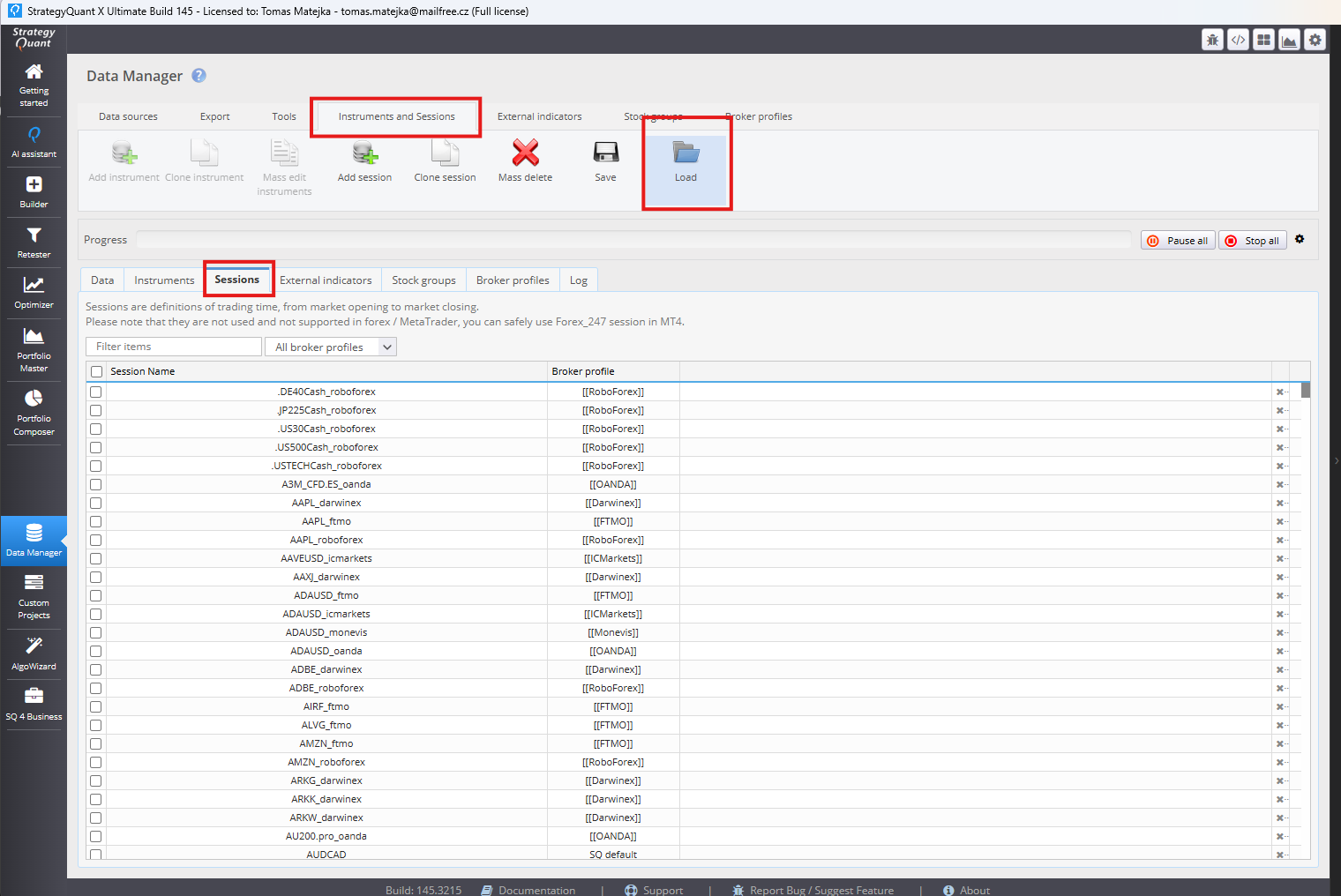
- Aperto StrategyQuant X → Data Manager → Instruments and Sessions.
- In the Sessions section, click Carico and select Sessions.xml.
- Assign an imported session, such as CME US Index Futures ETH, to the corresponding instrument.
Importante: Regular trading hours and end-of-day boundaries are exported, but exchange holidays and partial trading holidays are not. The time zone defined in a NinjaTrader Trading Hours template may be different from the time zone used to display chart timestamps.
3. Exporting Historical Data
SqDataExport exports OHLCV data from the loaded NinjaTrader chart into a text file that StrategyQuant X can import. The exporter supports Minute and Daily bars only; it does not export tick, second, range, volume, or other bar types.
Step 1: Check the NinjaTrader time zone
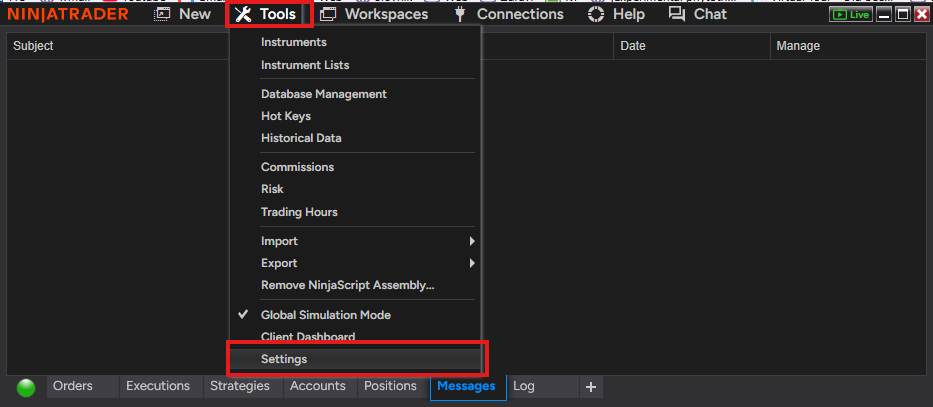
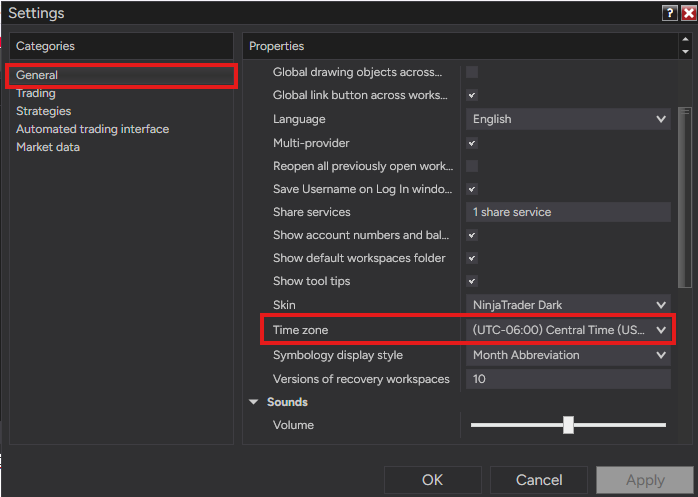
In NinjaTrader, open Tools → Settings → General → Time zone (menu wording may vary by version). The time zone configured here determines the timestamps displayed on the chart and written by SqDataExport.
When importing the data into StrategyQuant X, select the same time zone come il Fuso orario dei dati importati. This is essential for aligning timestamps and sessions. After changing NinjaTrader’s time zone, restart or reload the platform and chart as needed before exporting.
Step 2: Configure futures Merge Policy, if needed
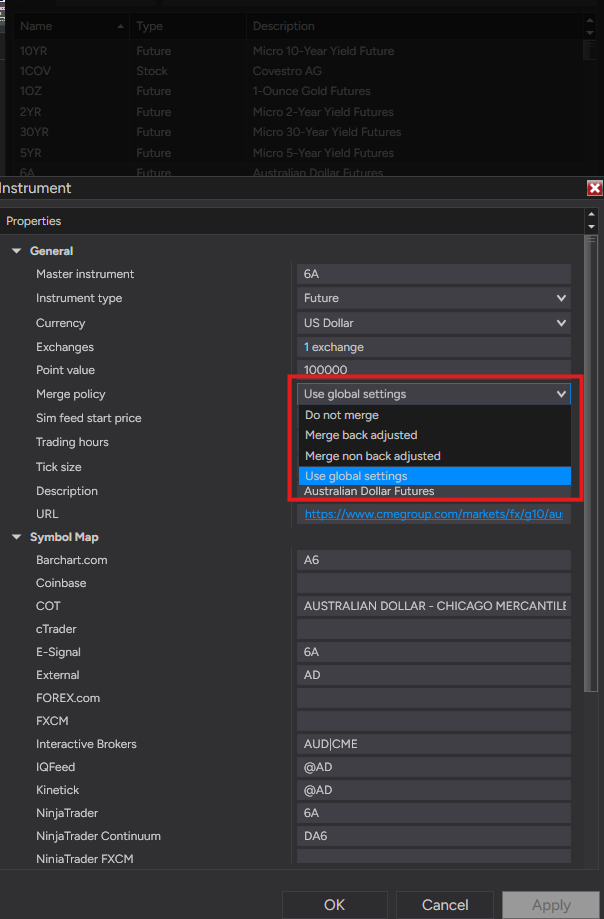
Futures contracts expire. When your requested history spans multiple expirations, NinjaTrader can construct a continuous series according to its Merge Policy:
- Do not merge: loads the selected contract expiration only.
- Merge non back adjusted: joins contract histories without offsetting older prices, so rollover gaps may appear.
- Merge back adjusted: joins contract histories and applies rollover offsets to older prices to reduce discontinuities.
For longer futures histories, Merge back adjusted is often useful. Set it globally through Tools → Options → Market Data → Global merge policy, or configure a specific instrument under Tools → Instruments → Edit. Reload the chart after making changes.
Back-adjusted prices can differ from unadjusted historical contract prices. SqDataExport writes the series already prepared by NinjaTrader; it does non perform rollover adjustments itself. Back adjustment does not replace missing historical data.
Reference: NinjaTrader Merge Policy documentation.
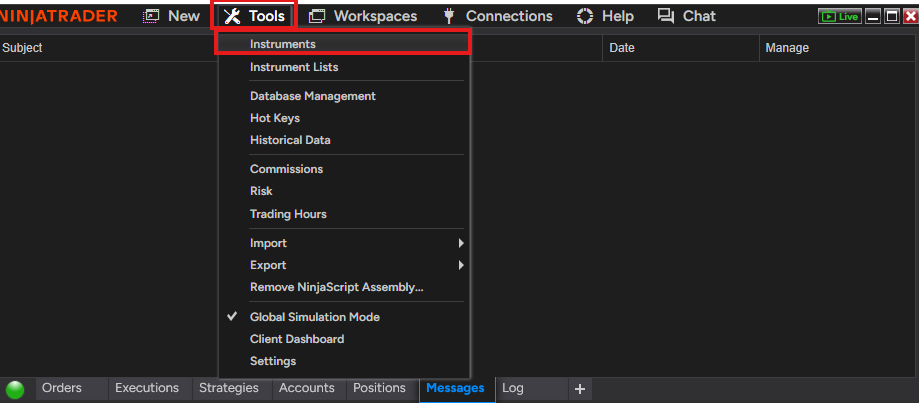
Step 3: Load and export historical bars
- Open a chart of the instrument you want to export (for example, NQ 12-26).
- Select a supported Minute o Giorno bar period. For constructing higher timeframes in SQX, a 1-minute base series is generally useful.
- Set Days to load to cover the desired date range and select the correct Trading Hours template.
- Wait until the historical bars have loaded, then add StrategyQuant → SqDataExport to the chart.
The file is written automatically to Documents\NinjaTrader 8\SQX\ by default. A typical file name is NQ 12-26 1 Minute.txt. The Output folder e File name indicator parameters can be changed.
The file contains Date, Time, Open, High, Low, Close, and Volume, with end-of-bar timestamps. The exporter skips minute bars with timestamps later than the current time; daily bars are not filtered in that way. Check the chart and the exported date range before importing.
Il NinjaScript Output window (click New → NinjaScript output) reports the file path, number of exported bars, first and last timestamps, and the NinjaTrader time zone. The indicator exports only bars already loaded in the chart; it does not download additional history.
Step 4: Create the instrument in StrategyQuant X
Before importing the file, configure the instrument’s contract specifications in StrategyQuant X → Data Manager → Instruments and Sessions → Add Instrument.
Use the actual NinjaTrader instrument definition as your source: NinjaTrader 8 → Tools → Instruments → select instrument → Edit. In particular, check:
- Tick size: minimum allowed price increment. For futures, use this value for both Dimensione Pip/Tick e Passo Pip/Tick in SQX.
- Point value: monetary value of a full 1.0-point price move for one contract. Copy it to the SQX Valore del punto impostazione.
- Valuta: the instrument’s quote or settlement currency.
- Trading Hours: select the equivalent imported session definition in SQX.
Example: E-mini S&P 500 Futures (ES)
| Parameter | Valore | Come si usa |
|---|---|---|
| Instrument type | Futures | Select the futures instrument type in SQX. |
| NT8 Tick size | 0.25 | Entrare 0.25 for SQX Pip/Tick size and Pip/Tick step. |
| NT8 Point value | 50 USD | Entrare 50 for SQX Point value. |
| Tick value | 12.50 USD | Calculated as 0.25 × 50. |
| Example default spread | 0 | Possible baseline for Last-trade futures OHLC data when costs are modeled separately; not a claim of zero real-world bid-ask spread. |
Tick value = Tick size × Point value. For ES, one tick is 0.25 × $50 = $12.50 per contract. Always verify the instrument’s actual specifications; do not blindly reuse the ES example for NQ, MNQ, or another market.
Set realistic commission, slippage, and spread assumptions. The original StrategyQuant TradeStation data import guide contains screenshots of the SQX Add Instrument e Add Symbol dialogs and explains the instrument fields.
Step 5: Import the exported data into StrategyQuant X
- Aperto Data Manager → Data Sources e fare clic su Add Symbol.
- Enter a descriptive name, for example NQ_NT8, and select the instrument created above.
- Set Tipo di dati a Timestamp is end of bar time (NinjaTrader8, Tradestation, futures data).
- Save the symbol, select it, and click Import File.
- Choose the .txt file exported from NinjaTrader.
- Select the predefined format NinjaTrader data (sqDataExport) if it is not detected automatically.
- Set Fuso orario dei dati importati to the same time zone that was configured in NinjaTrader for the export.
- Leave Tempistica on automatic detection and start the import.
After importing, compare the first and last bar timestamps and several OHLC values with the NinjaTrader chart. Also verify that the correct instrument and session have been assigned.
4. Backtesting Strategies in StrategyQuant X
In StrategyQuant X Builder → Full Settings → Data, select the NinjaTrader 8 engine, select the imported symbol, main trading timeframe, historical range. Now you can switch to Opzioni di trading and select intended trading session previously imported.
For example, an H1 Nasdaq strategy can use an imported M1 series from NinjaTrader, with the same CME index futures session assigned in SQX. StrategyQuant X can construct higher timeframes from suitable lower-timeframe data.
Configure trading costs and position sizing
Predefinito spread, slippage, and commission settings are configured at the instrument level in Data Manager → Instruments. They can also be overridden in Builder, Retester, or Optimizer under Full Settings → Data.
- Spread: the assumed bid-ask difference. For Last-trade futures OHLC data, zero can be used as a diagnostic baseline when execution costs are modeled separately.
- Slippage: assumed adverse execution movement, expressed in the unit expected by the SQX setting.
- Commission: broker fees. Verify whether the value is charged per side, per trade, or per round trip.
- Position size: use comparable quantities and money management in SQX and NinjaTrader.
For meaningful backtest comparisons, keep the same economic assumptions in both platforms. Avoid unintentionally counting a cost twice.
Multi-timeframe strategies and Shift
Strategies can evaluate signals on the main timeframe while referencing additional timeframes, for example an M15 strategy with an H1 trend filter.
Subcharts refer to the current bar of the evaluated series in its execution context. With the bar-close evaluation used by the exported strategies, it represents the most recently completed bar that is available at that point. Spostamento = 1 refers to the preceding bar of that series.
Choose the SQX backtest precision
The two precision modes used for this NinjaTrader 8 integration are Selected Timeframe e 1 Minute Data Tick Simulation. Their corresponding NinjaTrader Strategy Analyzer settings are shown in Section 5.
5. Backtesting Strategies in NinjaTrader 8
Select a strategy in the StrategyQuant X Databank, switch to Results → Source Code, and choose NinjaTrader 8 (*.cs).
Option A: Copy and paste the code
- Copy the complete generated NinjaScript source code from SQX.
- Aperto NinjaTrader 8 → New → NinjaScript Editor and create a strategy.
- Replace the template code with the exported source, save it, and compile using F5.
Option B: Save the .cs file
- Save the exported .cs file from SQX.
- Copy it into Documents\NinjaTrader 8\bin\Custom\Strategies.
- Open NinjaScript Editor and press F5 to compile.
Keep the file, class, and namespace consistent. If the strategy relies on custom indicators, install and compile those dependencies first.
Run the backtest in Strategy Analyzer
Aperto NinjaTrader 8 → New → Strategy Analyzer, selezionare Backtest, and choose the compiled strategy.
Match the instrument and contract, timeframe, date range, Trading Hours template, quantity, commissions, slippage, e order fill resolution with the SQX test. Use the same underlying historical data whenever possible.
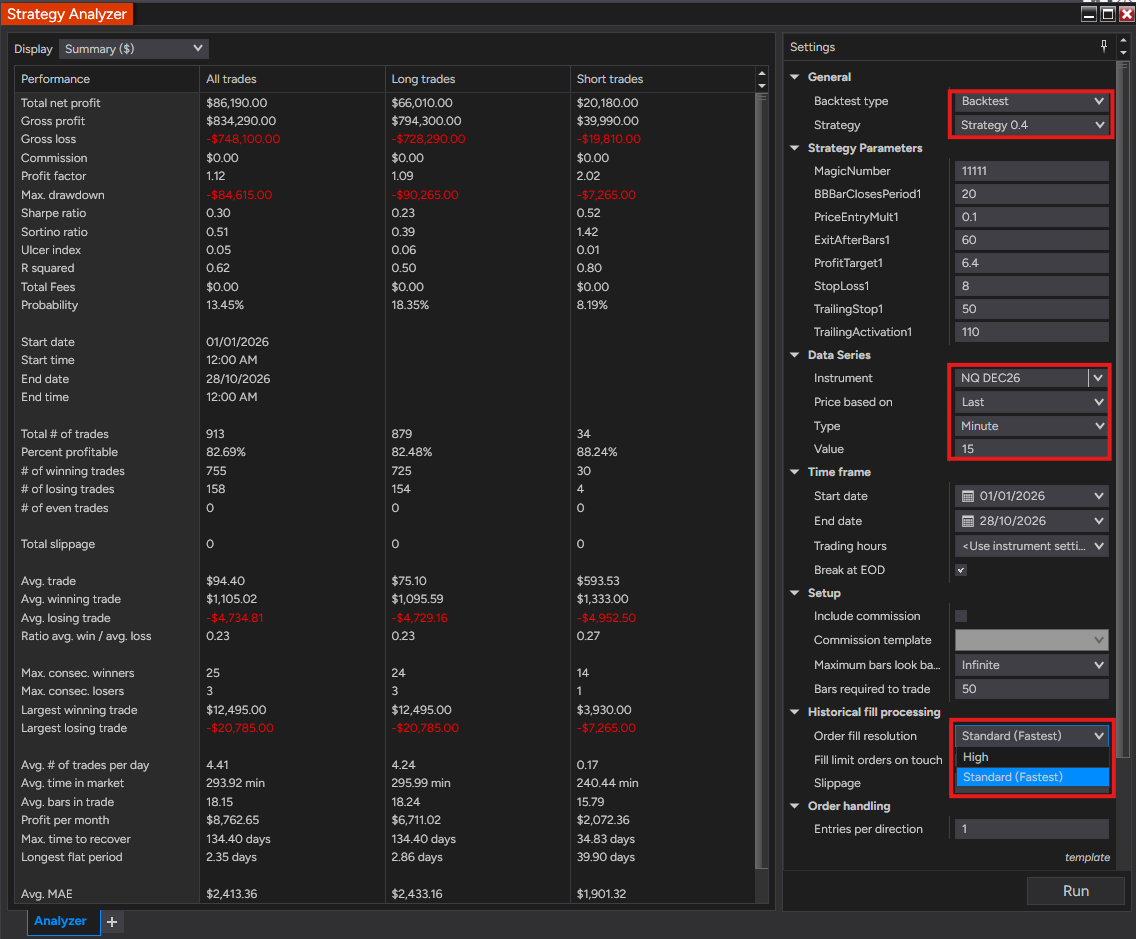
Matching backtest precision: SQX vs. NinjaTrader 8
For the StrategyQuant X NinjaTrader 8 integration, use the following direct mapping of historical testing precision:
| StrategyQuant X precision | NinjaTrader 8 Strategy Analyzer | Data used for historical fill simulation |
|---|---|---|
| Selected Timeframe | Standard (Fastest) | The selected strategy timeframe. |
| 1 Minute Data Tick Simulation | High → Minute → 1 | Additional 1-minute bars for higher-resolution fills. |
Entry signal evaluation remains On Bar Close in both precision modes. The exported NinjaScript follows this same bar-close signal evaluation. Changing historical fill resolution does non change the signal timeframe or cause entry conditions to be evaluated on every 1-minute bar. It changes how NinjaTrader simulates order execution within historical bars.
A bar-close entry signal is not necessarily filled at the signal bar’s closing price; execution follows the platform’s historical order processing rules. Matching precision modes also does not guarantee identical individual fills, because SQX and NT8 may differ in their internal execution algorithms.
Note on terminology: SQX 1 Minute Data Tick Simulation uses 1-minute OHLC data for simulated price movement in this workflow. It is not the same as a comparison using identical real tick-by-tick histories.
High order fill resolution and multi-timeframe strategies
NinjaTrader explicitly states that its built-in High Order Fill Resolution cannot be used with multi-timeframe or multi-instrument NinjaScript strategies (or with Tick Replay). This is a NinjaTrader restriction, not automatically an SQX bug. Historical high-resolution execution then requires a specifically programmed additional granular series and appropriate order routing; it is not achieved simply by switching the Strategy Analyzer setting.
Il SqDataExport importer/exporter workflow supports only Minute and Daily bars, so direct real-tick data transfer and matching real-tick backtests are outside the scope of this guide.
Riferimenti: NinjaTrader Historical Fill Processing e Multi-Time Frame & Instruments.
6. Matching Backtest Results Between StrategyQuant X and NinjaTrader 8
Different results do not automatically indicate a software bug. A discrepancy can come from historical data, sessions, strategy logic, cost settings, or the order fill simulation.
Backtest comparison checklist
- Historical data: compare bar timestamps, OHLC values, missing data, and futures rollover adjustments.
- Time zones and sessions: match the imported time zone, Trading Hours template, overnight boundaries, and daylight-saving transitions.
- Instrument specifications: check Tick size, Point value, contract quantity, and price rounding.
- Trading costs: check spread, commissions, and slippage. For diagnosis, temporarily compare costs-free executions first, then enable costs one at a time.
- Precision: confrontare Selected Timeframe ↔ Standard o 1 Minute Data Tick Simulation ↔ High / Minute / 1, subject to NinjaTrader’s multi-timeframe restriction.
- Signal evaluation: confirm the exported strategy runs entry logic Alla chiusura del bar; verify higher-timeframe synchronization and indicator warm-up.
- Order fills: inspect limit-order touch rules, intrabar stop-loss/profit-target collisions, order activation timing, and tick-size normalization.
Investigate the first different trade
Trova il first trade that differs rather than comparing only total profit or the equity curves.
- Se il signal differs, inspect bars, timestamps, sessions, indicators, and multi-timeframe logic.
- Se il signal matches but the fill differs, inspect order type, submission time, price normalization, and historical fill resolution.
- Se il trade matches but profit differs, inspect Point value, contract quantity, commissions, spread, and slippage.
Report a potential issue
If data and settings have been matched and the discrepancy is still unexplained, prepare a reproducible example including the SQX version, NT8 version, original .sqx file, generated .cs file, relevant data, test settings, and trade lists showing the first difference.
Report it through our support. A minimal example is generally more useful than a large report without an identifiable first discrepancy.
7. Live Trading Best Practices
After validating a strategy in both platforms, test it in NinjaTrader simulation before considering a live account. Historical backtests cannot reproduce every aspect of live order execution and connectivity.
Start with a simulation account
Verify that the strategy submits the expected orders and quantities, manages stops and targets correctly, respects session boundaries, and handles order rejections or disconnections as intended. Compare real-time simulation signals and fills with your expectations.
Understand Strategy Position vs. Account Position
NinjaTrader distinguishes the Strategy Position calculated by NinjaScript from the actual Account Position held in the selected account. They can differ after a restart, manual intervention, or reconnect.
Review Start Behavior options such as Wait until flat e Immediately submit. Some synchronization options can place or close real orders. Never enable them without understanding the consequences for the actual account.
Riferimenti: Strategy Position vs. Account Position e Syncing Account Positions.
Keep the trading environment reliable
Use a stable machine and market-data connection. Prevent unintended sleep or restarts during trading hours, monitor connections and error logs, and establish a procedure for handling an unexpected open position. Know which orders remain working at the broker or exchange and which depend on NinjaTrader being online.
Set appropriate operational limits for position size and losses, and know how to disable the strategy safely. After deployment, monitor missed signals, rejected orders, slippage, trading costs, and changes in execution quality.
Conclusione
StrategyQuant X and NinjaTrader 8 can be used together from historical data preparation and trading session setup through strategy development, backtest verification, and automated trading.
The most important principle is configuration consistency: use matching historical data, instrument specifications, sessions, time zones, bar-close evaluation, and corresponding backtest precision modes. When differences appear, investigate the first mismatching trade systematically.
Questo articolo è stato utile? L'articolo è stato utile L'articolo non è stato utile