


 Spanish
 Portuguese
 French
 Italian
 German
 Japanese
Documentation
Applications
Last updated on 19. 5. 2026 by Tomas Vanek
How to install StrategyQuant X and transfer your data from a previous version.
Page contents
Welcome screen
Choose Install for a fresh installation, or Migration Tool to copy data from an existing installation without installing again.
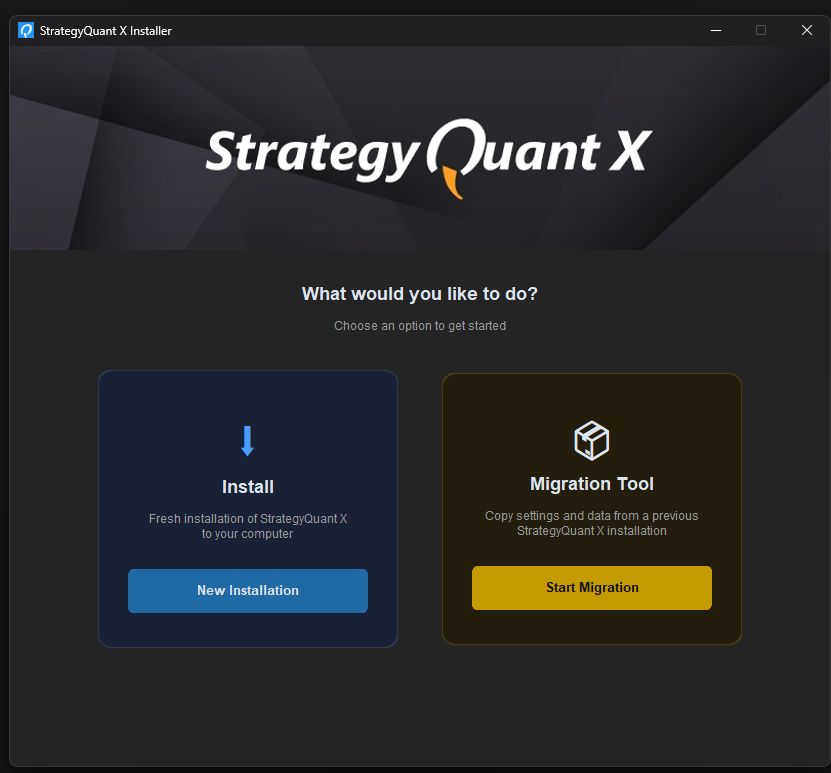
Installer screen
Set the installation folder (default: C:\StrategyQuantX<version> must be empty), check I agree to the Licensing and Service terms to enable the Install button, and optionally check Create desktop shortcut.
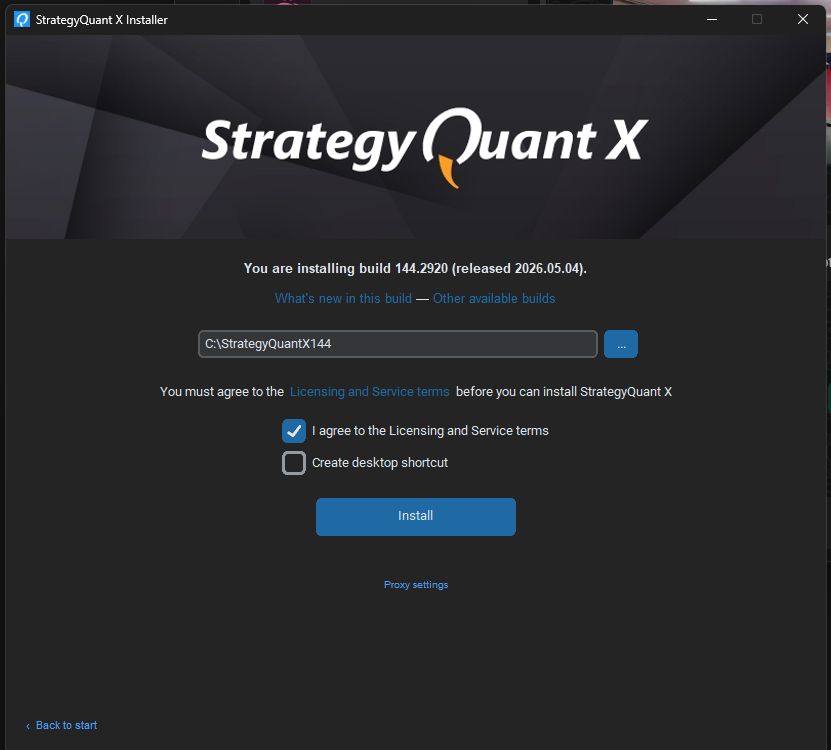
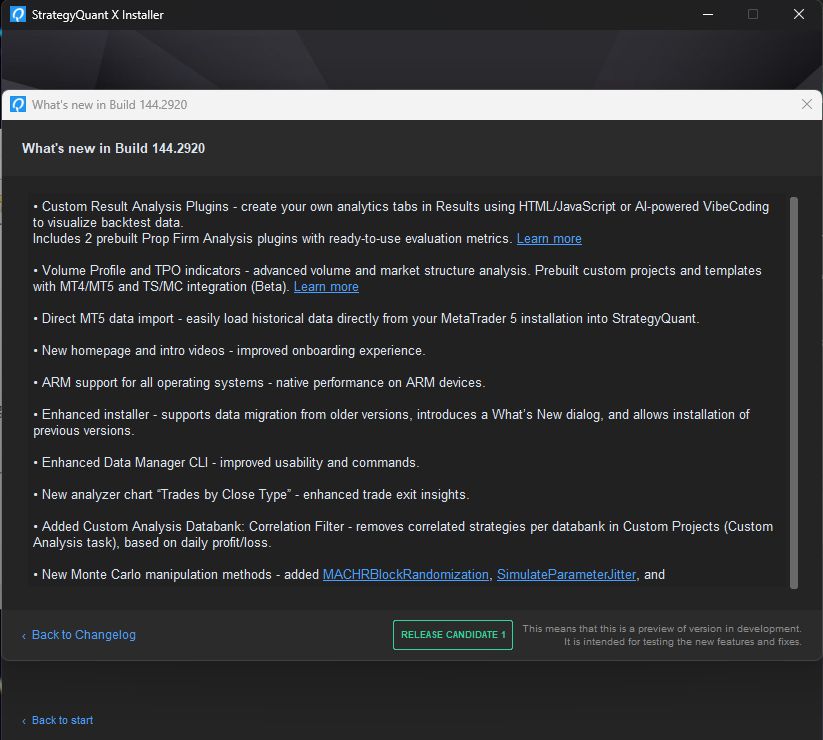
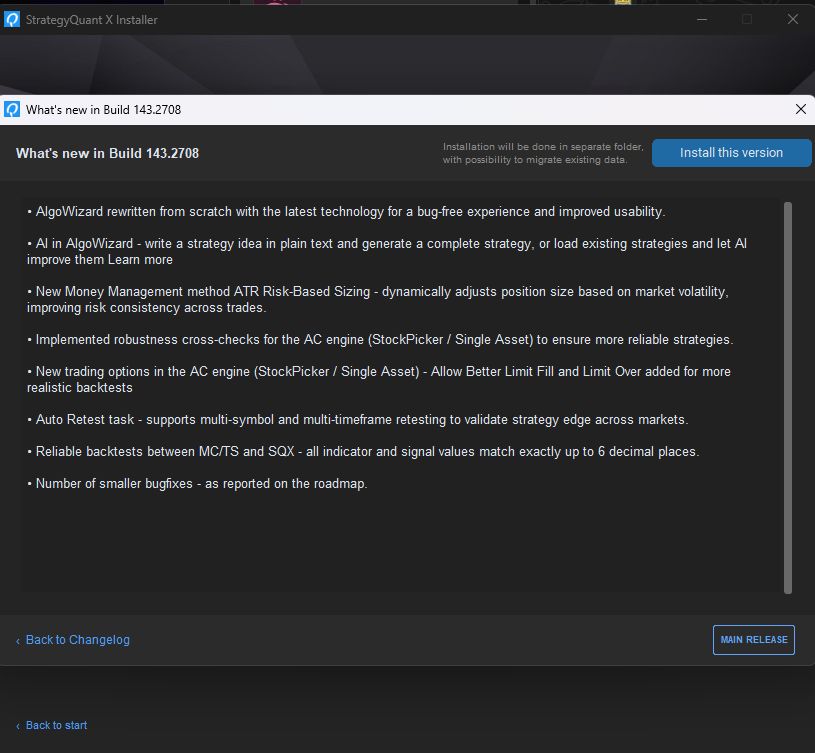
What’s new & other available builds
On the installer screen, click What’s new in this build to read the full changelog for the selected version. From there you can also go back to the Changelog, which lists all available builds — click Install this version on any entry to install that specific build instead of the latest one. Each version is installed into its own separate folder, with the option to migrate existing data.
Download & extraction
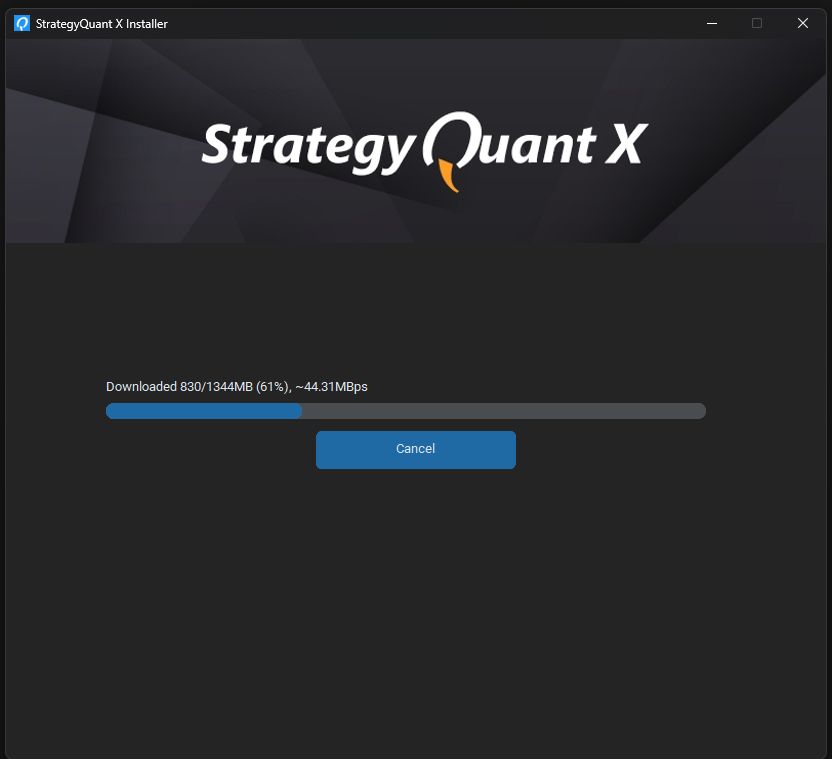
The installer downloads the package (showing MB, % and speed), verifies its checksum, extracts all files, and sets an optimized Java heap size based on your RAM. Do not close the window during this process.
Migration offer
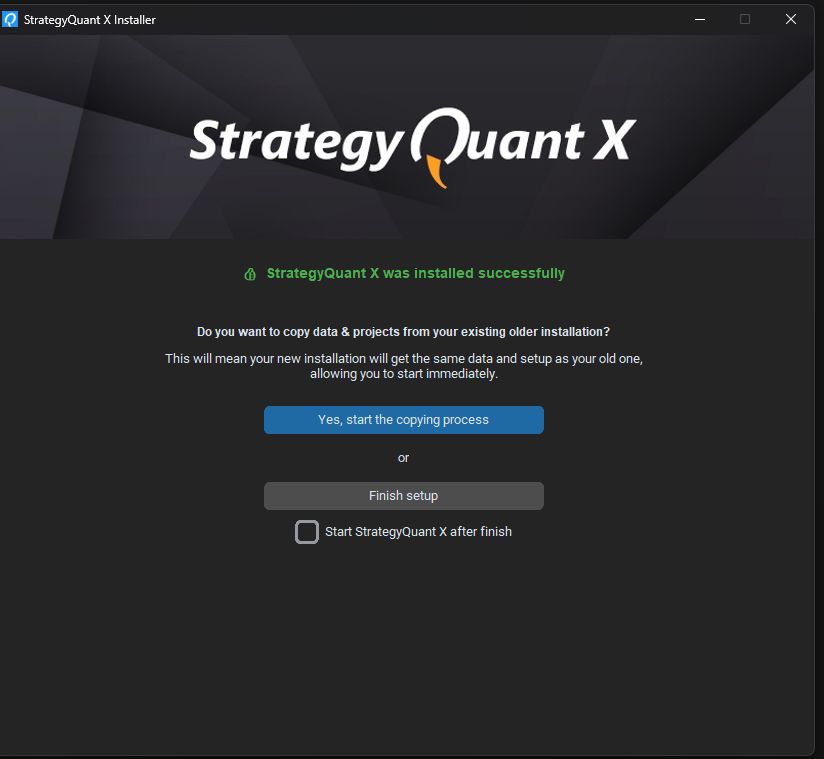
After a successful install the wizard asks if you want to copy data from your old installation. Click Yes, start the copying process to open the Migration Tool, or Finish setup to skip — you can always run the Migration Tool later from the welcome screen.
Migration Tool
The Migration Tool can be launched automatically after install, or at any time by running the installer and choosing Migration Tool on the welcome screen.
How to use it:
- Set the source folder — your old SQX installation (e.g. C:\StrategyQuantX143), the folder that contains StrategyQuantX.exe .
- The destination folder is your new installation — filled in automatically after install.
- Select what to migrate (all three categories are checked by default) and click Start Cloning.
- A progress bar and a detail line show the exact file being copied. Large data sets can take several minutes.
Advanced options
Click ▼ Advanced options for per-item control over what gets copied.
| Item | Default | What it copies |
|---|---|---|
| DATA | ||
| Historical data | ON | All downloaded price history — instruments and timeframes (user\data). |
| External indicators data | ON | Data for manually imported custom indicators (user\customdata). |
| PROJECTS | ||
| Projects | ON | All strategies, databanks and projects (user\projects). |
| Strategies | ON | Only .sqx strategy files. Uncheck to copy the project structure without strategy files. |
| Templates | ON | Saved templates (user\templates). |
| Views | ON | Databank, trade list, walk-forward and other saved views. |
| Settings | ON | Application settings and recently used paths (user\settings\settings.xml). |
| CUSTOM SNIPPETS | ||
| Extend folder | ON | Custom indicators and code snippets (user\extend). |
| Custom blocks | ON | Custom building blocks (user\settings\customBlocks.xml). |
| Random groups | ON | Random groups for strategy building (user\settings\blockGroups.xml). |
| SQ4Business | ON | SQ4Business project files (user\sqxbusiness). |
| OTHER | ||
| App configs | OFF | Copies StrategyQuantX.config, sqcli.config and CodeEditor.config. Off by default — the new installation sets an optimized memory config which the old file would overwrite. |
| Java runtime (j64) | OFF | Replaces the bundled Java runtime with the one from your old install. Leave off unless you use a customized Java runtime. |
Troubleshooting
Installation log
The installer always creates InstallatorLog.txt in the installation folder during the process. If everything finishes without errors the file is automatically deleted. If an error occurs, the log is kept — open it to see exactly what failed, or share it with support.
Close SQX before migration
If SQX is running, files will be locked and cannot be copied. Always close it completely before starting migration.
Historical data takes a long time
The user\data folder can be several gigabytes. Do not close the installer while the detail line below the progress bar is still updating.
Source folder not recognized
Point to the root of your old SQX installation (the folder containing StrategyQuantX.exe), not a subfolder inside it.
Proxy settings
Click Proxy settings at the bottom of the installer screen before download if your network requires a proxy.
Was this article helpful? The article was useful The article was not useful